
Manage DoorDash menus directly from Oolio One Back Office. Create and publish menus, update products and prices, and manage item availability from Back Office or the POS. Menu changes are published to DoorDash, while availability changes made from the POS are synced automatically.
Before starting
Ensure the following have been completed:
- Products have been created in Oolio One, see 🔗 Create a Product
- The DoorDash integration has been connected. See 🔗 Connect a Store to Doordash
Create and publish a DoorDash menu
DoorDash menus are created as Online Menus in Oolio One Back Office. Products can be organised into pages and categories, with a schedule to control when the menu is available for ordering.
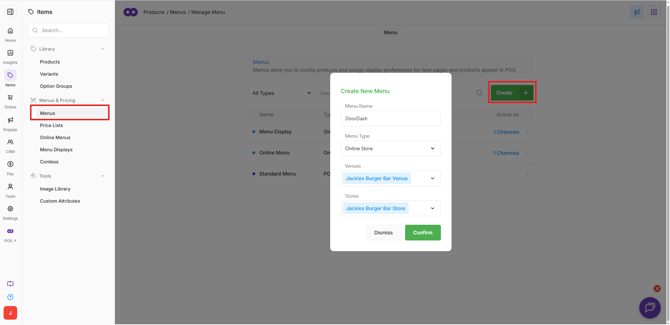
- In Oolio One Back Office, navigate to Items > Menus & Pricing > Menus.
- Create a new menu and select Online Store as the menu type.
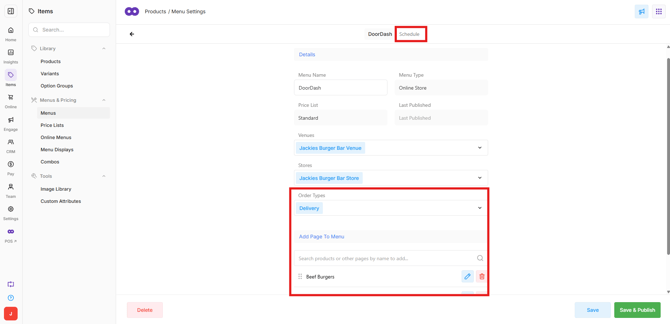
- Open the menu and select Delivery as the Order Type.
- Add the required pages, categories and products.
- Configure the menu Schedule to set the available ordering times.
- Select Save & Publish.
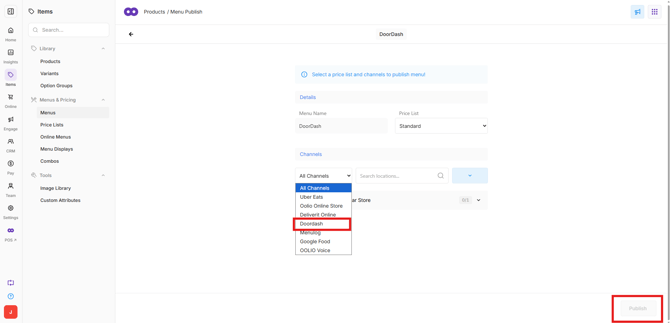
- From the All Channels dropdown, select DoorDash.
- Select the required Price List.
- Tick the checkbox next to the store.
- Select Publish.
The menu will be sent to DoorDash and should appear within 5 minutes.
For detailed instructions on creating and organising menus, see 🔗 Create an Online Menu.
Important: The Online Menu Schedule also controls DoorDash opening hours. Ensure the schedule includes all days and times when DoorDash orders should be accepted. See 🔗 Set Doordash Store Hours in Oolio One
Update products, prices and modifiers
Changes to DoorDash menus are managed in Oolio One Back Office rather than directly in DoorDash.
- In Oolio One Back Office, find the product, price or modifier to update.
- Make the required changes and select Save.
- Navigate to Items > Menus & Pricing > Menus.
- Open the DoorDash Online Menu.
- Select Save & Publish.
- Select DoorDash as the channel.
- Select the required store and Publish.
Changes are usually reflected on DoorDash immediately but may take up to 5 minutes.
Note: Some menu pages can be shared between POS, Kiosk and Online Menus. Changes to shared pages will also affect other menus using those pages.
Set different prices for DoorDash
Price Lists allow different prices to be configured for DoorDash without creating duplicate products.
For example, DoorDash products can have different prices from those charged in-store.
- In Oolio One Back Office, create a Price List for DoorDash.
- Configure the required product prices.
- Ensure the Price List schedule covers the relevant ordering times.
- Open the DoorDash Online Menu and select Save & Publish.
- Select DoorDash as the channel.
- Choose the DoorDash Price List.
- Select the required store and Publish.
The selected Price List determines the prices sent to DoorDash.
For more information, see 🔗 Create Price Lists.
Mark items out of stock
Products, modifiers, combos and variants can be marked unavailable from either Oolio One POS or Back Office.
Items marked unavailable are removed from DoorDash until they are manually made available again. Availability does not automatically reset at the end of the day.
From the POS
The POS provides a quick way to manage item availability during service.
- On the Oolio One POS, open the Function Map.
- Select the arrow to move to the next page of functions.
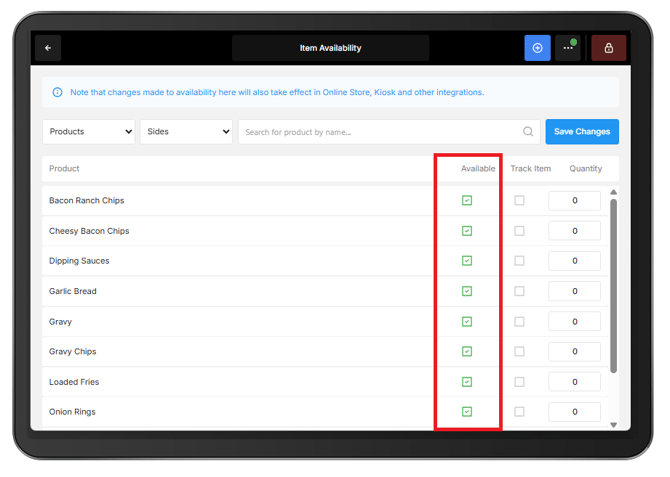
- Select Manager Functions > Item Availability.
- Find the required item using the search function or by browsing the available pages.
- Untick Available.
- Select Save Changes.
The availability change is automatically sent to DoorDash without needing to republish the menu.
Track item quantities
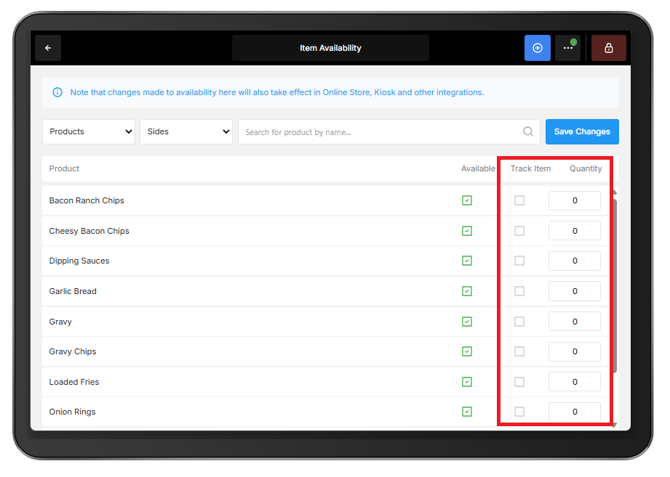
The Track Item function can be used to automatically mark items unavailable when stock reaches zero.
For example, if 10 portions of a special are available, a quantity of 10 can be entered. Each sale reduces the remaining quantity, and the item is automatically marked unavailable when the quantity reaches zero.
- Open Manager Functions > Item Availability on the POS.
- Find the required item.
- Enable Track Item.
- Enter the available quantity.
- Select Save Changes.
For more information, see 🔗 Track Item Availability.
From Back Office
Item availability can also be managed directly from an Online Menu in Oolio One Back Office.
- Navigate to Items > Menus & Pricing > Online Menus.
- Open the DoorDash Online Menu.
- Select the Products tab and then the item to mark unavailable.
- Under Availability, turn off the Available toggle for the relevant store.
- Select Save.
- Return to the Online Menu and select Save & Publish.
- Select DoorDash as the channel and Publish.
Important: Availability changes made in Back Office must be published using Save & Publish. Changes made from the POS are sent automatically.
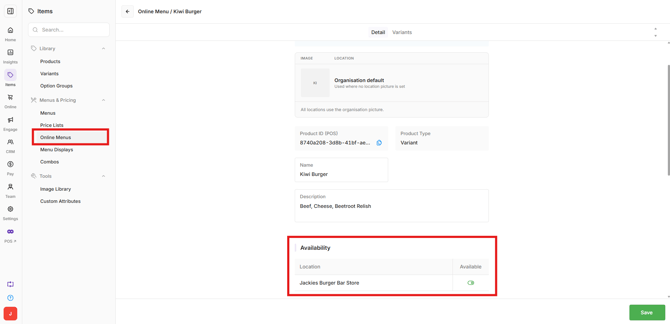
Availability can be managed separately for each store, allowing an item to be unavailable at one location while remaining available at another.
Changes should be reflected on DoorDash within 5 minutes.
Make items available again
When stock becomes available again, items can be re-enabled from either the POS or Back Office.
From the POS
- Open Manager Functions > Item Availability.
- Find the required item.
- Tick Available.
- Select Save Changes.
The change is automatically sent to DoorDash.
From Back Office
- Navigate to Items > Menus & Pricing > Menus.
- Open the DoorDash Online Menu and select the item.
- Under Availability, turn on the Available toggle for the relevant store.
- Select Save.
- Return to the menu and select Save & Publish.
- Select DoorDash and Publish.
The item should become available on DoorDash again within 5 minutes.
Troubleshooting
Menu changes are not appearing on DoorDash:
-
Changes may take up to 5 minutes to appear. If changes are not reflected, check that the Online Menu has been published using Save & Publish, with DoorDash selected as the channel and the correct store selected.
An item is missing from DoorDash:
-
Check that the item's page or category has been added to the DoorDash Online Menu and that the item is marked Available for the relevant store.
An item has automatically gone out of stock:
-
Check whether Track Item is enabled in the POS. If the tracked quantity reaches zero, the item is automatically marked unavailable.
-
Update the remaining quantity or disable Track Item if stock tracking is no longer required.
DoorDash prices are incorrect:
-
Check that the correct Price List was selected when publishing the menu and that the Price List schedule covers the current day and time.
-
After making pricing changes, publish the Online Menu to DoorDash again.
The DoorDash store is showing as closed:
-
Check the Schedule configured on the DoorDash Online Menu. The schedule determines when orders can be placed through DoorDash.
-
Ensure the schedule includes the required trading days and hours.