
Connect DoorDash to Oolio One Back Office to receive DoorDash orders directly in the Oolio One POS. Once connected, menus, prices and opening hours can be managed in Oolio One and published to DoorDash, without requiring a separate DoorDash tablet.
The integration allows DoorDash orders to be sent directly to the POS and kitchen, reducing manual order entry and keeping menu information consistent across both platforms.
Before starting
Ensure the following have been completed before connecting DoorDash:
- Oolio One account: The organisation and location have been configured in Oolio One.
- Online Menu: An Online Menu has been created for the location, including the required products and prices. See 🔗 Manage a DoorDash Menu in Oolio One.
- Opening hours: A schedule has been configured on the Online Menu. DoorDash uses this schedule to determine when the store is open for ordering. See 🔗 Set DoorDash Store Hours in Oolio One
- DoorDash account: An existing DoorDash account can be used, or a new account can be created during the connection process.
DoorDash account permissions
The DoorDash account used to connect the store must have one of the following roles:
- Business Admin
- Business Group Admin
- Franchise Admin
- Store Manager
Store Operator accounts cannot connect a store. An account administrator must complete the connection or update the account permissions.
Step 1: Prepare the Online Menu
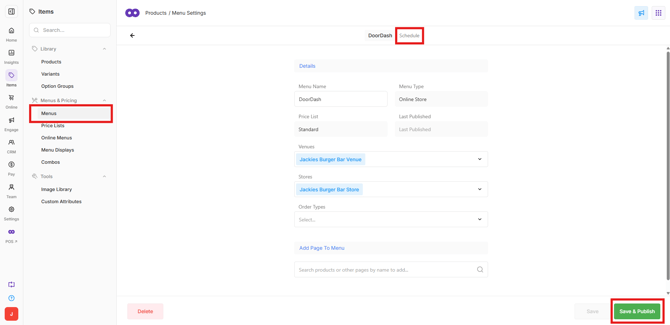
Before connecting DoorDash, ensure an Online Menu has been created for the location in Oolio One Back Office.
- In Oolio One Back Office, open Items > Menus & Pricing > Menus.
- Open the Online Menu that will be used for DoorDash.
- Check that the required products, prices and categories have been configured.
- Ensure a Schedule has been assigned to the menu.
For detailed instructions, see 🔗 Manage a DoorDash Menu in Oolio One.
Step 2: Add DoorDash as an online ordering channel
DoorDash is connected to an individual location in Oolio One Back Office.
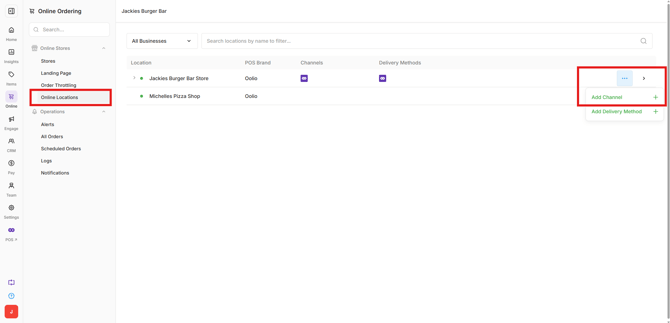
- In Oolio One Back Office, open Online > Online Locations.
- Select the Options Menu (⋯) on the location to connect.
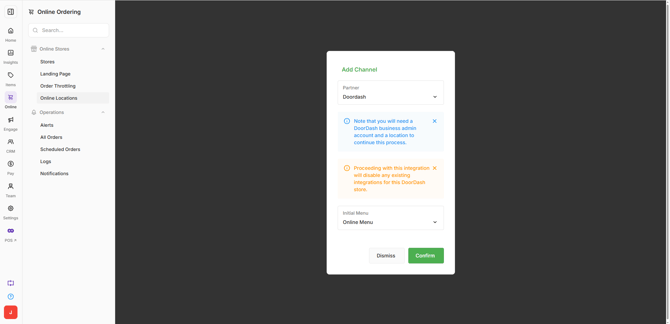
- Select Add Channel.
- Choose DoorDash from the available channels.
- Select the Online Menu to use for DoorDash.
Step 3: Sign in to DoorDash
After selecting DoorDash as the channel, the DoorDash sign-in screen will open.
- Enter the DoorDash account email address and password.
- Complete the sign-in process.
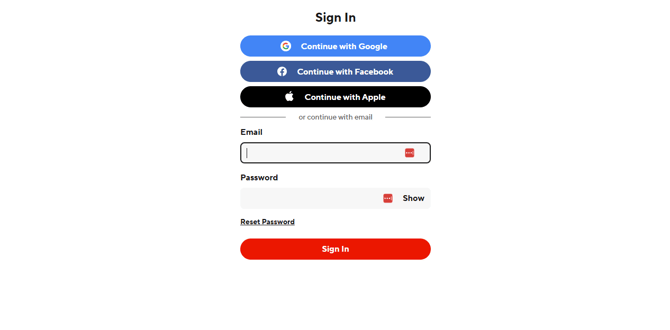
Note: For stores that are new to DoorDash, a new DoorDash account can be created during the connection process.
Step 4: Select the DoorDash store
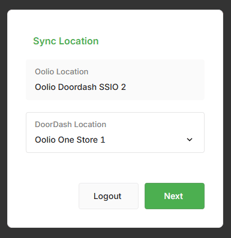
Once signed in, the available DoorDash stores will be displayed.
- Open the DoorDash store dropdown.
- Select the DoorDash store to connect to the Oolio One location.
- Continue to the next step.
Each Oolio One location can be connected to one DoorDash store. For organisations with multiple locations, repeat the connection process separately for each location.
Troubleshooting store selection
No stores are displayed:
-
Check that the correct DoorDash account has been used and that the account is associated with the required store. For new DoorDash accounts, complete the registration process before continuing.
Missing permissions:
-
The DoorDash account does not have the required permissions to connect the store. An account administrator must complete the connection or update the account permissions.
Store is not eligible for onboarding:
-
DoorDash is unable to connect the selected store. Contact DoorDash through the DoorDash Merchant Portal or contact an Oolio Account Manager for assistance.
Step 5: Validate the DoorDash menu
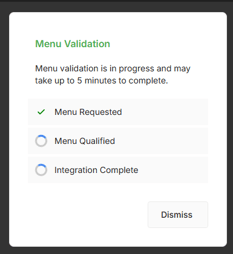
Once the DoorDash store has been selected, the Online Menu is automatically validated and sent to DoorDash. The validation process checks that the menu meets the requirements for DoorDash ordering. If validation fails, a notification will appear indicating that there is an issue with the menu.
Common issues to check include:
- Missing menu schedules or opening hours.
- Products without configured prices.
Correct any menu issues in Oolio One Back Office before attempting to continue.
Step 6: Activate the DoorDash connection
Once the menu has passed validation, the connection can be activated.
- Wait for the confirmation that the menu has been successfully validated.
- Select Activate to complete the connection.
The DoorDash store is now connected to Oolio One.
New DoorDash orders will appear in the Online tab of the Oolio One POS, ready to be accepted and processed.
Note: For new DoorDash stores, additional setup may be required in the DoorDash Merchant Portal before the store can begin accepting orders.
Configure automatic order acceptance (optional)
DoorDash orders can be configured to be accepted automatically, removing the need for staff to manually accept each incoming order.
- In Oolio One Back Office, navigate to Online > Online Locations.
- Select the relevant location.
- Under Channels, find DoorDash.
- Select the down arrow next to DoorDash to expand the channel settings.
- Tick Auto Accept Orders.
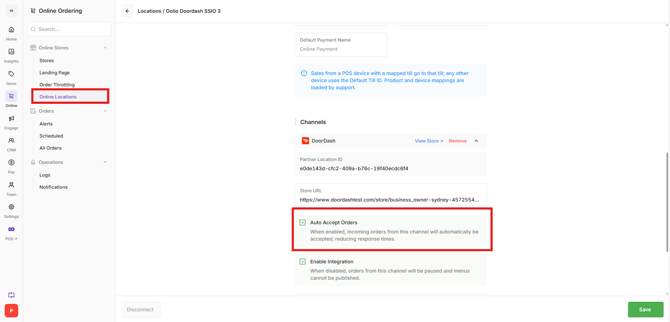
Important: Automatically accepted orders cannot be rejected through Oolio One. To cancel an accepted DoorDash order, contact DoorDash support through the Merchant Portal.
Managing DoorDash after connecting
Once connected, DoorDash menus and orders can be managed directly from Oolio One.
- Manage menus and prices: Update products, prices and item availability in Oolio One Back Office. See 🔗 Manage a DoorDash Menu in Oolio One.
- Configure opening hours: Update the Online Menu schedule and publish changes to DoorDash. See 🔗 Set DoorDash Store Hours in Oolio One
- Pause and reactivate orders: Temporarily stop DoorDash orders from the POS. See 🔗 Pause and Reactivate DoorDash Orders in Oolio One
- Cancel orders: Reject pending DoorDash orders before they are accepted. See 🔗 Cancel a DoorDash Order in Oolio One
- Frequently asked questions: See 🔗 DoorDash and Oolio One: Frequently Asked Questions
For assistance connecting DoorDash to Oolio One, contact an Oolio Account Manager or Oolio Support.
Email: help@oolio.com.au
Phone: 1300 166 546
For assistance with DoorDash account access, store eligibility or registration, contact DoorDash through the DoorDash Merchant Portal.