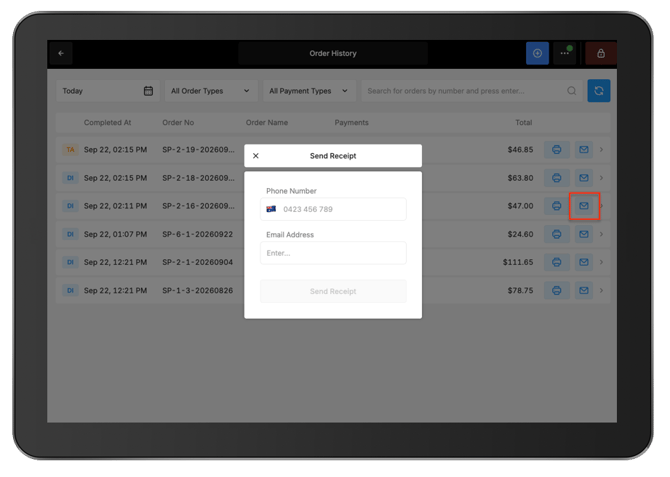
Once an order has been paid and completed, it moves to Order History. From here, previous orders can be found and reviewed, receipts and preparation dockets can be reprinted, receipts can be sent to customers, and refunds can be started.
Open Order History
- From POS, open the Navigation Menu (...).
- Select Order History.
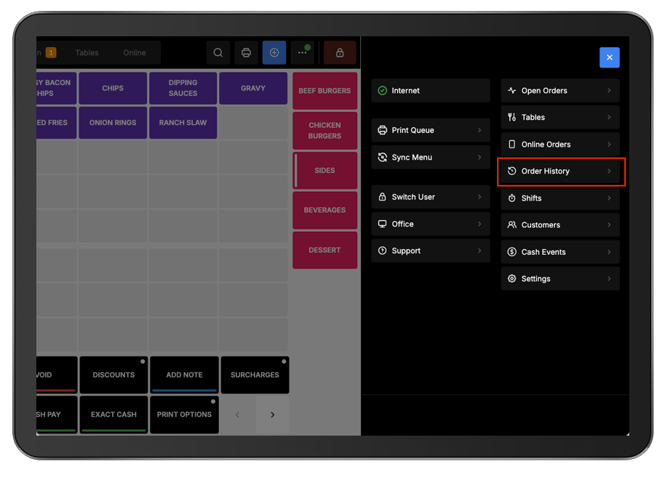
By default, Order History displays completed orders from today.
Find a completed order
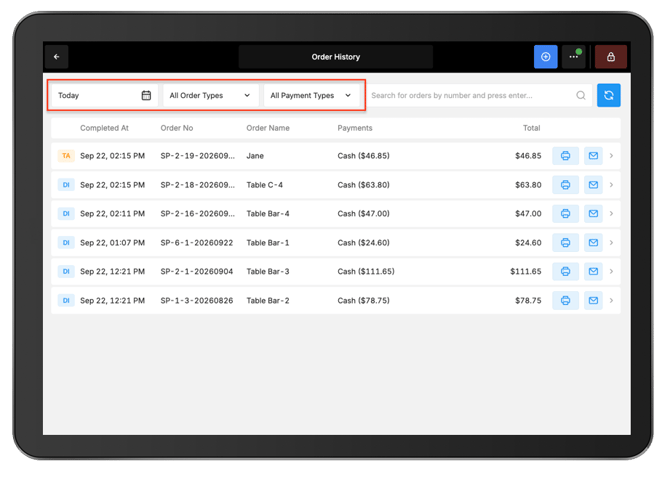
Use the filters in Order History to find a specific transaction.
-
The displayed orders can be filtered by:
- Date
- Order Type
- Payment Type
-
Select the date dropdown in the top-left corner to view orders from a different date.
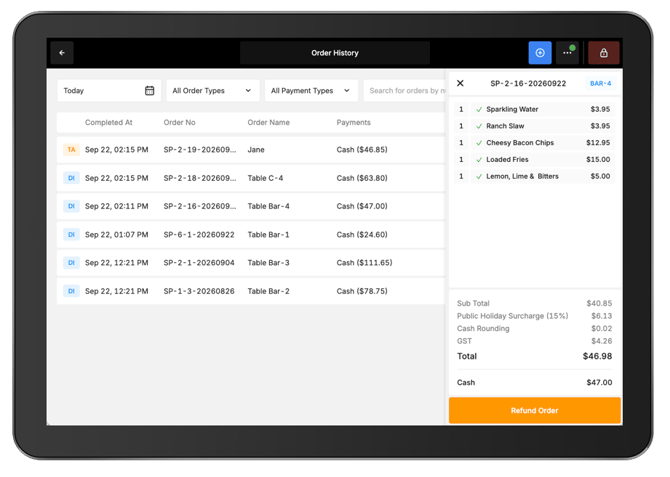
Select the required order to view its details.
-
Order information includes:
- Products
- Subtotal
- GST
- Total Paid
- Payment Method
Refund an order
From the completed order details, select Refund Order to begin a refund.
-
Refund options include:
- Refunding the entire order.
- Refunding selected products.
See 🔗 Refund an order in POS for detailed instructions on processing refunds.
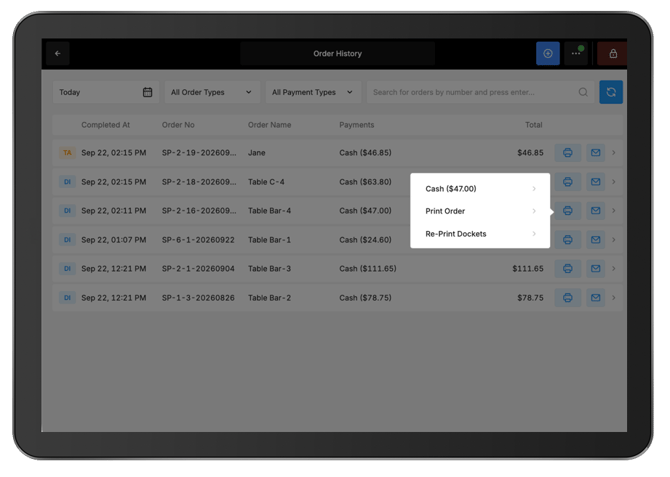
Reprint a receipt or preparation docket
-
Open the required completed order.
-
Select Print Receipt.
-
Select what to reprint.
Receipts can be printed for:
- The whole order.
- A particular payment from a split payment.
-
Preparation dockets associated with the order can also be reprinted.
Send a receipt by SMS or email
- Open the required completed order.
- Select Send Receipt.
- Enter the customer's phone number and/or email address.
- Select Send Receipt to send the receipt.