Refund completed transactions from Oolio One POS when a customer payment needs to be reversed. Refunds can be processed for an entire order, selected items, or a specific amount.
Refunds are processed from Order History, where the original transaction and payment details can be reviewed before issuing the refund.
Find the order to refund:
- Open the Navigation Menu in Oolio One POS.
-
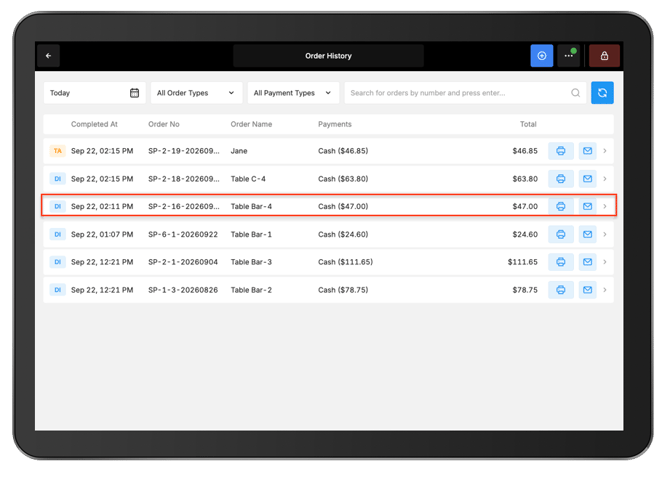
Select Order History.
- Find the transaction to refund using the available filters or search for a specific Order Number.
- Select the arrow beside the required order.
-
-
-
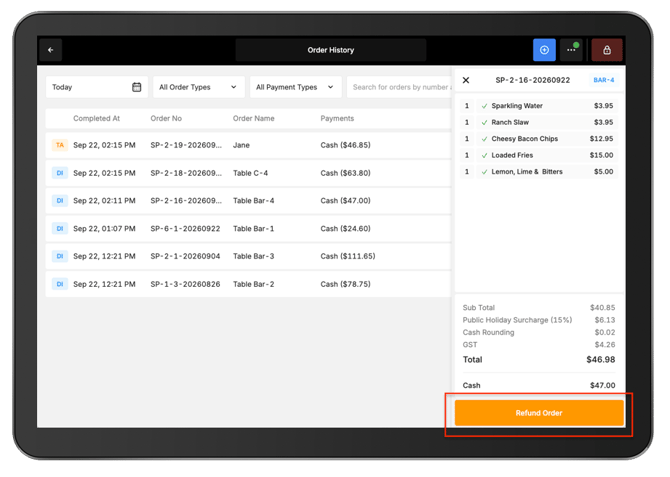
The order details display the items purchased, totals, and any applicable surcharges or discounts.
-
Select Refund Order.
-
Refund an entire order:
-
To reverse the full transaction:
-
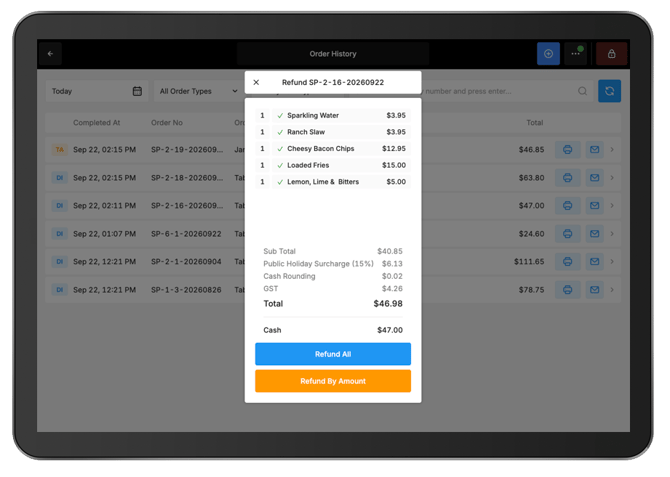
From Order Details, select Refund All.
-
Review the Issue Refund screen and the available Payment Types.
-
-
The refund amount defaults to the Payment Type used for the original transaction.
- For card transactions, the last four digits of the card used for the original payment are displayed to help identify the card
- Select Issue Refund.
- Confirm that the refund has been processed successfully.
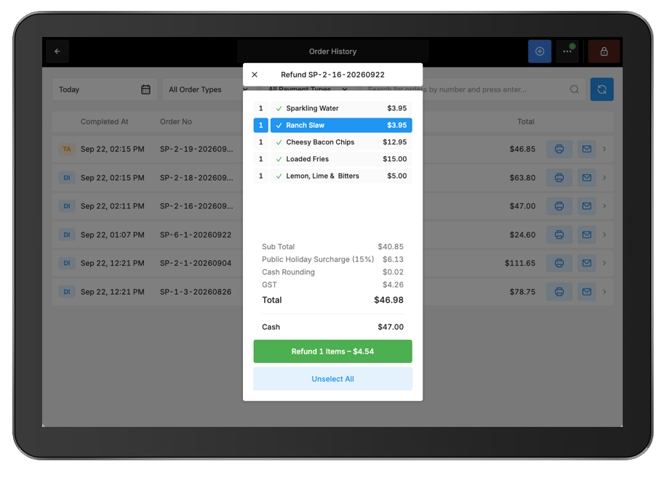
Refund selected items:
-
Use an item refund when only specific products from the original order need to be refunded.
-
From Order Details, select the products to refund.
-
Select Refund.
-
Review the refund details on the Issue Refund screen.
-
Select Issue Refund.
-
Confirm that the refund has been processed successfully.
-
Refund a specific amount:
-
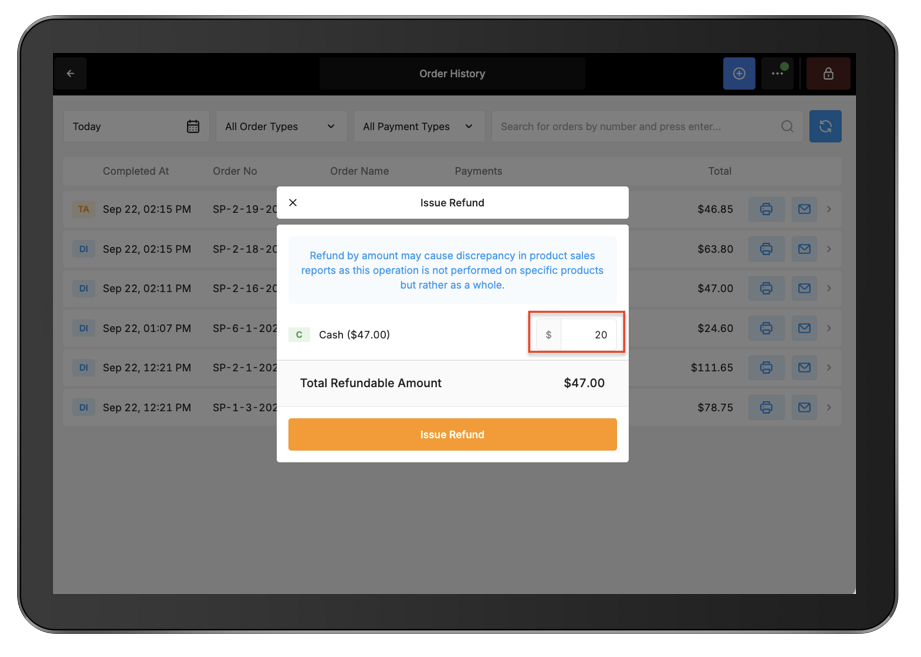
Use Refund By Amount when a specific monetary amount needs to be refunded rather than individual products.
-
-
From Order Details, select Refund By Amount.
-
Enter the amount to refund against the relevant Payment Type or Payment Types.
-
Review the refund amounts.
-
Select Issue Refund.
- Confirm that the refund has been processed successfully.
-