Customer Accounts allow approved customers to charge orders On Account in Oolio One POS and pay the outstanding balance later. Staff can add a customer to an order, charge purchases to their Customer Account, review their outstanding balance and take payments towards the balance.
The amount that can be charged On Account is controlled by the Max Order Limit and Credit Limit configured for the Customer Account in Oolio One Back Office.
Before starting
Before charging an order On Account:
- Customer Accounts must be enabled in Back Office.
- A Customer Account must be enabled for the customer.
- Review the customer's Max Order Limit and Credit Limit. By default, the Max Order Limit is $100 and the Credit Limit is $1,000.
See 🔗 Configure Customer Accounts for configuration instructions.
Add an order to a Customer Account
Step 1: Add the customer:
-
Add the customer to the order before processing the On Account payment.
- From the cart, select the option to add a customer.
- Search for the required customer.
- Select the customer.
-
The customer's name appears at the top of the POS screen.
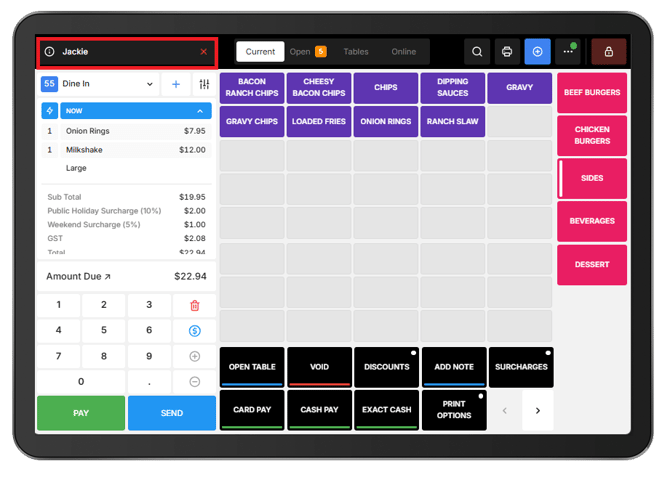
Note: A customer can also be added from the Payment screen if one has not already been selected.
Step 2: Charge the order On Account:
-
When the order is ready:
- Select Pay.
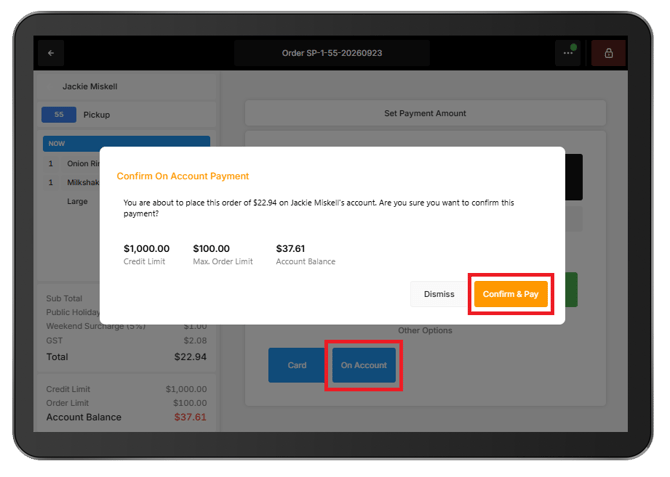
- From the Payment screen, select On Account.
- Review the confirmation message.
- Confirm the payment.
-
The confirmation message displays the customer’s account limits:
- Max Order Limit: The maximum amount that can be charged On Account in a single order. The default is $100.
- Credit Limit: The maximum total outstanding balance the customer can have across their Customer Account. The default is $1,000.
-
If the transaction would exceed either limit, the full amount cannot be charged On Account. Use another payment method, split the payment so the On Account amount remains within the available limit, or review the customer’s limits in Oolio One Back Office.
-
Once confirmed, the amount charged On Account is added to the customer’s outstanding Customer Account balance.
Check a Customer Account balance
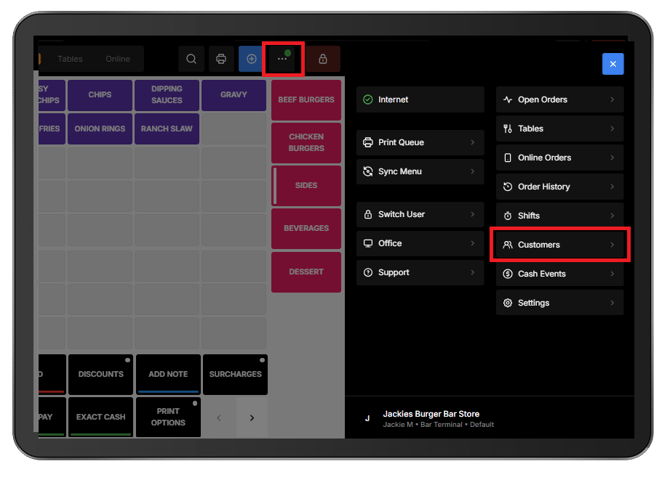
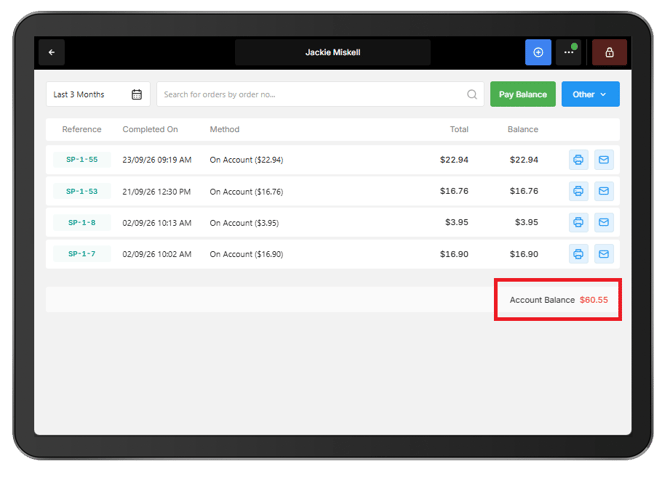
Customer Account balances and transactions can be viewed from the Customers area in POS.
- Open the Options Menu (⋯) > Customers.
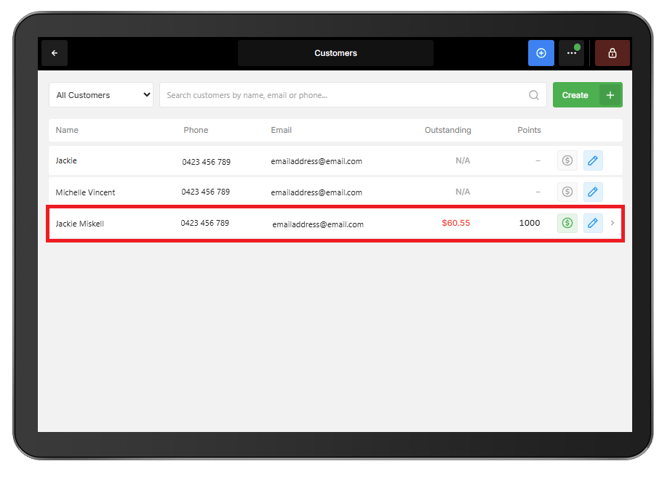
- Search for the required customer.
- Select the customer to view their Customer Account information, transactions and account balance.
Take payment towards a Customer Account balance
Payment towards an outstanding Customer Account balance can be started in two ways.
From the Customers screen, select the Dollar icon beside the customer.
Alternatively:
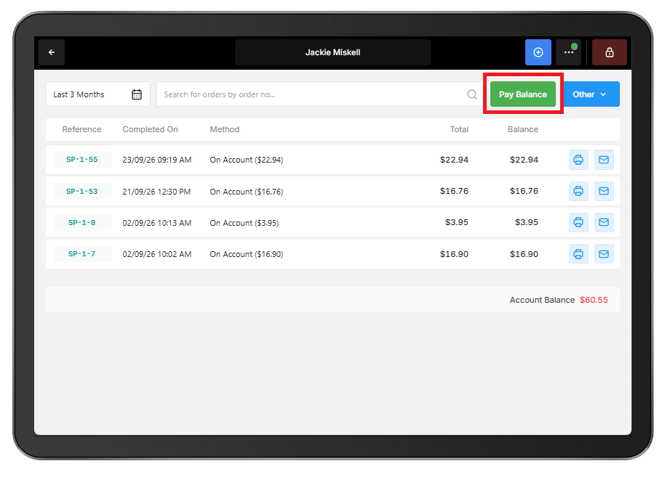
- Select the customer to open their Customer Account.
- Select Pay Balance.
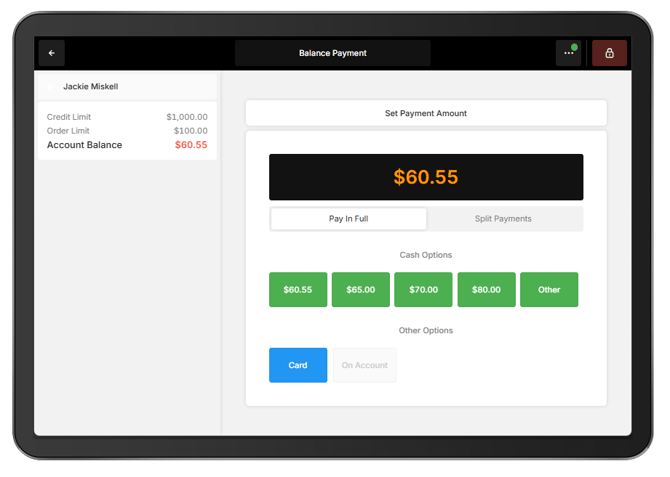
The customer's outstanding balance is displayed and the amount to be paid can be selected.
Set the payment amount
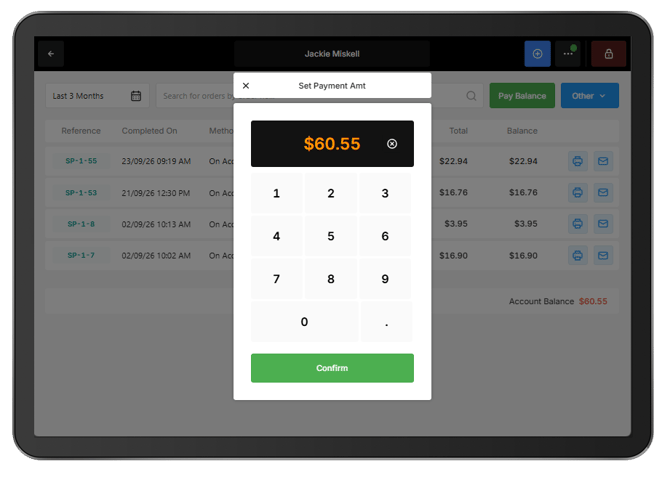
- Enter the amount the customer wants to pay. The full outstanding balance is selected by default.
- Select Confirm.
- Complete the payment using the required payment method.
The Customer Account balance can be paid in full or a partial payment can be made towards the outstanding amount. Once processed, the payment is applied to the Customer Account and the outstanding balance is updated accordingly.