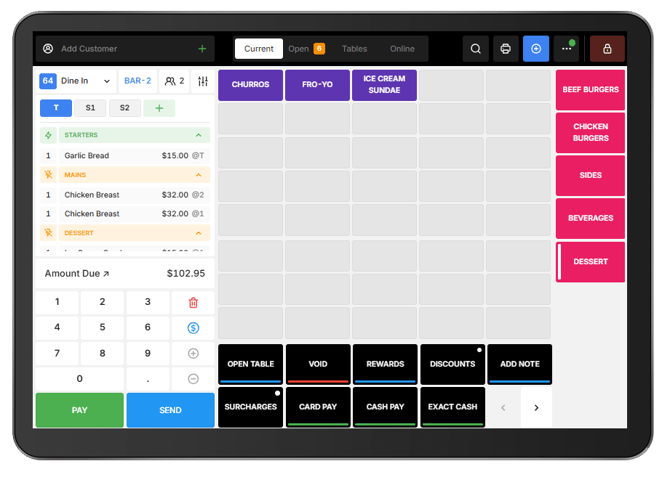
Course Management organises items into courses such as Starters, Mains, and Desserts so they are clearly separated on preparation dockets. Products can be assigned to a course in Back Office and automatically use that course when added to an order in Oolio One POS.
Courses can also be changed directly from POS when an item needs to be prepared or served with a different course.
Before starting
Course Management must be enabled and configured in Back Office before it can be used in POS. 🔗 Create Courses
Add products with courses:
-
Add products to the order as usual.
-
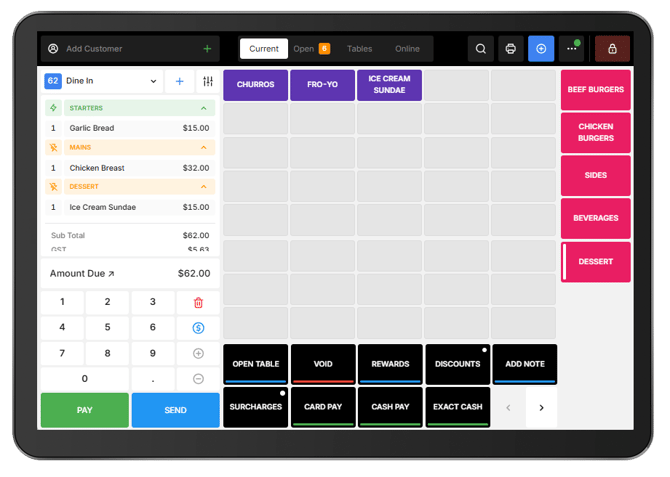
Products are automatically assigned to the course configured for them in Back Office.
-
Products retain their assigned Course when sent to the kitchen, allowing preparation dockets to clearly identify each Course.
Change an item's course:
-
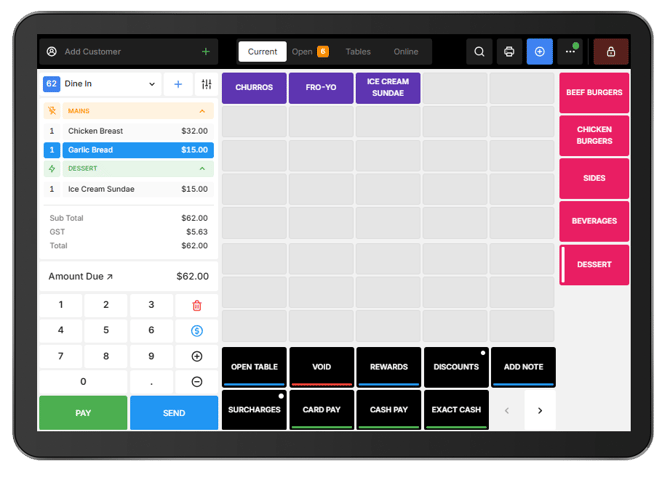
An item's course can be changed directly from POS when it needs to be prepared or served with a different course.
-
For example, a child's main course could be moved to the Starter course so it is prepared with the starters.
-
To change the course:
-
-
Select the required product in the cart.
-
Select the course the product should be moved to, if the required course is available on the ordering screen.
-
-
The product is moved to the selected course.
Switch an item to another course:
-
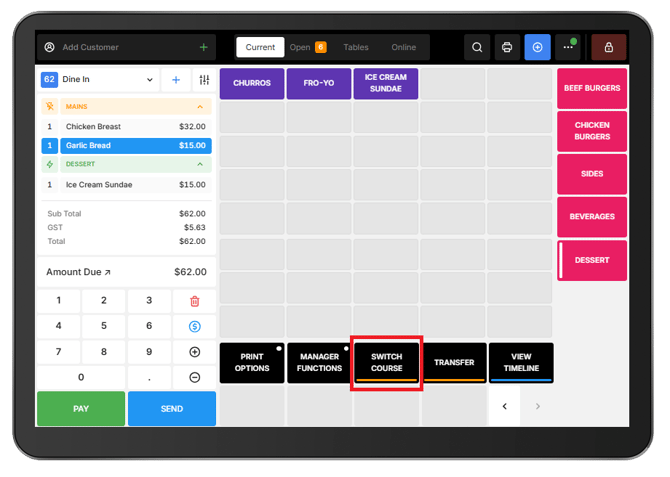
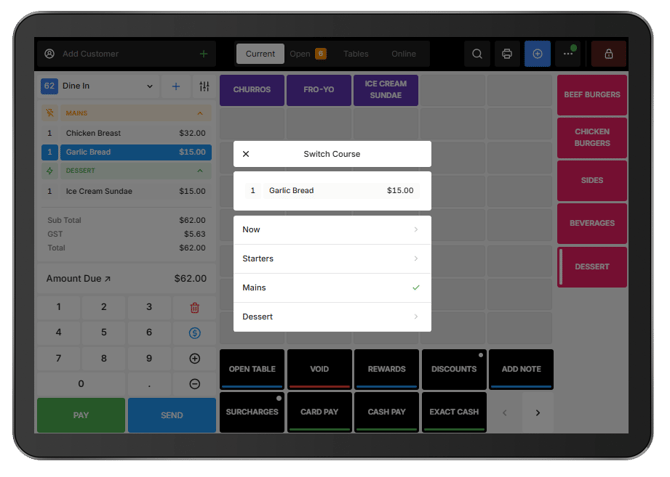
If the required course is not available from the current ordering screen:
-
-
Select the required product.
-
Open the second page of the Function Map.
-
Select Switch Course.
-
Select the required course, such as Starter.
-
-
The product is reassigned to the selected course and appears under that course on the preparation docket.
Fire a course:
-
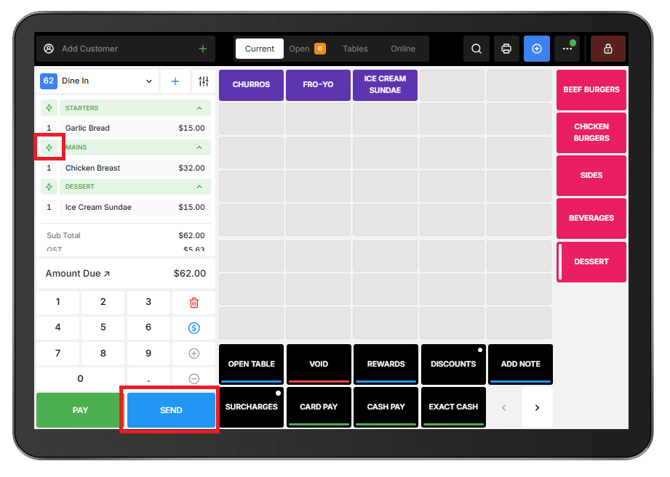
When Auto Fire is not being used, each Course can be manually sent to the kitchen when it is ready to be prepared.
- Select the lightning icon beside the Course to be fired. The Course line changes to green to show that it has been selected.
- Select Send.
-
The selected Course is sent to the kitchen on a preparation docket. Repeat these steps when the next Course is ready to be prepared.
Use Course Management with Seat Management:
-
Course Management can be used together with Seat Management to organise items by both course and guest.
-
This allows products to be assigned to individual seats while retaining their course information for preparation.
-
See 🔗 Use Seat Management for instructions on assigning products to seats.