
Configure DoorDash opening hours in Oolio One Back Office using the schedule assigned to an Online Menu. Menu schedules determine when customers can place orders through DoorDash. Changes to opening hours are managed in Back Office and published directly to DoorDash.
How DoorDash opening hours work
Each DoorDash Online Menu has a weekly schedule that determines the days and times the menu is available for ordering.
- A DoorDash store is open whenever at least one published DoorDash menu is scheduled to be available.
- Multiple menus can have different schedules, allowing different products to be offered at different times.
- Outside the scheduled hours, the store will appear closed on DoorDash.
- Schedule changes must be published to DoorDash before they take effect.
Set or update DoorDash opening hours
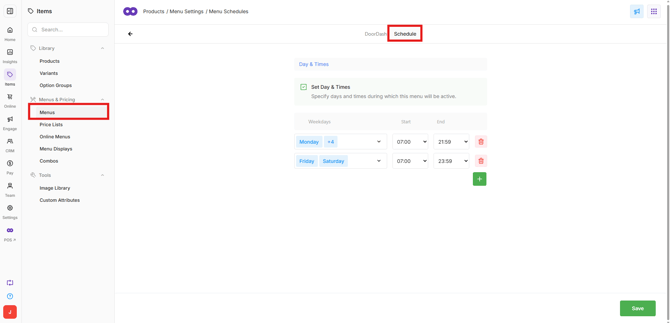
- In Oolio One Back Office, navigate to Items > Menus & Pricing > Menus.
- Open the relevant DoorDash Online Menu.
- Select Schedule at the top of the screen.
- Select + to create a new schedule, or edit an existing schedule.
- Select All Days and choose the days the menu should be available.
- Enter the start and end times.
- To configure different hours for other days, select the green + icon and add another set of days and times.
- Select Save.
Publish opening hours to DoorDash
After saving the schedule:
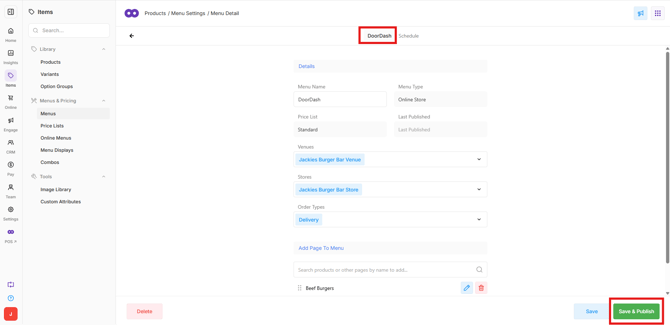
- Select Online Menu at the top of the screen to return to the menu settings.
- Select Save & Publish.
- From the All Channels dropdown, select DoorDash.
- Select the required Price List.
- Tick the checkbox next to the relevant store.
- Select Publish.
The updated opening hours should be reflected on DoorDash within 5 minutes.
Important: Schedule changes must be published using Save & Publish. Until the menu is published, DoorDash will continue using the previously published opening hours.
Configure split hours and late-night trading
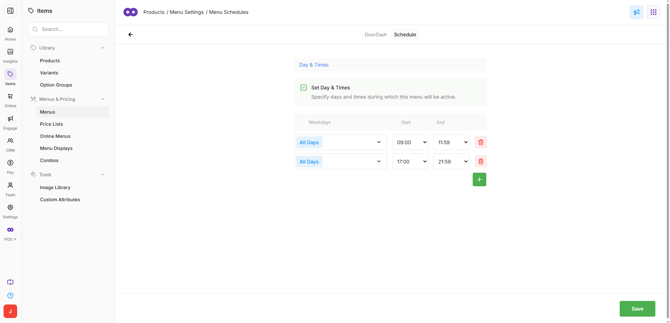
Menu schedules can include multiple time ranges on the same day or extend past midnight.
For example, if the venue is open:
- All day, into the night: Set a single time range from 9:00am to 12:00am.
- Lunch, then closed, then dinner until late: Set two time ranges, such as 11:00am–2:00pm and 5:00pm–10:00pm.
When split hours are configured, the DoorDash store will appear closed during the gap between scheduled time ranges.
Configure different menus for different times
Multiple DoorDash Online Menus can be configured with separate schedules. This allows different products to be available at different times of the day.
For example:
- Breakfast Menu: Monday to Friday, 7:00am–11:00am.
- Lunch & Dinner Menu: Monday to Sunday, 11:00am–9:00pm.
In this example, the DoorDash store will be open from 7:00am to 9:00pm on weekdays and 11:00am to 9:00pm on weekends.
Each menu will only be available during its configured schedule.
Tip: Ensure menu schedules overlap or meet if continuous trading is required. For example, if the Breakfast Menu ends at 11:00am and the Lunch Menu starts at 11:30am, the DoorDash store will appear closed for those 30 minutes.
For more information on creating menus, see 🔗 Create an Online Menu.
Close DoorDash for a public holiday or temporary closure
Online Menu schedules repeat weekly. For temporary closures, such as public holidays or one-off events, DoorDash orders can be paused directly from the Oolio One POS without changing the regular menu schedule.
To temporarily close DoorDash without changing the regular opening hours:
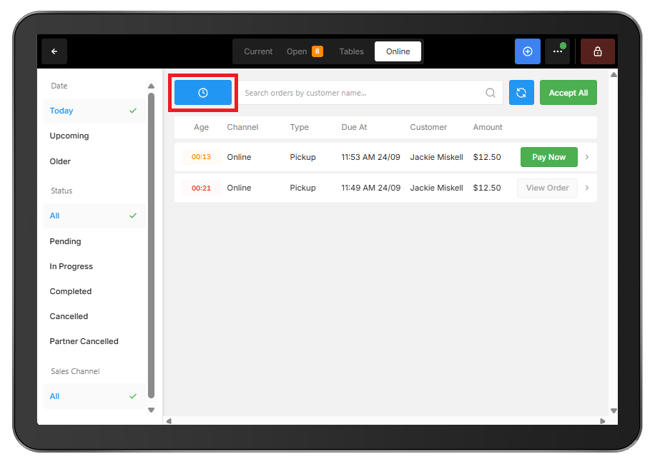
- On the Oolio One POS, open the Online tab.
- Select the blue clock icon to access the online order controls.
- Select Pause Orders.
- Select DoorDash as the ordering channel.
- Choose Until Tomorrow.
- Confirm the change.
Note: Pausing DoorDash orders prevents new orders from being received but does not change the configured opening hours.
 For longer-term changes, such as seasonal trading hours, update the Online Menu schedule and publish the changes to DoorDash. The regular schedule can be restored when required.
See 🔗 Pause and Reactivate DoorDash Orders in Oolio One for instructions.
Troubleshooting
Updated opening hours are not appearing on DoorDash:
-
Check that the Online Menu schedule has been saved and published using Save & Publish, with DoorDash selected as the channel. Changes may take up to 5 minutes to appear.
The DoorDash store is showing as closed during opening hours:
-
Check that at least one published DoorDash Online Menu has a schedule covering the required day and time.
-
Also check whether DoorDash orders have been paused from the POS. A banner will appear on the POS when orders are paused.
The DoorDash store is closing between trading periods:
-
Check for gaps between time ranges or between schedules assigned to different menus. Adjust the start and end times to provide continuous trading where required.
The DoorDash store needs to close for one day:
-
Use the POS to pause DoorDash orders and select Until tomorrow, rather than changing the weekly menu schedule.