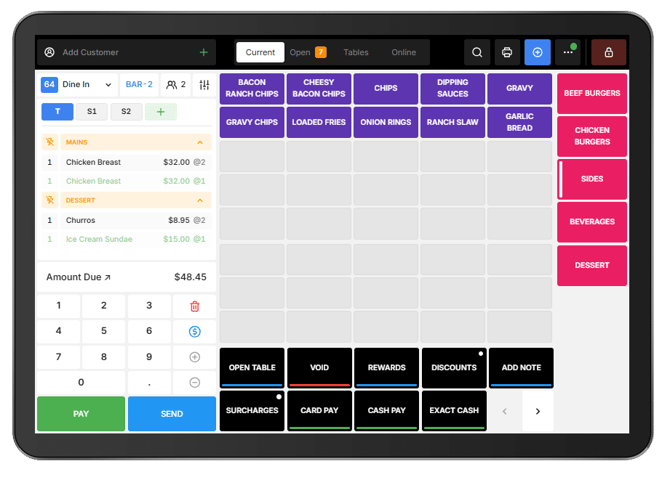
Split Payments allows a bill to be divided when customers want to pay separately. In Oolio One POS, a bill can be split equally, by a specific amount, by product, or by seat.
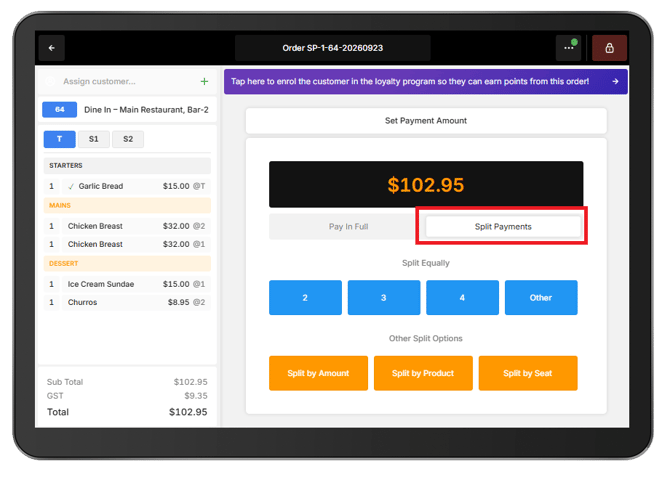
Start by selecting Pay Now to open the Payment screen, then select Split Payments.
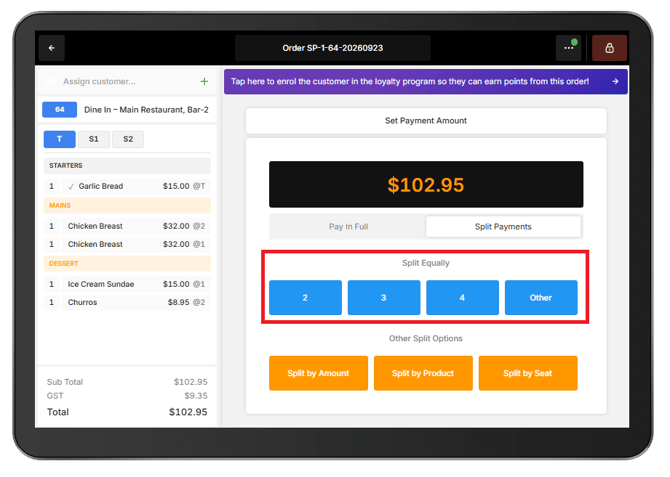
Split the bill equally
Use an equal split when the total bill needs to be divided evenly between customers.
- From the Payment screen, select Split Payments.
- Select the number of equal payments required.
- For more than four payments, select Other and enter the required number of splits.
- Select the payment method and process the first payment.
- Continue processing each payment until the remaining balance is paid.
The remaining balance is displayed after each payment.
Split by amount
Use Split By Amount when each customer wants to choose how much of the total bill to pay.
- From the Payment screen, select Split Payments.
- Select Split By Amount.
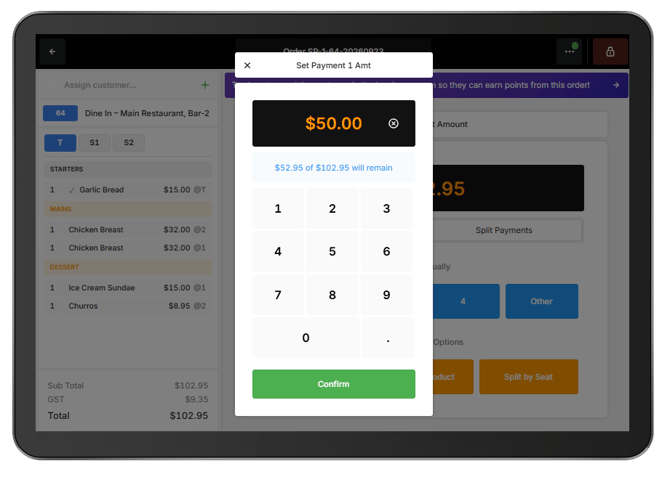
- Enter the amount to be paid.
- Select Set Amount.
- Select the required payment method and complete the payment.
- Repeat until the remaining balance has been paid.
The remaining amount is displayed as payments are processed.
Split by product
Use Split By Product when customers want to pay for the individual products they ordered.
Important: Once payments have started using Split By Product, do not change to another splitting method for the same order.
- From the Payment screen, select Split Payments.
- Select Split By Product.
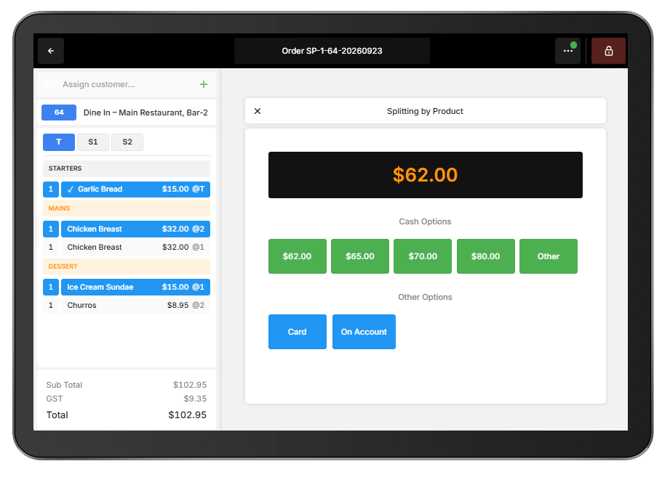
- Select the products the customer is paying for.
- Select the required payment method and complete the payment.
- Continue selecting and paying for the remaining products.
Paid items are highlighted in green and move to the bottom of the Cart.
Split a quantity of the same product
When multiple quantities of the same product have been ordered, they can be separated before taking payment.
For example, if three Croissants have been added as a single line:
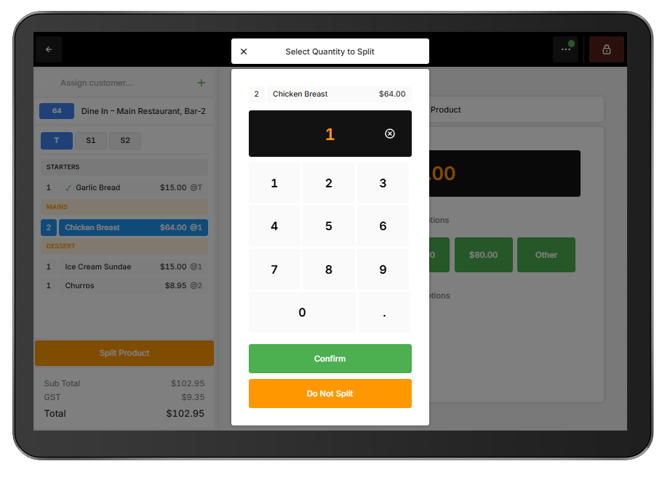
- From Split By Product, select the product.
- Enter the required Split Quantity.
- Confirm the split.The separated quantity can now be selected and paid for independently.
- Once the required products have been selected, process the payment.
- Continue until all remaining products have been paid.
Split by seat
Split By Seat allows customers to pay for products assigned to their seat. This option is available when Seat Management is configured and used for the order.
See 🔗 Use Seat Management for instructions on ordering products to seats.
Important: Once payments have started using Split By Seat, do not change to another splitting method for the same order.
- Select Pay Now.
- From the Payment screen, select Split Payments.
- Select Split By Seat.
- Select the seat that is paying.
- The products assigned to that seat are displayed.
- Products ordered to the table are shared across all seats.
- Select the required payment method and complete the payment.
- Select Take Next Payment to process another seat.
- Repeat until the order has been paid.
The remaining order balance is displayed after each payment.
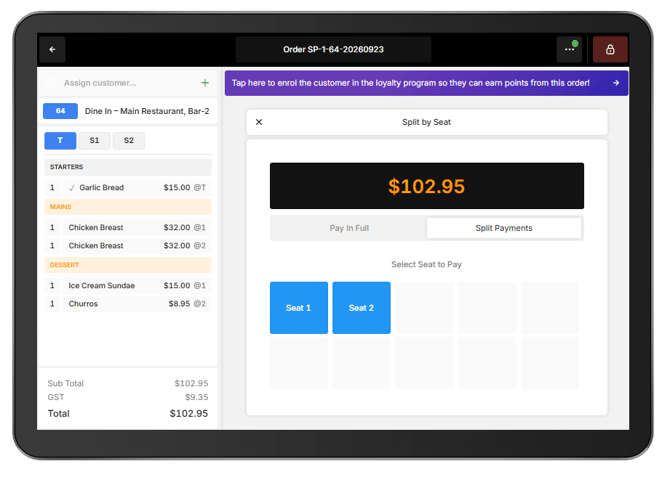
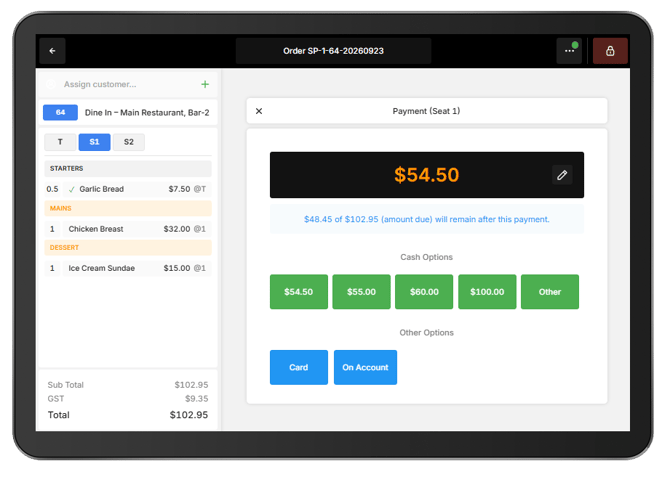
If the wrong seat is selected, close the window using the X or select another available seat.
Add products after a seat has paid
To return to the order after taking a payment, select the back arrow in the top-left of the screen.
Paid products appear green in the Cart. Newly added and unpaid products appear grey.
If new products are assigned to a seat that has already paid, that seat becomes available for payment again. Only the newly added unpaid products are included in the next payment for that seat.
Once all products assigned to a seat have been paid, the seat is shown as unavailable when using Split By Seat.