Oolio mPOS provides a compact version of Oolio POS for staff working around the venue. From mPOS, staff can access tables and open orders, take payments, review paid orders, and manage customer receipts without returning to the main POS.
The screens available in mPOS depend on the Device Profile configured in Oolio One Back Office.
Understand the mPOS navigation
Depending on the configured workflow, mPOS provides access to areas including:
-
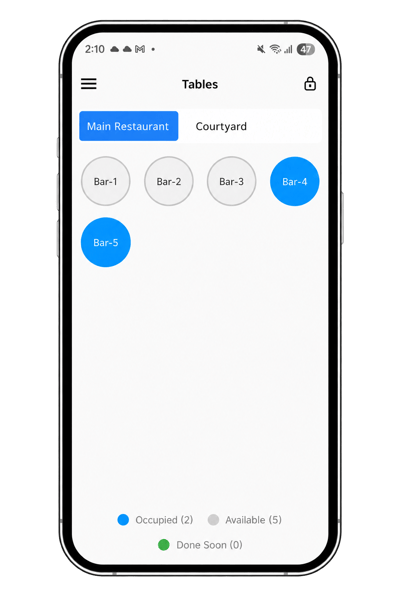
Floor Plan: View Sections and Tables and open table orders.
-
Open Orders: View orders that have been sent but have not yet been fully paid.
-
Order History: View completed and paid orders.
See 🔗 Set up Device Profiles for information about configuring the workflow available on an mPOS device.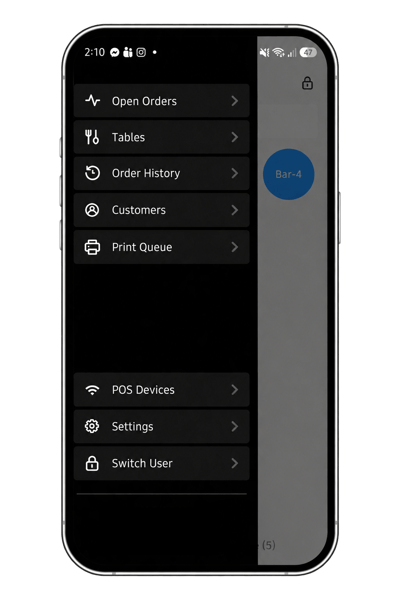
Refresh mPOS
If an order taken on another POS does not appear on mPOS, select Sync Settings under the options menu.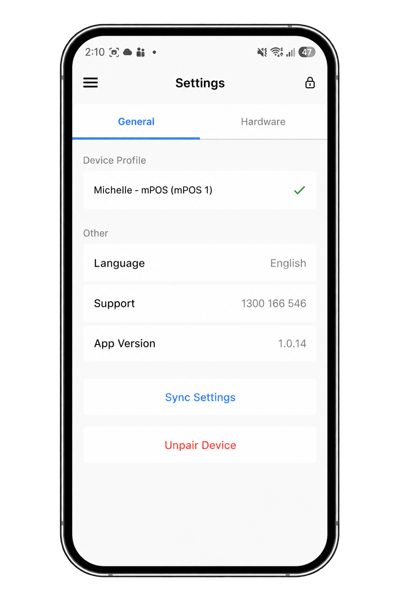
Take payment from the Floor Plan
For table service, payment can be started directly from the Floor Plan.
-
Open Floor Plan.
-
Select the required Section.
-
Select the Table.
-
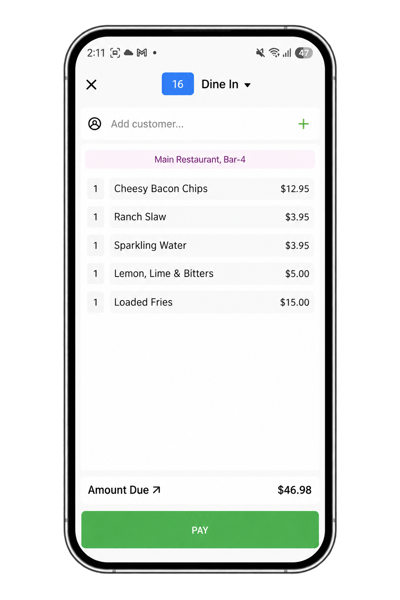
Review the order and Total Due.
-
Select Pay Now.
-
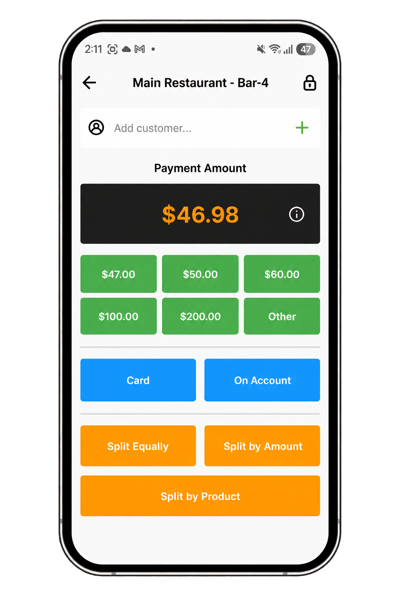
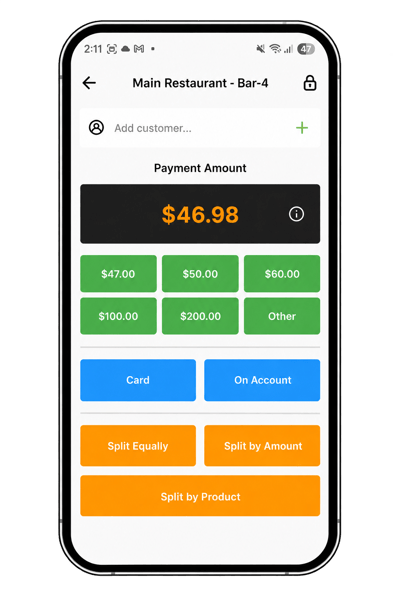
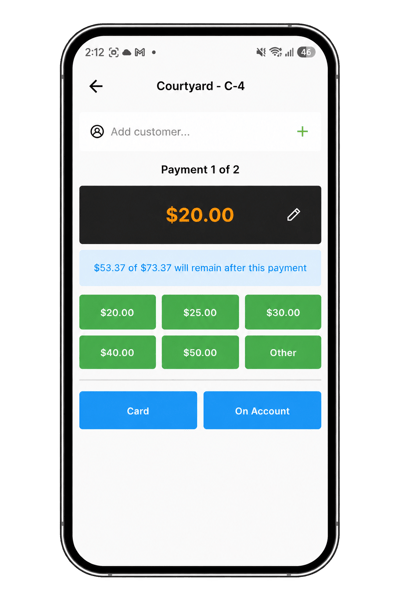
Select the required payment method.
Take a card payment
From the payment screen:
-
Select Charge on Card.
-
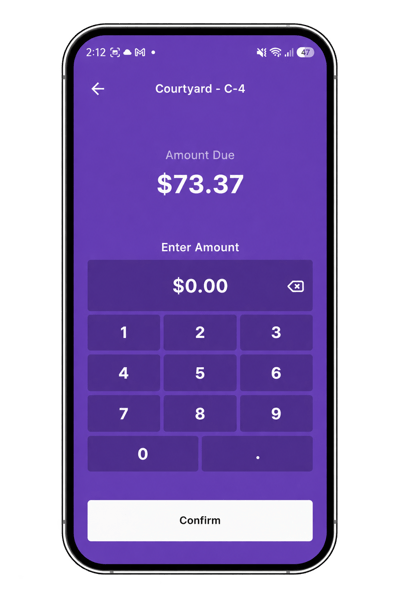
Enter the amount to be paid.
-
Complete the payment using the connected payment terminal.
-
Repeat if additional payments are required.
If tipping is enabled on the payment terminal, the customer is prompted to enter a tip during the payment process.
Take a cash payment
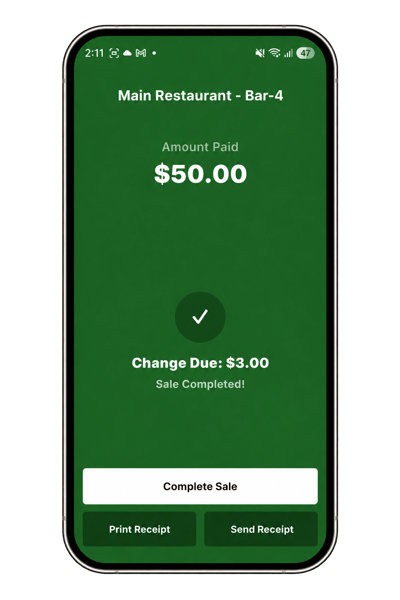
Select Take Cash to record a cash payment.
Either:
-
Take payment for the full remaining balance.
-
Enter a specific amount for a partial cash payment.
For example, enter $25 when $25 of the bill is being paid in cash.
Note: Selecting a cash payment can trigger the configured Cash Drawer to open. Where the Cash Drawer is located away from the table, it may be more practical to process card payments before recording the cash payment.
Split a payment evenly
Use Split Evenly when customers want to divide the remaining bill into equal parts.
-
From the payment screen, select Split Payment.
-
Select Split Evenly.
-
Choose the number of parts.
-
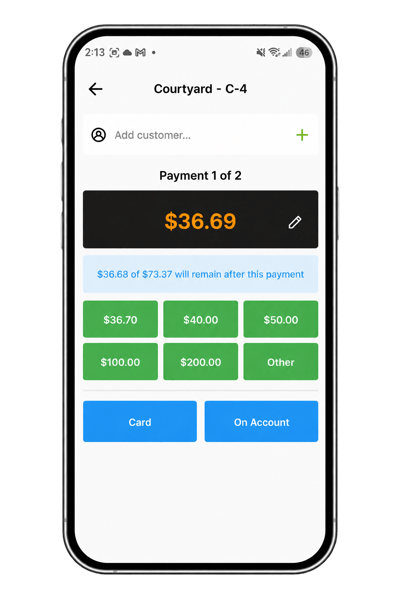
Select the part or parts being paid.
-
Select the payment method and complete the payment.
-
Continue until the required payments have been processed.
More than one part can be paid in a single transaction. For example, if a bill is divided into three parts, one customer can pay two of those parts.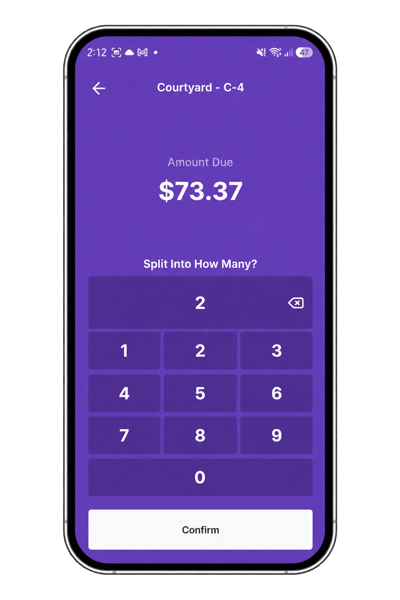
Take a custom payment amount
Use Enter Custom Amount when customers want to pay specific amounts rather than splitting the bill evenly.
-
From the payment screen, select Split Payment.
-
Select Enter Custom Amount.
-
Enter the amount being paid.
-
Select the payment method.
-
Complete the payment.
-
Repeat as required for the remaining balance.
Take payment for an Open Order
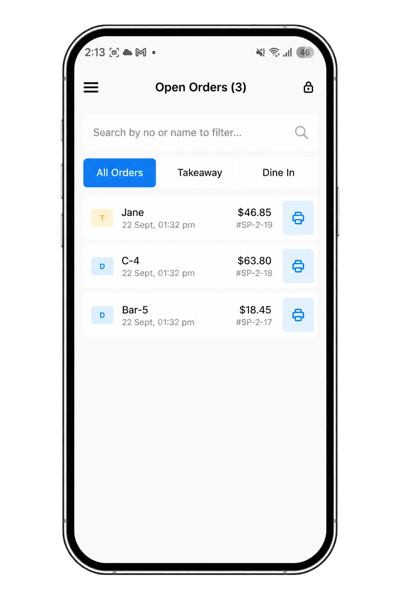
Open Orders contains orders that have been sent but have not yet been fully paid.
To take payment:
-
Open Open Orders.
-
Select the required order.
-
Review the order and amount due.
-
Continue to payment.
-
Select the required payment method and complete the payment.
View paid orders
Open Order History to view paid orders.
Select an order to view the available actions.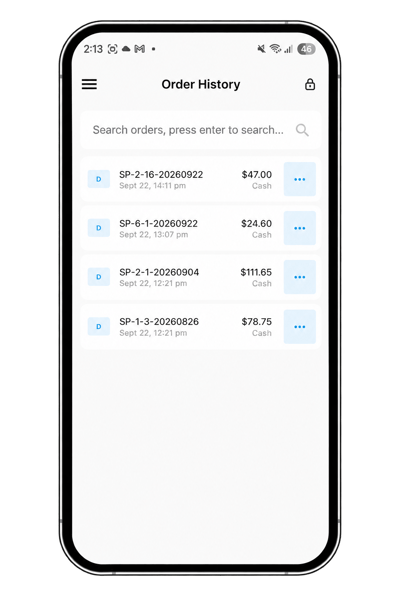
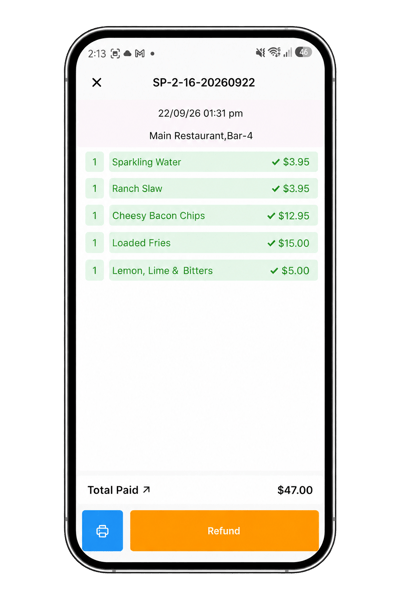
Reprint a receipt
From Order History:
-
Open the required order.
-
Select the Printer icon.
The receipt prints to the printer configured for the mPOS Device in Back Office.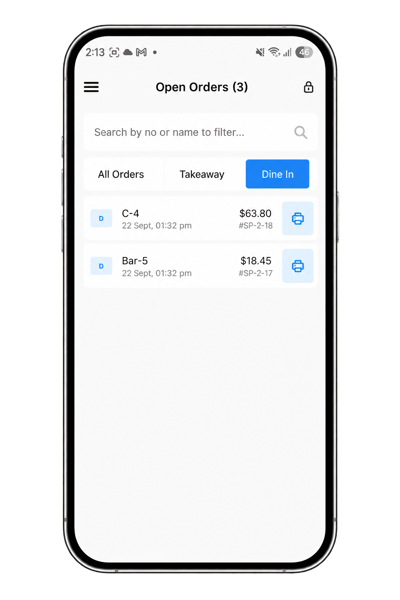
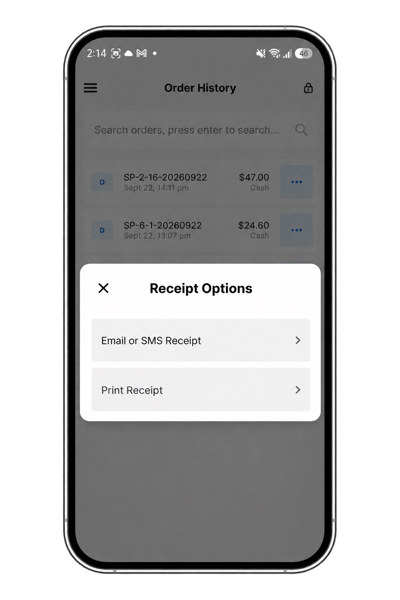
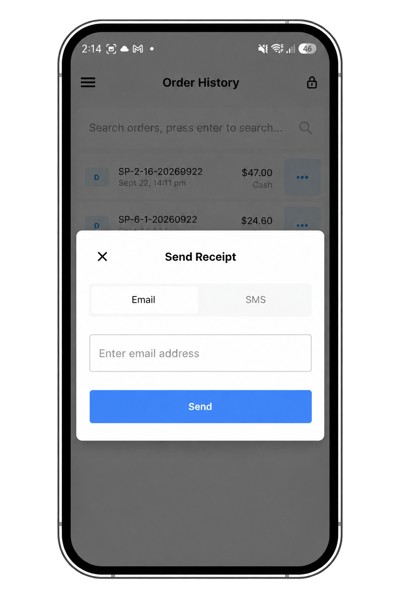
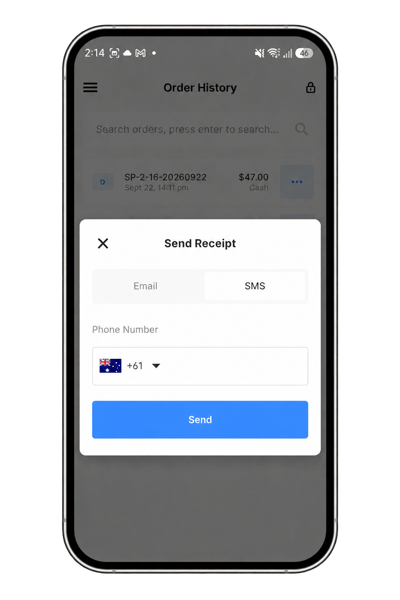
Send a receipt to a customer
A receipt can also be sent electronically from the completed order.
-
Open the required order in Order History.
-
Select Send Receipt.
-
Enter the customer's phone number or email address.
-
Send the receipt.