Map sales and takings from Oolio One to the appropriate Xero GL accounts. When a Shift is closed, the Xero integration exports sales by Reporting Group and takings by Payment Type using the mappings configured for each Store.
Before starting
Before mapping accounts:
- 🔗 Configure Xero GL Accounts
- Confirm the required Payment Types and Reporting Groups in Oolio One.
- Confirm which Xero GL accounts should receive each type of sales and takings information.
Step 1: Open the Xero settings
From Oolio One Back Office:
- Go to Settings > Features.
- Select the Integrations tab.
- Select Xero.
- Select the Settings tab.
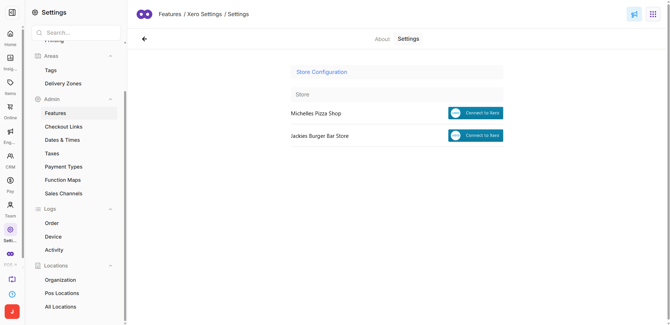
- Select the Store to configure.
The Xero settings for the selected Store can now be mapped to the required GL accounts.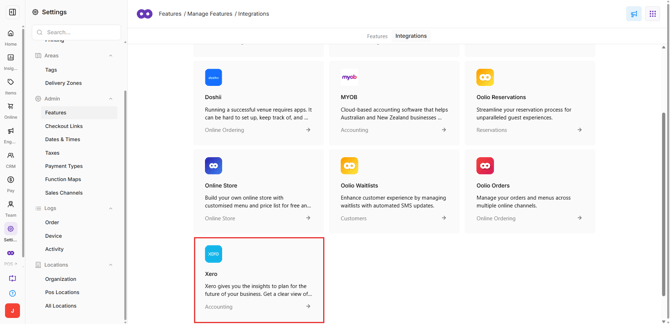
Step 2: Configure the invoice
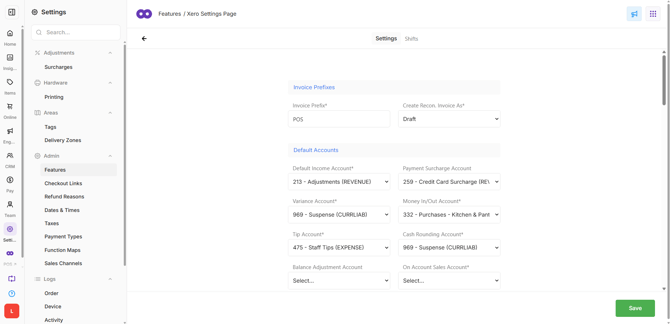
Use the invoice settings to control the invoice number and the state of invoices sent to Xero.
Invoice Prefix:
-
Enter an Invoice Prefix to identify invoices exported from Oolio One.
-
The invoice number combines the prefix with the Shift number generated by Oolio One.
-
For example: INV-123
Create Recon. Invoice As:
-
Select how the invoice should be created in Xero:
-
Draft: Creates an editable Draft invoice. The invoice must be manually reviewed and approved in Xero.
-
Approved: Creates the invoice in an Approved state. Payments are automatically applied and the invoice cannot be edited.
-
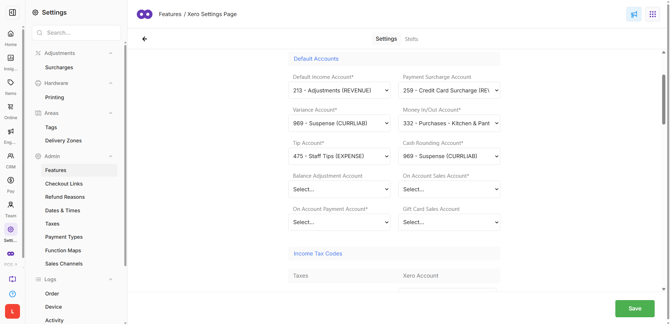
Step 3: Map the Default Accounts
Default Accounts determine where information is posted when a more specific account mapping is not available.
Default Income Account:
-
Map sales to a Revenue GL account in Xero.
-
The Default Income Account is used when:
-
A Reporting Group has not been mapped to another GL account.
-
A Product has not been assigned to a Reporting Group.
-
-
Sales include Products ordered and paid for during the Shift.
Variance Account:
- Map reconciliation variances to a dedicated Reconciliation Variance GL account in Xero.
- When a Payment Type has a variance, Oolio posts the variance to the Reconciliation Variance Account and automatically creates a corresponding adjustment against the affected Payment Type account.
- For example, if the reconciled Cash amount is $10 different from the system amount, the variance is recorded in the Reconciliation Variance Account and the Cash account is adjusted by the same amount.
- This ensures the amount posted to the Payment Type account reflects the reconciled amount rather than the original system amount.
Tip Account:
-
Map Tips to a Current Liability GL account in Xero.
Payment Surcharge Account:
-
Map Payment Type Surcharges to a Revenue GL account in Xero.
-
This can be a separate GL account or the same GL account used for sales.
-
When mapped, Payment Type Surcharges appear as a separate line on the Xero invoice.
Money In/Out Account:
-
Map Money In and Money Out activity to an Expense GL account in Xero.
-
Positive and negative Money In/Out activity is grouped and posted to the invoice as two separate line items.
-
Individual transactions, such as individual Petty Cash events, are not posted separately.
Cash Rounding Account:
-
Map Cash Rounding to a Current Liability GL account in Xero.
-
Cash Rounding applies to cash sales where rounding is required to balance the accounts.
On Account Sales Account:
- Map sales charged to a Customer Account to a Current Asset GL account in Xero.
- On Account sales increase the amount owed by customers.
On Account Payment Account:
- Map payments made towards a Customer Account balance to the same Current Asset GL account used for On Account Sales.
- On Account payments reduce the amount outstanding in this account.
Gift Card Sales Account:
- Map Gift Card sales to a Current Liability GL account in Xero.
- When a Gift Card is sold, the Gift Card Sale is posted as a positive amount to this account, increasing the Gift Card liability.
Step 4: Map Income Tax Codes
Map the Oolio One tax codes to the corresponding tax codes in Xero.
These mappings determine the tax applied to each line item on the invoice posted to Xero.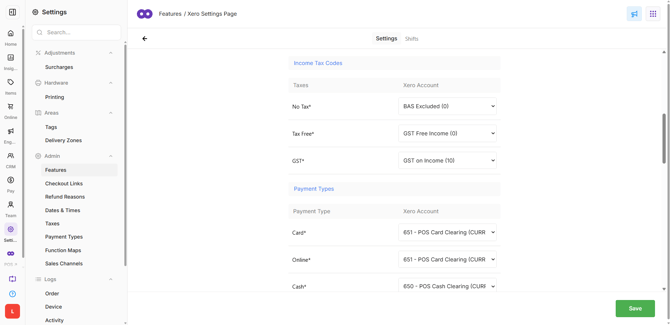
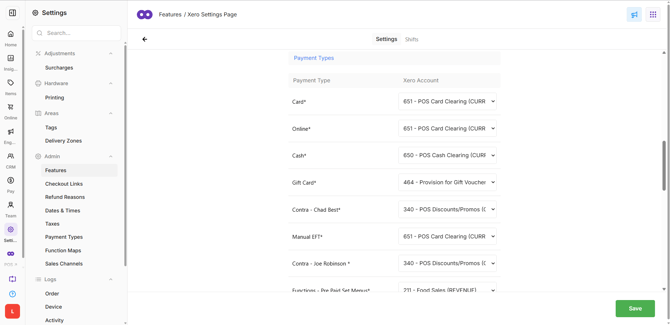
Step 5: Map Payment Types
Map each Oolio One Payment Type to the appropriate Clearing GL account in Xero.
Clearing accounts allow takings recorded in Oolio One to be reconciled against the funds deposited into the corresponding bank accounts.
Important:
-
Payment Types cannot be mapped directly to a bank account or another Locked account.
-
Enable payments to this account must be enabled for the relevant Xero GL account before it is available for mapping.
Card:
-
Map Card takings to a Current Asset GL account.
-
For example:
-
POS Card Clearing Account
-
Online:
-
Map Online takings to a Current Asset GL account.
-
For example:
-
POS Online Payments Clearing Account
-
Manual EFT:
-
Map Manual EFT takings to a Current Asset GL account.
-
Manual EFT can be mapped to the same clearing account used for integrated Card payments.
-
For example:
-
POS Card Clearing Account
-
Cash:
-
Map Cash takings to a Current Asset GL account.
-
For example:
-
POS Cash Clearing Account
-
Gift Card:
- Map Gift Card redemptions to a Current Liability GL account in Xero.
- Gift Card redemptions can be mapped to the same account as Gift Card Sales
- When a Gift Card is redeemed, the Gift Card Payment is posted as a negative amount to the same account, reducing the Gift Card liability.
- Using the same account for Gift Card sales and redemptions allows the balance to represent the outstanding Gift Card liability.
Other Payment Types:
-
Additional Payment Types configured in Oolio One can also be mapped to the appropriate Clearing GL accounts in Xero.
Step 6: Map Reporting Groups
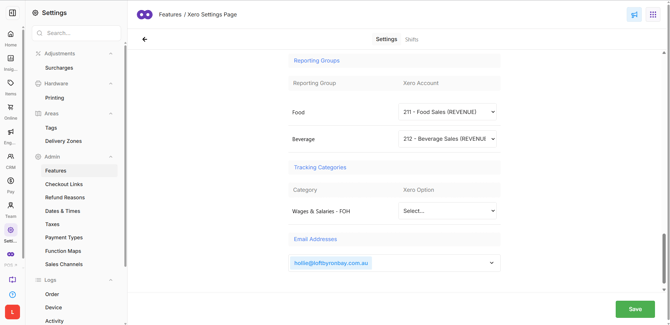
Map Reporting Groups to Revenue GL accounts to separate sales in Xero.
-
Reporting Groups are assigned to Products in Oolio One and can be used to send different categories of sales to different Xero accounts.
-
For each Reporting Group:
-
Select the corresponding Revenue GL account in Xero.
-
Repeat for each Reporting Group that requires a specific mapping.
-
-
Multiple Reporting Groups can be mapped to the same Xero GL account.
-
Sales for Products ordered and paid for during the Shift are exported according to their Reporting Group.
-
If a Reporting Group is not mapped, its sales are posted to the Default Income Account.
-
If a Product is not assigned to a Reporting Group, its sales are also posted to the Default Income Account.