Connect Xero to Oolio One to automatically post sales and takings information to the connected Xero organisation when a Shift is closed.
The integration exports:
- Sales by Reporting Group
- Takings by Payment Type
Connect the required Xero organisation, then enable the integration for each Store that will use it.
Before starting
Before connecting Xero:
- Have access to the required Xero organisation.
- Have the Xero login credentials available.
- Have access to the required two-factor authentication method.
- Confirm which Oolio One Stores need to use the integration.
Step 1: Open the Xero integration
From Oolio One Back Office:
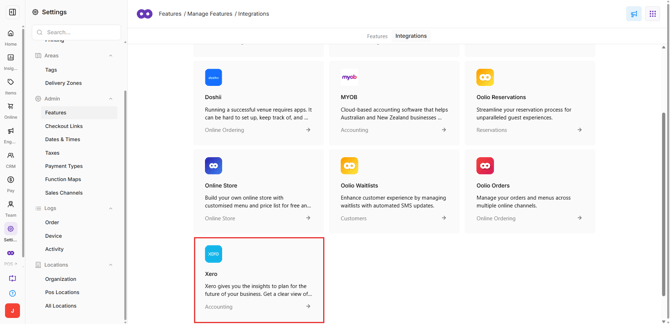
- Go to Settings > Features.
- Select the Integrations tab.
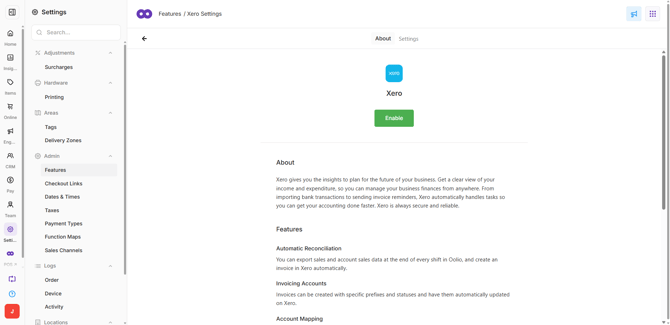
- Select Xero.
- Select Enable.
The Xero login screen opens.
Step 2: Connect Xero
- Enter the required Xero login credentials.
- Complete two-factor authentication when prompted.
- Select the required Xero organisation.
- Confirm the correct account and organisation are selected.
- Select Allow Access.
After access is approved, Oolio One Back Office reopens.
Step 3: Enable Xero for each Store
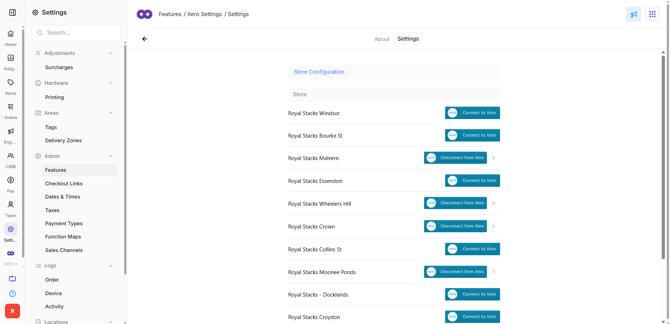
Choose which Stores will use the Xero integration.
- Select the Settings tab.
- Find the required Store.
- Turn on the toggle for the Store.
- Repeat for each additional Store that needs to use the integration.
The selected Stores are now enabled for the Xero integration.