
Find answers to common questions about using DoorDash with Oolio One, including connecting a store, managing menus, setting opening hours, processing orders and troubleshooting common issues.
For detailed instructions, refer to the related help guides linked throughout this article.
Getting started
What does the DoorDash integration do?
-
The DoorDash integration connects DoorDash with Oolio One, allowing online orders and menus to be managed from the same system as in-store sales.
- Order management: DoorDash orders are received directly in Oolio One POS without requiring a separate DoorDash tablet.
- Menu management: Products, prices and menus are managed in Oolio One Back Office and published to DoorDash.
- Store availability: Opening hours, order pausing and item availability can be managed through Oolio One.
How is a store connected to DoorDash?
-
See 🔗 Connect a Store to DoorDash for instructions on connecting DoorDash to Oolio One.
Is an existing DoorDash account required?
-
No. New DoorDash merchants can register during the integration connection process. Existing DoorDash merchants can sign in using their current account and select the store to connect.
Managing DoorDash menus
Where are DoorDash menu changes made?
-
DoorDash menus are managed in Oolio One Back Office under Items > Menus & Pricing > Menus.
-
After making changes, select Save & Publish, choose DoorDash as the channel and publish the menu.
Why are menu changes not appearing on DoorDash?
-
Changes made in Back Office must be published using Save & Publish before they are sent to DoorDash.
-
Changes usually appear immediately but may take up to 5 minutes.
Can menu changes be made directly in the DoorDash Merchant Portal?
-
Menu changes should be made in Oolio One Back Office. Changes made directly in DoorDash may be overwritten the next time the menu is published from Oolio One.
Can different prices be configured for DoorDash?
-
Yes. Price Lists allow different prices to be configured for DoorDash without creating duplicate products.
-
Select the required Price List when publishing the Online Menu to DoorDash.
-
See 🔗 Create Price Lists.
How is an item marked out of stock?
-
Items can be marked unavailable from the POS or Back Office.
-
From the POS:
- Open the Function Map.
- Navigate to Manager Functions > Item Availability.
- Find the required item and untick Available.
- Select Save Changes.
- The availability change is automatically sent to DoorDash.
- From Back Office:
- Navigate to Items > Menus & Pricing > Online Menus.
- Open the DoorDash Online Menu, select the Products tab and select the item.
- Turn off Available for the relevant store.
-
Select Save, then Save & Publish the menu to DoorDash.
- Items remain unavailable until manually re-enabled.
Can modifiers, combos and variants be marked out of stock?
-
Yes. The Item Availability function supports products, modifiers, combos and variants.
Store hours and pausing orders
How are DoorDash opening hours configured?
-
DoorDash opening hours are controlled by the Schedule assigned to an Online Menu in Oolio One Back Office.
-
Navigate to Items > Menus & Pricing > Menus, open the DoorDash Online Menu and update the schedule. Select Save & Publish to send the updated hours to DoorDash.
Can split trading hours or late-night trading be configured?
-
Yes. Menu schedules can include multiple time ranges or extend past midnight.
-
For example:
- Late-night trading: 9:00am–2:00am.
- Split trading hours: 9:00am–12:00pm and 7:00pm–2:00am.
-
The store will appear closed during gaps between scheduled trading periods.
How are temporary or public holiday closures managed?
-
For a temporary closure, DoorDash orders can be paused from the POS by selecting Until tomorrow.
-
Orders will automatically resume at midnight, subject to the configured opening hours.
-
For longer closures, update the Online Menu schedule and publish the changes to DoorDash.
How are DoorDash orders paused?
- On the Oolio One POS, open the Online tab.
- Select the blue clock icon.
- Select Pause Orders.
- Next to DoorDash, select 15m, 30m, 45m, 1h or Until tomorrow.
- Select Confirm.
- A banner will appear on the POS indicating that orders are paused.
How are DoorDash orders reactivated?
- Open the Online tab on the POS.
- Select the blue clock icon, then Pause Orders.
- Select None next to DoorDash.
- Select Confirm.
- Orders will also resume automatically when the selected pause duration ends, provided the store is within its scheduled opening hours.
Does pausing DoorDash affect other online ordering channels?
-
No. Each online ordering channel, including DoorDash, Oolio Online Store and Uber Eats, can be paused independently.
Managing DoorDash orders
Where are DoorDash orders displayed?
-
DoorDash orders can be viewed in:
- Oolio One POS: Open the Online tab.
- Oolio One Back Office: Navigate to Online > Operations > All Orders.
- Once accepted, orders are sent to the configured kitchen printers or kitchen display screens.
How are DoorDash orders accepted?
-
From the POS:
- Open the Online tab.
- Select the pending DoorDash order.
- Select Accept, or select Accept All to accept all pending orders.
- From Back Office:
- Navigate to Online > Operations > All Orders.
- Open the pending DoorDash order.
- Select Accept Order.
Can DoorDash orders be accepted automatically?
-
Yes. DoorDash orders can be configured to automatically accept incoming orders without requiring staff to manually accept them on the POS.
-
To enable auto-accept:
- In Oolio One Back Office, navigate to Online > Locations.
- Select the relevant location.
- Under Channels, find DoorDash.
- Select the down arrow next to DoorDash to expand the channel settings.
- Tick Auto Accept Orders.
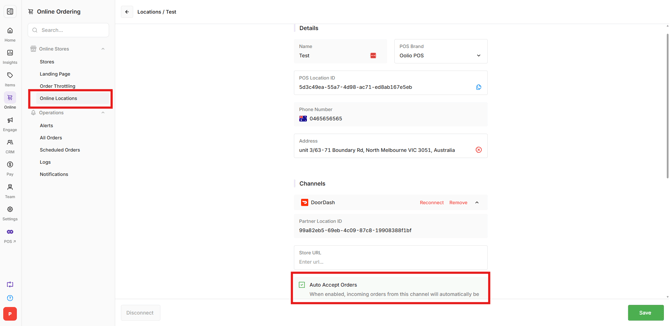
Important: When Auto Accept Orders is enabled, incoming DoorDash orders are accepted automatically. Accepted orders cannot be cancelled through Oolio One. Cancellations must be requested through DoorDash support.
How is a DoorDash order cancelled?
-
DoorDash orders can be rejected before they have been accepted.
-
From the POS:
- Open the Online tab and select the pending DoorDash order.
- Select Reject.
- Choose a rejection reason and add a note if required.
- Select Reject Order.
-
From Back Office:
- Navigate to Online > Operations > All Orders.
- Open the pending DoorDash order.
- Select Reject Order, choose a reason and confirm.
Can an accepted DoorDash order be cancelled?
-
Accepted orders cannot be cancelled through Oolio One.
-
To cancel an accepted order, contact DoorDash support through the DoorDash Merchant Portal.
-
This also applies to orders that have been automatically accepted.
Can a rejected order be reinstated?
-
No. Rejected orders cannot be reinstated through Oolio One.
Are refunds required when rejecting DoorDash orders?
-
No. DoorDash manages customer notifications and any applicable refunds for orders paid through DoorDash.
What does Partner Cancelled mean?
-
Partner Cancelled indicates that an order was cancelled by DoorDash or the customer rather than the store.
-
No further action is required.
Troubleshooting
An order appears in Back Office but has not reached the POS:
- Navigate to Online > Operations > All Orders.
- Find and open the affected order.
- Select Retry to POS to resend the order.
The DoorDash store is showing as closed during opening hours:
-
Check the following:
- Paused orders: Check for a pause banner on the POS. If DoorDash is paused, open Pause Orders and select None.
- Menu schedule: Confirm that at least one DoorDash Online Menu has a schedule covering the current day and time.
- Menu publishing: Confirm that the latest menu schedule has been published to DoorDash.
An item is missing from DoorDash:
-
Check that the item's page or category is included in the DoorDash Online Menu and that the item is marked Available for the relevant store.
-
If changes are made in Back Office, select Save & Publish to update DoorDash.
DoorDash prices are incorrect:
-
Check that the correct Price List was selected when publishing the menu and that its schedule covers the current day and time.
-
See 🔗 Create Price Lists.
An item has automatically gone out of stock:
-
Check whether Track Item is enabled in the POS. When the tracked quantity reaches zero, the item is automatically marked unavailable.
-
Update the quantity or disable Track Item if stock tracking is no longer required.
How is DoorDash disconnected from Oolio One?
-
Contact an Oolio Account Manager or Oolio Support to request disconnection.
-
To reconnect DoorDash later, follow 🔗 Connect a Store to DoorDash
Getting help
For assistance with the DoorDash integration, contact an Oolio Account Manager or Oolio Support.
Email: help@oolio.com.au
Phone: 1300 166 546
For assistance with DoorDash payouts, customer complaints, accepted order cancellations or DoorDash account management, contact DoorDash through the DoorDash Merchant Portal.