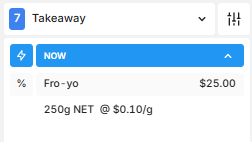
Products sold in varying quantities can be configured in Oolio One Back Office to measure the amount sold by Weight or Volume instead of individual units. This is suitable for products such as meat, produce and liquids where the amount sold may vary with each order.
The product's Measured By settings determine the unit of measurement and price per unit. Variable Quantity can then be enabled to prompt staff to enter the actual weight or volume when the product is selected in Oolio One POS.
See 🔗 Create a product if the required products have not yet been created.
Step 1: Set how the product is measured
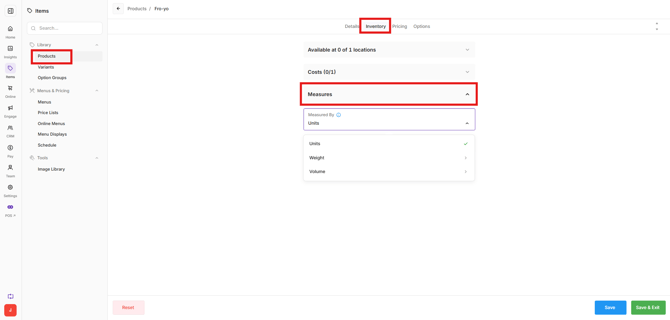
- Open Back Office > Items > Library > Products.
- Select the required product.
- Open the Inventory tab.
- Scroll to Measured By.
- Select:
- Weight for products measured by weight.
- Volume for products measured by volume.
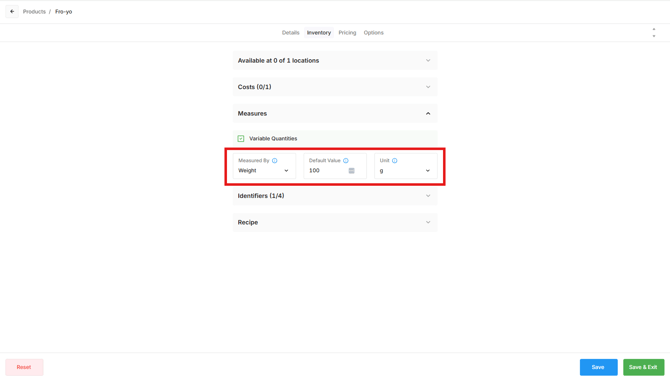
- Enter the Default Value.
- Select the appropriate unit:
- g or kg for Weight.
- mL or L for Volume.
- Save the changes.
The Default Size determines the quantity represented by the product's selling price.
For example, if Fro-yo has a Default Size of 100 g and a selling price of $10.00, the product is priced at $10.00 per 100 g. If 250 g of Fro-yo is sold, the price is calculated based on 2.5 lots of 100 g, resulting in a selling price of $25.00.
The same principle applies to products measured by volume. For example, a Default Size of 100 mL means the configured selling price represents each 100 mL sold.
Step 2: Enable Variable Quantity
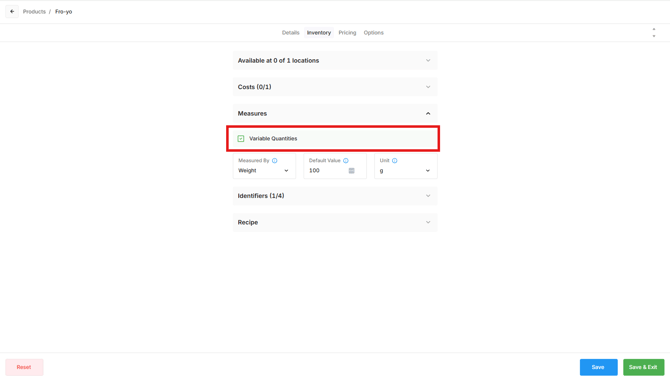
Enable Variable Quantity when the actual weight or volume needs to be entered each time the product is sold.
- In the product settings, find Variable Quantity.
- Enable Variable Quantity.
- Select Save.
Using Variable Quantity together with Measured By allows POS to prompt for the actual quantity being sold rather than automatically adding the product using its default size.
For example, a steak may be priced per 100g but the actual steak being sold may weigh 275g. The quantity can be entered when the product is selected, and the price is calculated based on the amount entered.
Step 3: Enter the quantity in POS
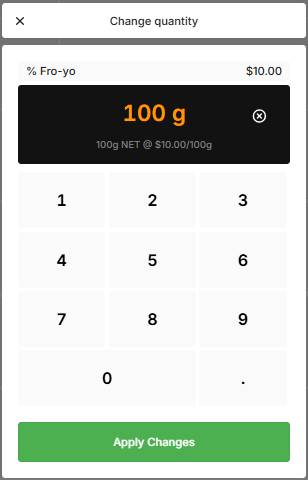
When a product configured with Variable Quantity is selected in POS, the Change Quantity window opens.
- Select the product in Oolio One POS.
- Enter the weight or volume being sold in Change Quantity.
- Select Apply Changes.
The product is added to the cart using the entered quantity, with the selling price calculated according to the product's Default Size and configured price.
To cancel without adding the product, select X in the upper-left corner of the Change Quantity window.
The product now appears in the cart with the selected quantity and calculated price.