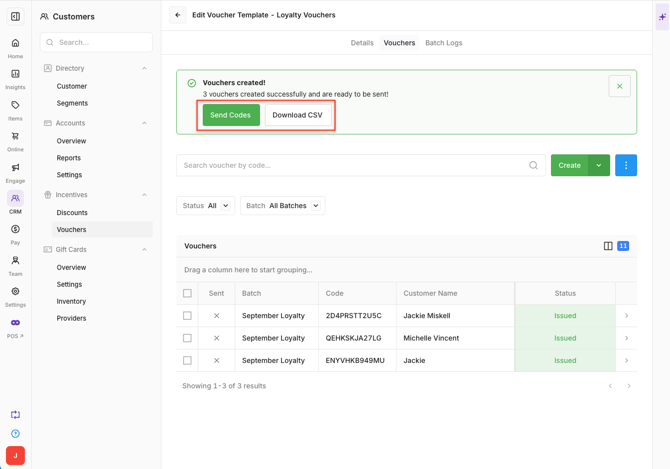
Create Vouchers in Oolio One to provide customers with codes linked to existing Discounts. Voucher Templates define the Discount, validity period and redemption rules, while Voucher Batches generate the individual codes that can be assigned to customers or distributed as promotional codes.
Before starting
Before creating Vouchers:
- Create the Discount that will be linked to the Voucher. See 🔗 Create a Discount
- Decide whether the Vouchers will be created for existing customers or for general distribution.
- Have a Batch Name and Reason ready when generating the Voucher codes.
Vouchers can be created in two ways:
- For Customers: Assign Vouchers to customers who already exist in Oolio One.
- For Guests: Generate Voucher codes for general distribution, such as promotional codes or QR codes.
Important: For Online Store promotional codes, the Voucher Name must exactly match the linked Discount Name so the Voucher can be validated during online checkout.
Step 1: Create a Voucher Template
The Voucher Template defines the Discount, validity period and redemption rules that apply to generated Vouchers.
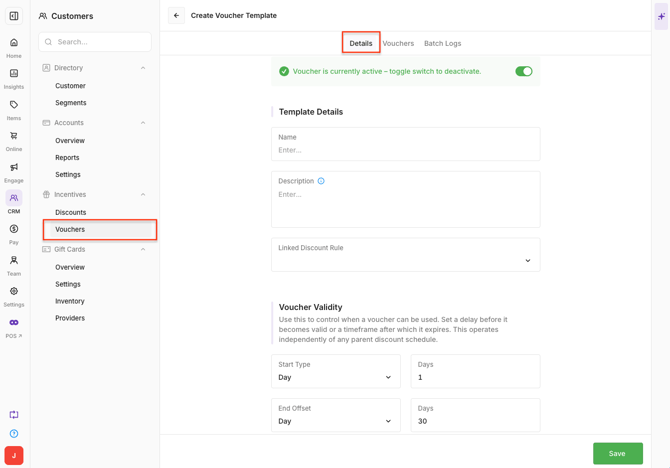
- Go to Back Office > CRM > Incentives > Vouchers.
- Select Create.
- Enter a Name for the Voucher.
- Enter a Description. (The Description is displayed in the Membership App).
- Select the Discount to link to the Voucher.
- Select the required Validity type:
- Day
- Hour
- Minute
- Year
- Enter the Validity value. (For example, enter
30and select Day to create a Voucher that remains valid for 30 days.)
- Review the explanation displayed on screen to confirm the resulting validity period.
Step 2: Configure the redemption rules
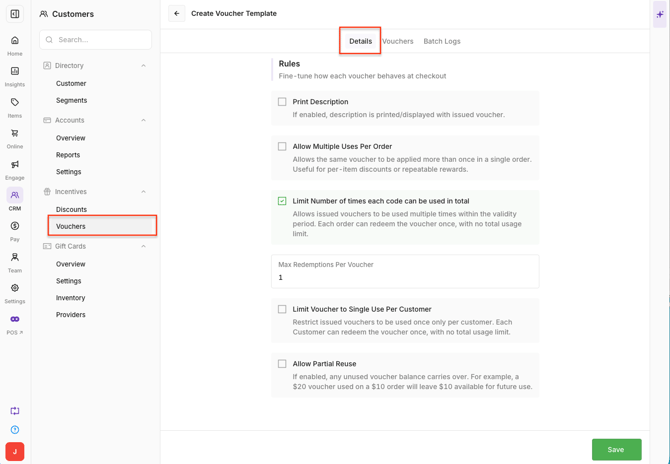
Scroll down within the Details tab to configure how generated Vouchers can be redeemed.
Configure the required options:
- Print Description: Displays the Description on the Voucher.
- Allow multiple uses per order: Allows the Voucher to be applied multiple times to the same order. This may be useful for Product Discounts.
- Limit total uses per code: Limits the total number of times an individual Voucher code can be redeemed. This can be used when distributing a shared promotional code.
- Max redemptions per voucher: Sets the maximum number of times each Voucher can be redeemed.
- Limit voucher to single use per customer: Prevents the same customer from redeeming the Voucher more than once.
- Allow partial reuse: Allows the remaining Voucher value to be used on a later purchase. For example, a $20 Voucher could be used across multiple smaller purchases.
Step 3: Generate Vouchers
Once the Voucher Template is configured, generate the Voucher codes.
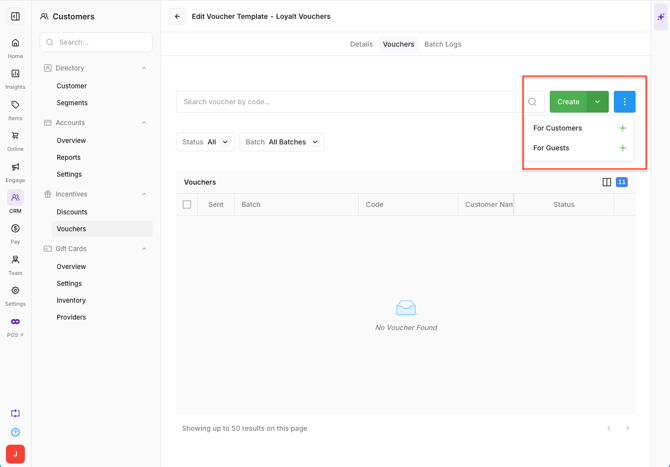
- Open the Vouchers tab.
- Select Create.
- Choose how the Vouchers will be created:
- For Customers: Creates Vouchers for selected customers who already exist in Oolio One.
- For Guests: Creates Voucher codes for general distribution that are not initially linked to a customer.
Step 4: Create the Voucher Batch
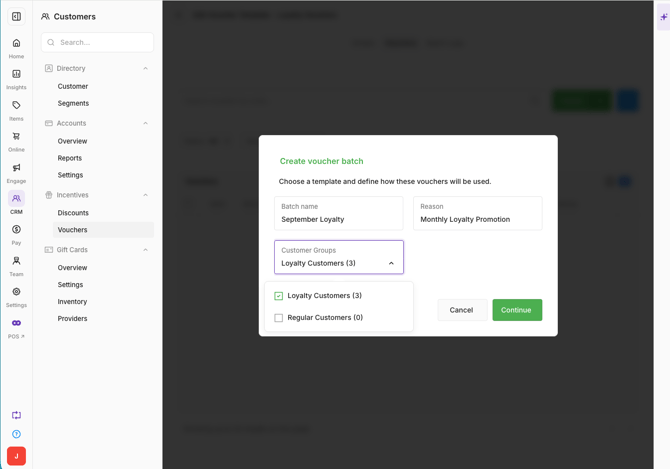
Voucher codes are generated as a Batch. The Batch Name and Reason make it easier to identify why the codes were created.
- Enter the Batch Name.
- Enter the Reason.
- Select a Customer Group where required.
- Select Continue.
- Review the details on the summary screen.
- Select:
- Create to generate the Voucher Batch.
- Go Back to change the Batch details.
- Cancel to stop creating the Batch.
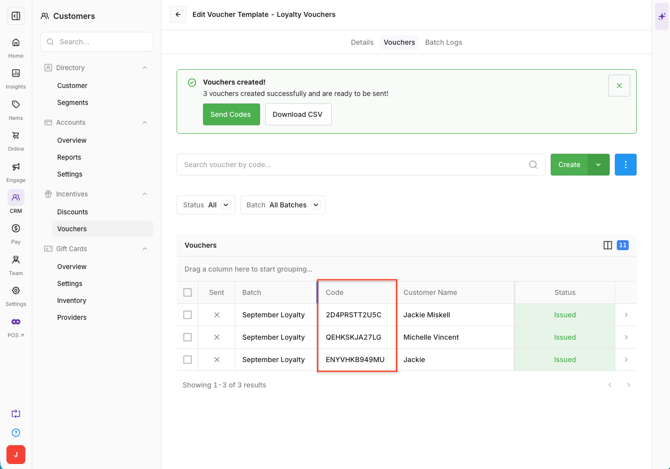
A confirmation message displays when the Voucher Batch has been created successfully.
Generated Voucher codes can also be downloaded as a .csv file.
Distribute Guest Voucher codes
Guest Vouchers can be used when a Voucher does not need to be assigned to an existing customer.
For example, a shared promotional code can be distributed through a marketing campaign when the Voucher has been configured to allow the required number of redemptions.
To access Guest Voucher codes:
- Open the generated Voucher Batch.
- Locate the required Voucher Code, or select Download to export the codes as a
.csvfile. - Distribute the code through the required channel.
Send Customer Vouchers
Vouchers created for existing customers can be sent directly by email or SMS.
- Open the Vouchers tab.
- Select Send Codes.
- Select the required notification option and complete the send process.
Alternatively, select Download to export the Voucher codes as a .csv file for distribution outside Oolio One.