
Connect Uber Eats or DoorDash to Oolio One to manage online ordering from one place. Menus, pricing and trading hours are published from Oolio One to the connected ordering partner, while customer orders are sent to the POS for processing.
Before starting
Before connecting an online ordering partner:
- Add images and descriptions to Products that will be available online.
- Create the required Online Menu.
- Add the required Products to the Online Menu.
- Configure the Menu schedule.
- Create the required Price List.
- Confirm the Menu and Price List are ready to publish.
- If Pickup and Delivery use different pricing, create separate Menus and Price Lists for each Order Type.
See:
Step 1: Open Oolio Orders
From Oolio One Back Office:
- Select the App Grid.
- Select Orders.
- Find the required Store.
- Select the three dots next to the Store.
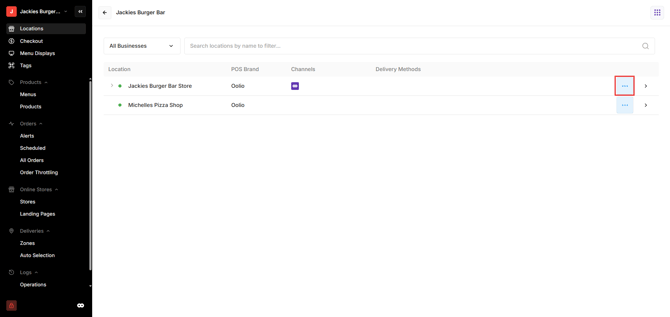
Step 2: Add an online ordering channel
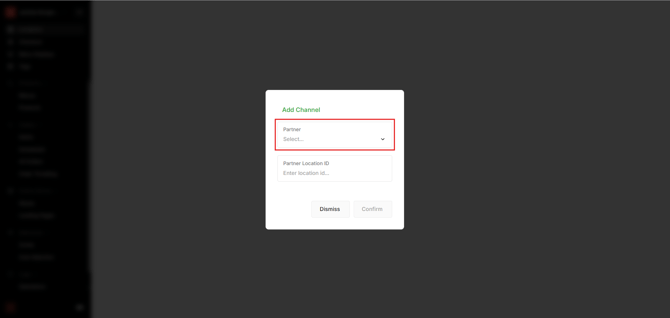
- Select Add Channel.
- Under Partner, select the required ordering partner.
- Continue with the connection process for Uber Eats or DoorDash.
Connect Uber Eats:
-
Select Uber Eats as the Partner.
-
The Uber Eats Portal opens to complete the connection. Follow the prompts in Uber Eats to authorise and complete the setup.
Connect DoorDash:
-
Select DoorDash as the Partner and continue through the setup process.
Check the online ordering channel:
-
Once the connection and any required partner setup are complete, check that:
- The correct Menu is available through the ordering partner.
- Products are displayed correctly.
- Product images and descriptions are correct.
- Pricing is correct.
- Trading hours are correct.
-
Place a test order where available to confirm that orders are received by Oolio POS as expected.
Update the online Menu:
-
After connecting an ordering partner, manage the Menu, Products, pricing and trading hours from the corresponding Oolio One configuration.