Use Void to remove an item or an entire order after it has been sent. Only items and orders that have already been Sent can be voided.
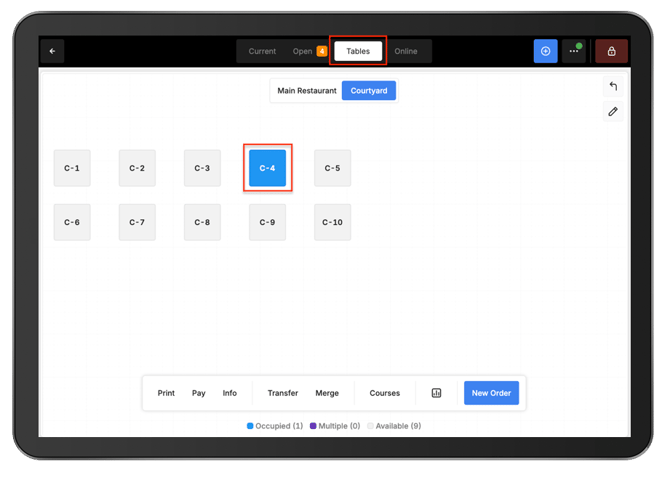
Voids can be completed from an Open Order or, for dine-in orders, by opening the order from the Floor Plan.
Void an item:
-
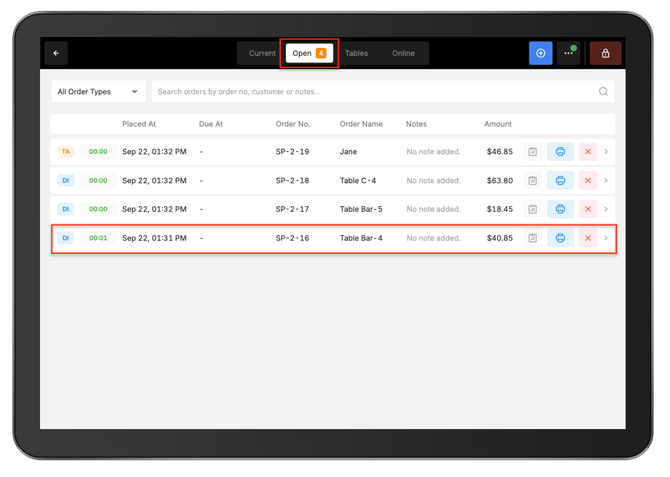
To void an item on an Open Order
- From POS, open Open Orders.
- Select the required in-progress order.
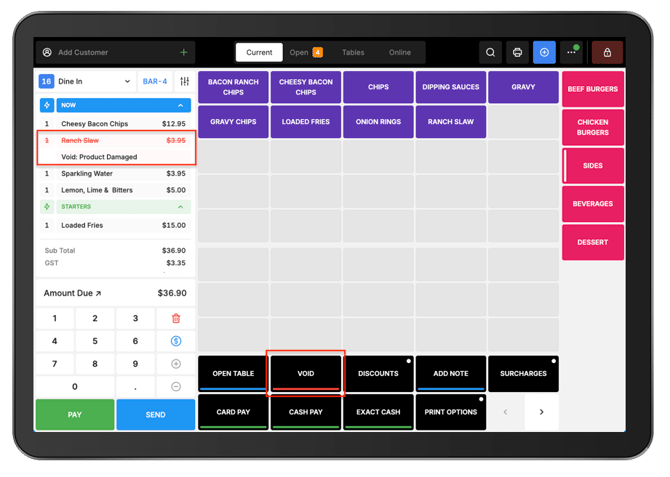
- Select the item to void from the cart.
- Select Void from the Function Map.
- Select the appropriate void reason.
- Complete the void.
The item remains visible on the order as a voided item, along with the selected void reason.
Void an entire order:
-
To void all remaining items on an Open Order
- Open the required order from Open Orders.
- Leave all individual products unselected.
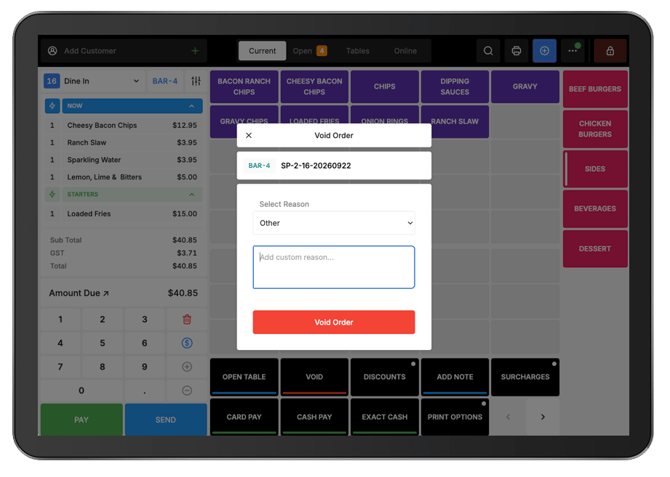
- Select Void from the Function Map.
- Select the appropriate void reason.
- Complete the void.
-
If no void reason is selected, Other is applied by default.
-
A note can also be added when the available void reasons do not adequately explain the reason for the void.
Quickly void an order from Open Orders:
-
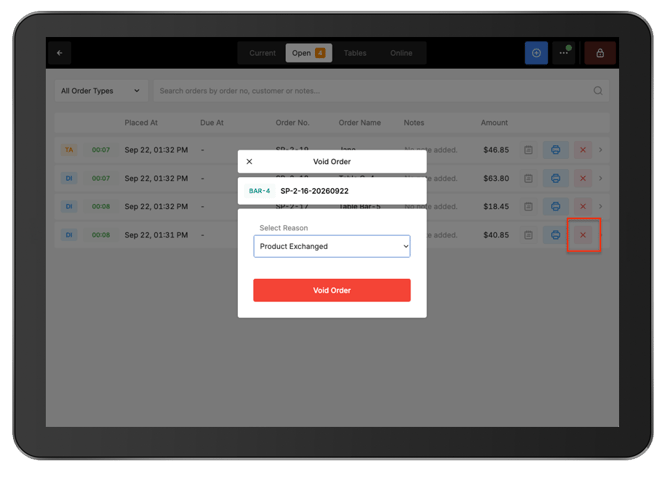
An entire order can also be voided directly from the Open Orders screen.
- Open Open Orders.
- Find the required order.
- Select the red cross icon beside the order.
- Select the appropriate void reason.
- Complete the void.
Partially paid orders:
-
For a partially paid order:
- Continue taking payment for the remaining order balance, or
- Void the remaining unpaid items individually.
Important: An entire order cannot be voided after it has been partially paid.
Void an item from a table order:
-
For a dine-in order assigned to a table:
- Open the Floor Plan.
- Select the required Section and Table.
- Open the table order.
- Select the item to void.
- Select Void from the Function Map.
- Select the appropriate void reason.
- Complete the void.