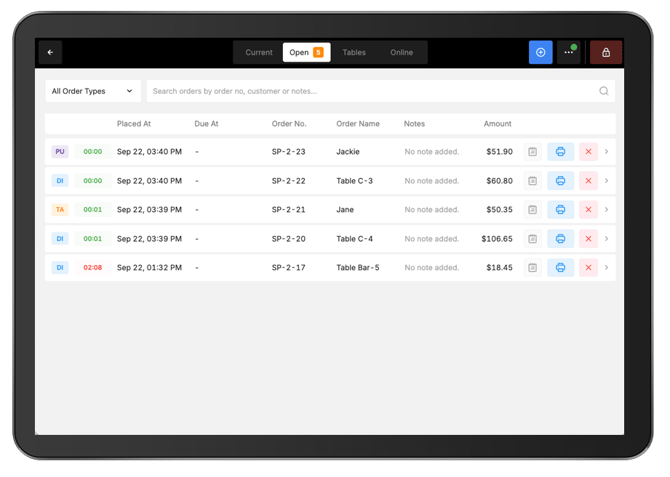
Open Orders are in-progress orders that have been sent but have not yet been completed and paid. They are commonly used for dine-in orders where additional items may be added throughout service, but can also be used for takeaway and other orders when payment will be taken later.
From Open Orders, existing orders can be reopened, updated, searched, printed, or voided.
View Open Orders
- From Oolio One POS, select Open at the top of the screen.
- Find the required order.
- Select the order to open it in the POS cart.
The order can then be updated or additional items can be added as required.
Find an Open Order
The Open Orders screen provides information to help identify and manage orders.
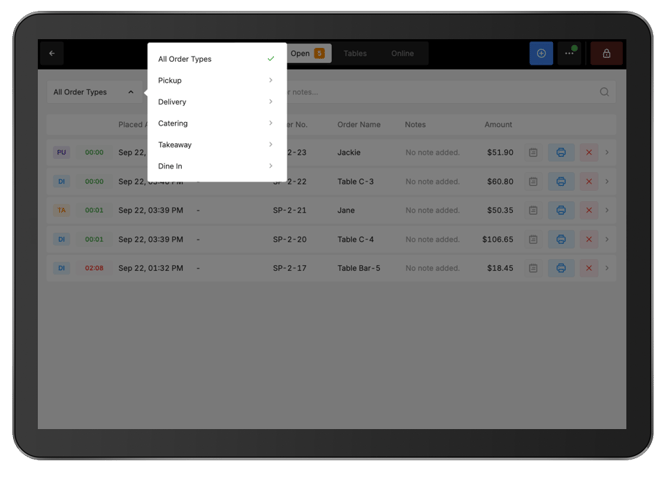
Order Type:
-
Filter the list by Order Type to find relevant orders.
-
The Order Type is also displayed against each individual order.
Order, Age and Placed On:
-
Each Open Order displays:
-
Order: The unique order number. Use this number to search for a specific order.
-
Age: How long the order has been open.
-
Placed On: The date and time the order was created.
-
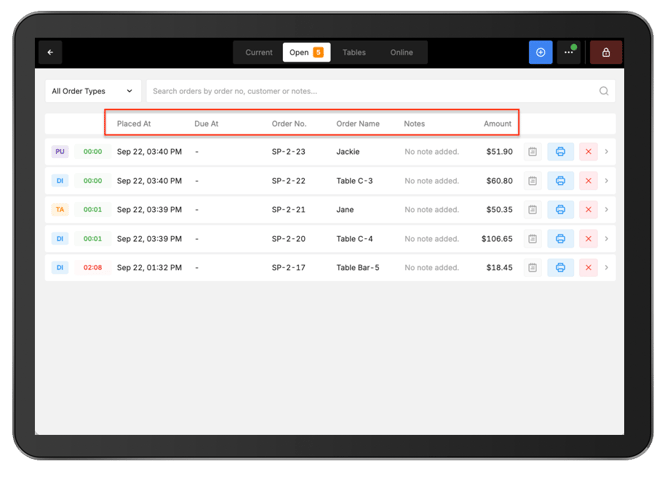
Depending on the order, additional information may also be displayed to help identify it, including:
-
Takeaway order details.
-
Delivery order details.
-
Loyalty customer information.
-
Account information.
User:
-
The User identifies the staff member who placed the order.
-
This can help staff identify who originally took an order if more information is required.
View order notes
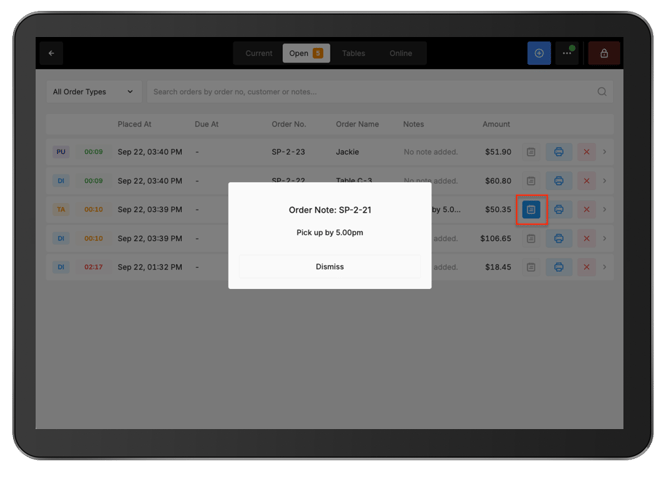
Orders with a note display a blue note icon in Open Orders.
To view the note directly from the Open Orders screen, select the blue note icon.
Alternatively, select the order to open it. The note is displayed at the top of the order in the cart.
Print an order or reprint preparation dockets
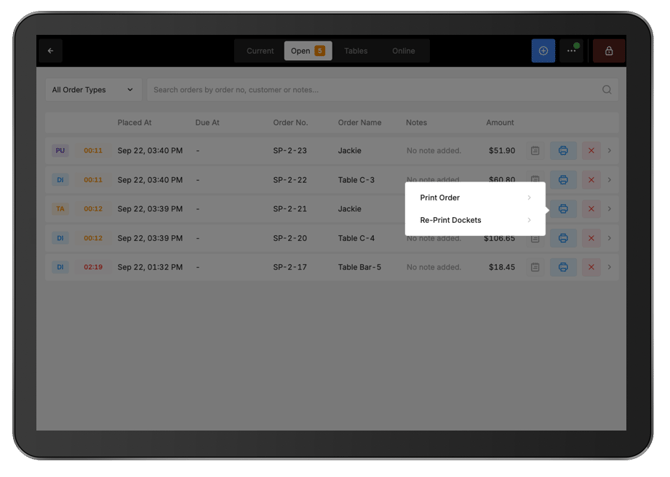
Printing options are available directly from Open Orders.
Select the required print option:
-
Print Order: Prints the order bill or receipt.
-
Re-Print Dockets: Reprints the order's preparation dockets, such as kitchen or bar dockets.
Void an Open Order
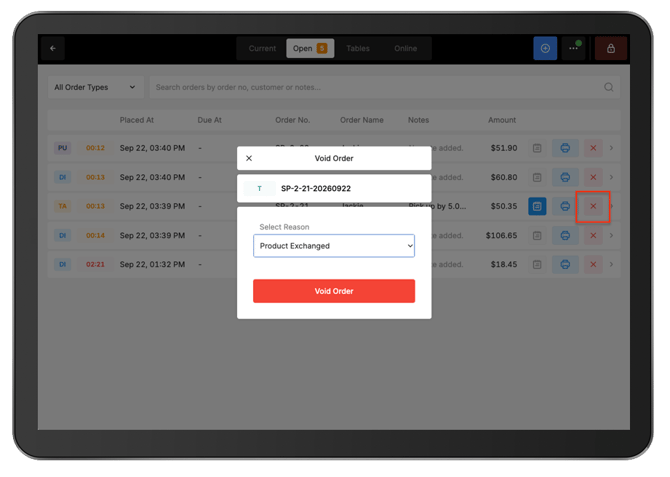
An Open Order can be voided from the order itself or directly from the Open Orders screen.
To void from the order:
-
Select the required order.
-
Select Void from the Function Map.
Alternatively, select the red cross icon beside the order from the Open Orders screen.
Then:
-
Select the appropriate void reason.
-
Select Void.