
Oolio One Back Office allows venues to view and manage issued Gift Cards, including checking their balance, status, expiry date and order history.
Gift Cards can also be cancelled or reactivated when required. Both physical Gift Cards and eGift Cards can be managed from the Gift Cards Overview.
Step 1: Find and View Gift Cards
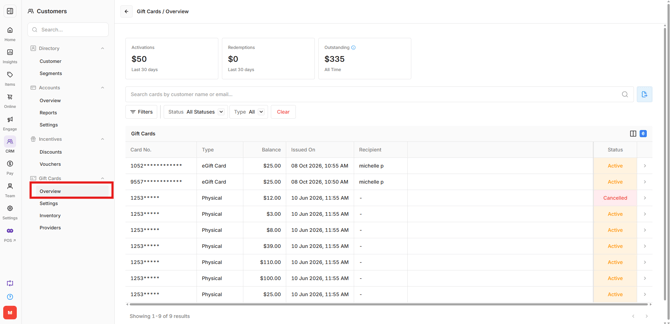
The Gift Cards Overview provides a summary of Gift Card activity and a list of issued Gift Cards.
- In Oolio One Back Office, go to CRM > Gift Cards > Overview.
- Review the summary information:
- Activations: Total value of Gift Cards activated in the last 30 days.
- Redemptions: Total value of Gift Cards redeemed in the last 30 days.
- Outstanding: Total remaining Gift Card balance across all issued cards.
- Search for a Gift Card using the customer's name or email address, or use the Status and Type filters.
- Select a Gift Card from the list to open its details.
The Gift Card list displays the card number, type, balance, issue date, recipient and current status.
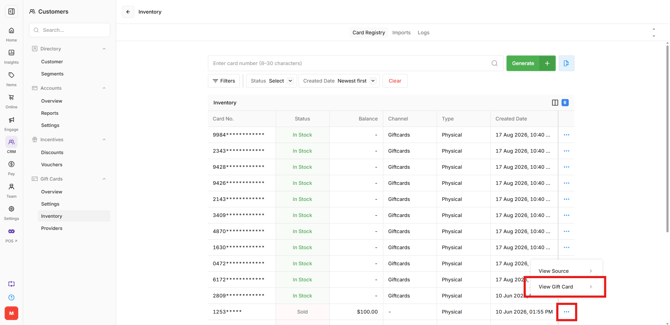
Sold physical Gift Cards can also be accessed from CRM > Gift Cards > Inventory. Find the card, select the Options (⋯) menu and choose View Gift Card.
Step 2: View Gift Card Details and History
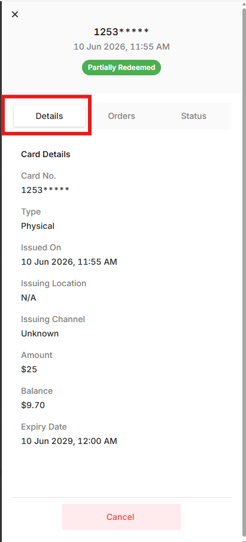
Selecting a Gift Card opens a panel containing three tabs: Details, Orders and Status.
Details:
-
The Details tab displays:
- Card No.: The Gift Card number.
- Type: Physical Gift Card or eGift Card.
- Issued On: Date and time the Gift Card was issued.
- Issuing Location: The Location where the Gift Card was issued.
- Issuing Channel: Where the Gift Card was purchased or issued.
- Amount: The original value of the Gift Card.
- Balance: The remaining value available for redemption.
- Expiry Date: The date the Gift Card expires.
- Sender and Recipient Details: Where applicable.
Orders:
-
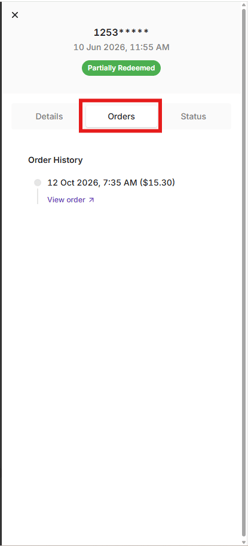
The Orders tab displays orders associated with the Gift Card, allowing staff to review its order history. Select View Order to open the orders receipt.
Status:
-
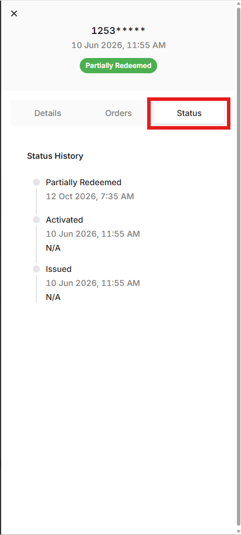
The Status tab displays a history of the Gift Card's status changes, including when it was issued or activated, along with the date and time of each change.
Cancel a Gift Card
Gift Cards can be cancelled to prevent further redemption.
- In Oolio One Back Office, open CRM > Gift Cards > Overview.
- Find and select the Gift Card to be cancelled.
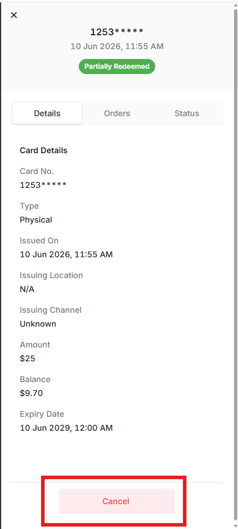
- Select Cancel at the bottom of the Gift Card details panel.
- In the confirmation window, select Cancel to proceed.
The Gift Card status changes to Cancelled, and the card can no longer be redeemed in POS. Any remaining balance is retained.
Reactivate a Gift Card
Cancelled Gift Cards can be reactivated to allow them to be redeemed again.
- Open CRM > Gift Cards > Overview.
- Find the cancelled Gift Card using the search or Status filter.
- Select the Gift Card to open its details.
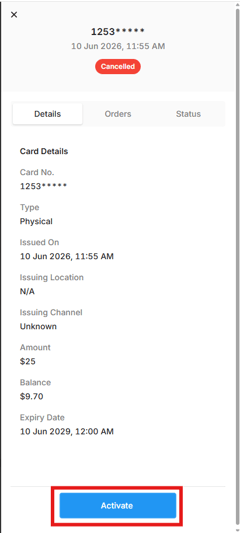
- Select Activate at the bottom of the panel.
The Gift Card is reactivated with its previous status and remaining balance.
Check a Gift Card Balance in POS or Online
Gift Card balances can also be checked without accessing Back Office.
- Oolio One POS: Staff can use the Gift Card function key and select Check Balance to scan, swipe or enter a Gift Card code.
- Oolio Gift Card Store: Customers can select See Balance and enter their Gift Card code to check the remaining balance online.
For step-by-step instructions, see 🔗 Redeem Oolio Gift Cards.
View Expired Gift Cards
Gift Cards automatically expire when they reach their configured expiry date.
Once expired:
- The Gift Card status changes to Expired.
- Any remaining balance can no longer be redeemed.
- The Gift Card remains available in reporting for historical reference.
To find expired Gift Cards, open CRM > Gift Cards > Overview and select Expired from the Status filter.
For more information about creating and configuring Gift Cards, see 🔗 Configure Oolio Gift Cards.