
Cash Events record cash added to or removed from the till outside of normal sales, such as adding a float or using cash for petty cash. Recording these movements in Oolio One POS helps keep cash totals accurate and ensures the events are included in reporting.
Cash Events can be recorded using Money In / Out from Manager Functions or from Manage Cash.
Before starting
- Cash Event reasons must be created in Back Office before they can be selected in POS.
- See 🔗 Configure Cash Events for setup instructions.
- Access to Money In / Out may also depend on the permissions assigned to the logged-in user.
Record a Cash Event using Money In / Out
- From POS, select the arrow on the Function Map to open the next page.
- Select Manager Functions.
- Select Money In / Out.
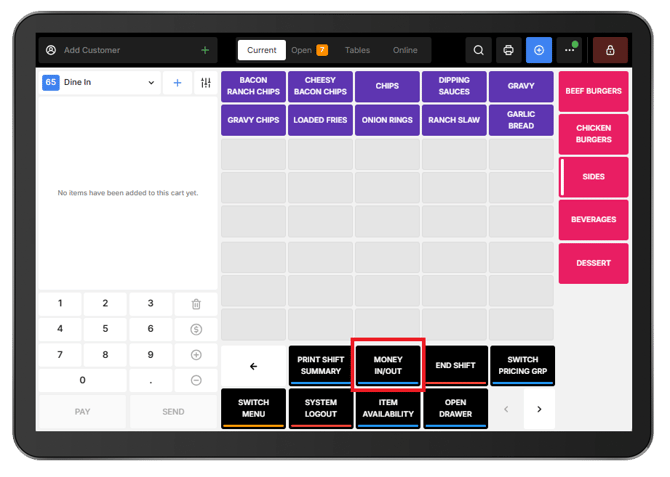
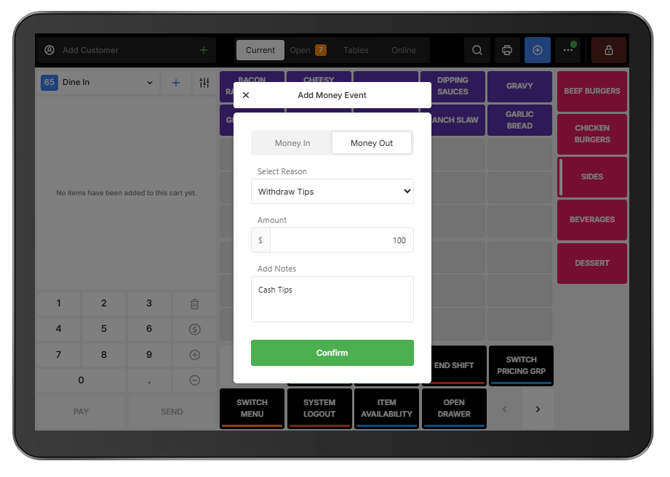
- Select the type of Cash Event:
- Money In for cash being added to the till, such as a float.
- Money Out for cash being removed from the till, such as petty cash.
- Select the appropriate Reason.
- Enter the Amount.
- Add a note if additional information about the Cash Event is required.
- Select Confirm.
The Cash Event is recorded and can be viewed in the relevant reports.
Record a Cash Event from Navigation Menu
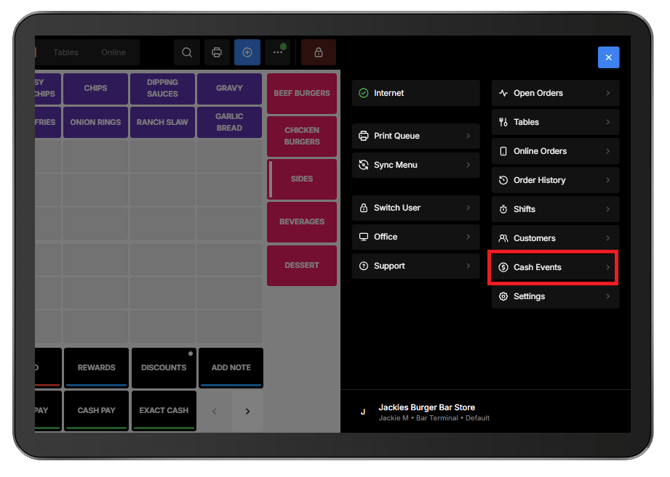
Cash Events in the navigation menu can be used to create a new Cash Event and review Cash Events recorded during the current shift.
- Open the Navigation Menu (⋯).
- Select Cash Events.
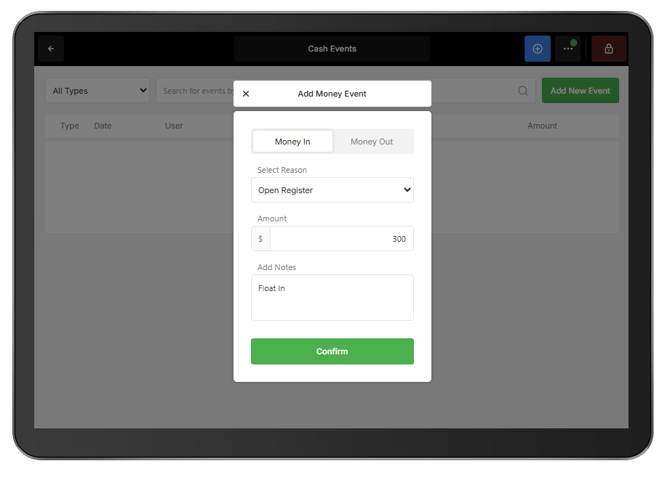
- Select Add New Event.
- Select Money In or Money Out.
- Select the appropriate Reason.
- Enter the Amount.
- Add a note if required.
- Select Confirm.
The new event appears in Cash Events.
View Cash Events
Open Navigation Menu (⋯) > Manage Cash to view Cash Events recorded during the current shift.
Select the information (i) icon beside an event to view its details.
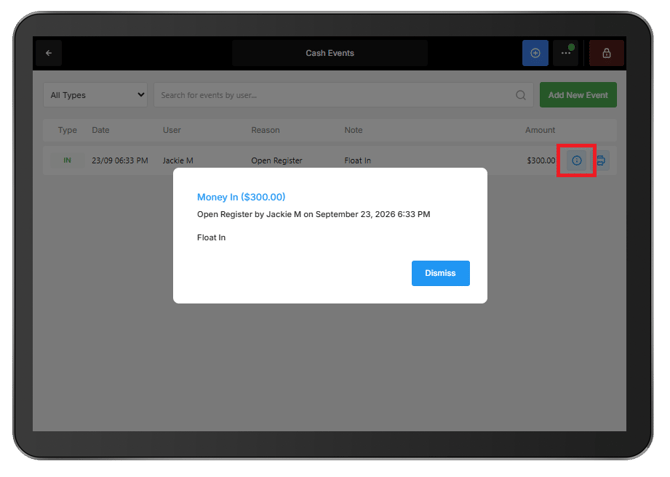
Note: After the shift is closed, the Cash Events are no longer displayed on the Manage Cash screen. They remain available in the relevant reports.
Print a Cash Event
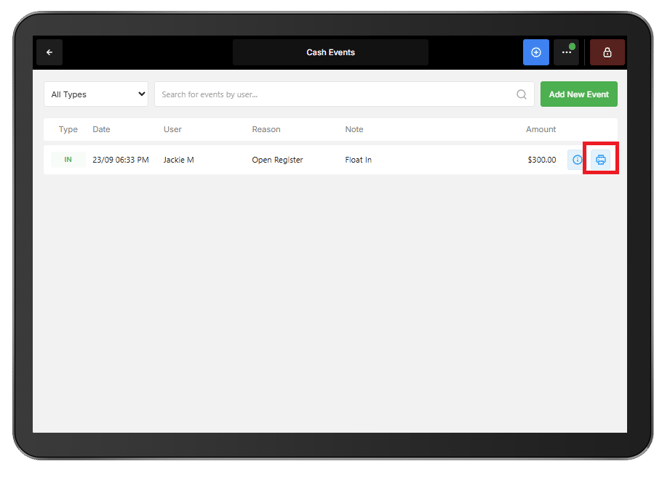
Cash Event details can be printed when a physical record is required.
From Manage Cash, select the Print icon beside the required event.
Correct an incorrect Cash Event
An existing Cash Event cannot be removed or edited. If an incorrect amount has been recorded, create an opposite Cash Event to correct the cash total.
For example, if $76.50 Money Out was recorded instead of $66.50:
- Select Add New Event.
- Select Money In.
- Enter $10.00.
- Select the appropriate Reason.
- Add a note explaining the correction.
- Select Confirm.
The two events result in a net Money Out amount of $66.50.
Important: Keep the original event and correction visible rather than attempting to remove the original entry. Adding a clear note to the correcting event provides context for the adjustment in reporting.