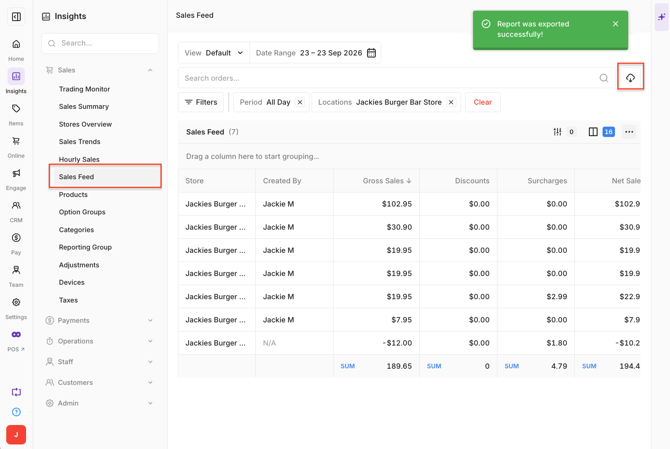
The Sales Feed report in Oolio One provides a detailed record of completed sales and is the Back Office equivalent of the sales history available in POS. Use the report to review individual orders, payments and sales information, open customer receipts, or export detailed sales data.
Sales Feed data updates approximately every 10 minutes.
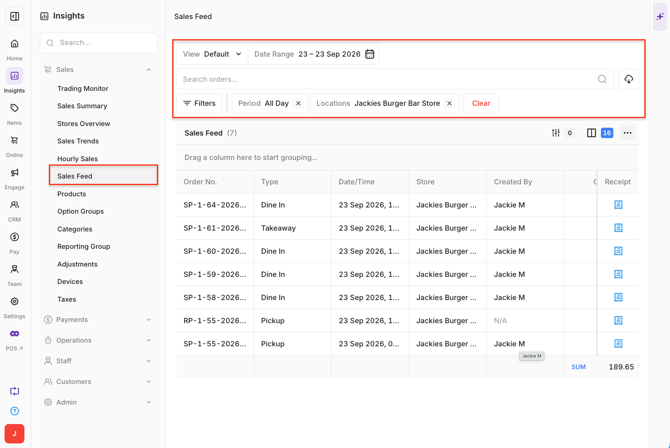
Open the Sales Feed report
- Open Back Office > Reports > Sales Feed.
- Select the required Date or Date Range.
- Select All Day or enter a custom time range.
- Select the required Store or Stores.
Important: An order appears in the Sales Feed only when it is fully paid, Voided or Refunded. Partially paid orders do not appear until payment is completed.
On Account sales appear once the outstanding order has been fully paid and are recorded against the date payment is received, rather than the date the order was created.
Customise the Sales Feed
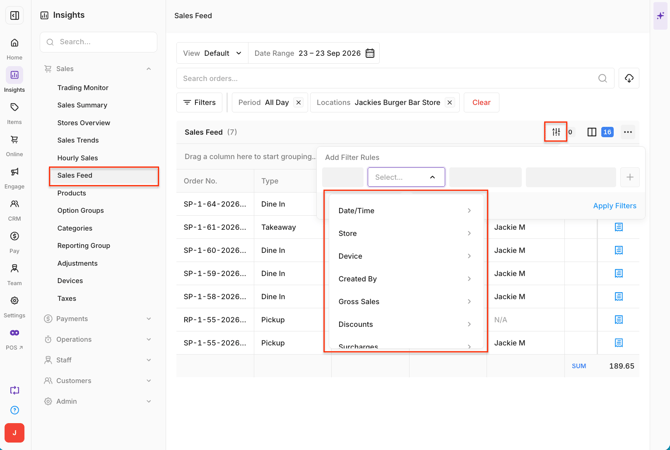
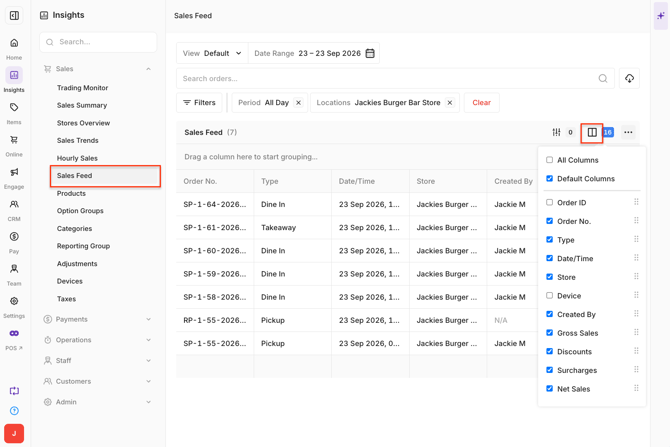
Select the Filter icon to choose which columns are displayed.
-
Available information includes:
- Order Number: The sales number associated with the order. Voided or Refunded orders display in red. The order number begins with the Device prefix identifying where the sale was created.
- Order Type: The Order Type associated with the sale, such as Dine In, Takeaway, Delivery, Pick Up or Catering.
- Date / Time: Date and time of the order.
- Store: Store associated with the order.
- Device: Name of the Device where the order was created.
- Created By: Staff member who created the order.
- Customer: Customer associated with the order, or Walk In.
- Payment Type: Payment Type used for the order, such as Card, Cash or Gift Voucher. Voided orders display Voided.
- Status: Order status, including Completed, Voided or Refunded.
- Table: Table number for Dine In orders.
- Surcharge: Order-level Surcharges applied to the order, such as Public Holiday or Weekend Surcharges.
- Discount: Order-level or item-level Discounts applied to the order.
- Net Sales: Total Collected minus Tax, Tips, Cash Rounding and Payment Surcharge.
- Taxes: Total Tax collected for Products included in the order.
- Sales Amount: Net Sales plus Taxes.
- Payment Surcharge: Payment Surcharge applied to Card payments.
- Tips: Total Tips collected for the order from Payment Terminals or Online payments.
- Total Collected: Total amount collected for the order, including Net Sales, Taxes, Tips, Payment Surcharge and Cash Rounding.
- Payments: Payments recorded against the order. An order can contain multiple payments, such as part Cash and part Card.
- Sub Total: Order total before adjustments.
- Cash Rounding: Rounding adjustment applied when completing a Cash payment.
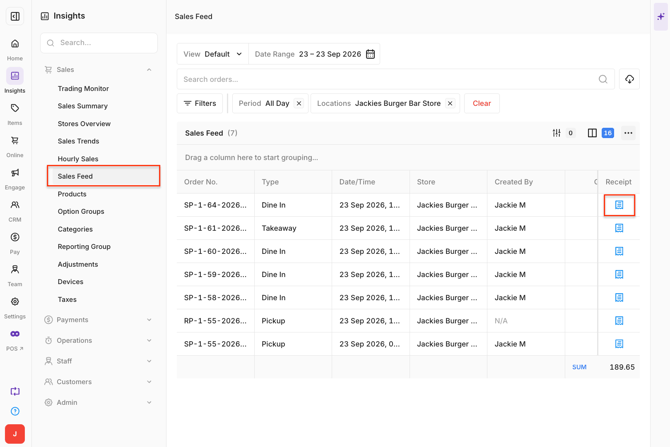
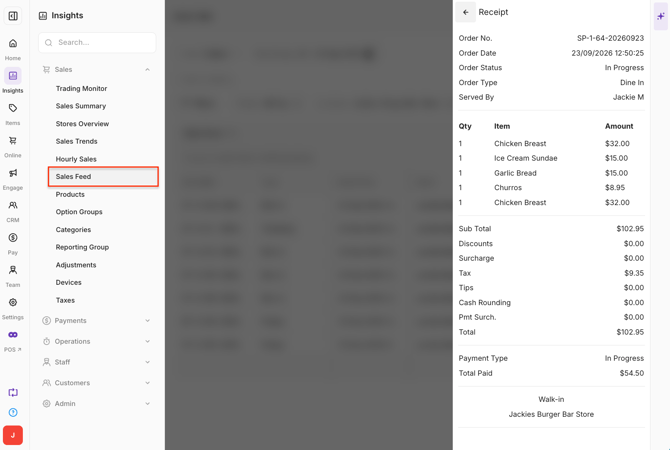
- Receipt: Opens the complete receipt for the order.
View a customer receipt
Select the Receipt icon for an order to view the complete receipt and its sales information.
Sort and customise columns
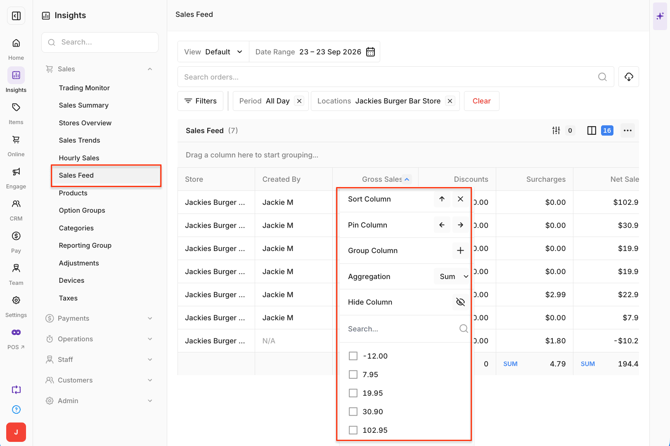
Select a column heading to sort its values from lowest to highest or highest to lowest.
Filter the Sales Feed:
-
Select the chevron (⌄) on a column for additional options, including:
- Move or pin the column to the left or right.
- Summarise values using Average, Count, Maximum, Minimum or Sum.
- Choose which values are displayed.
Filter the Sales Feed:
-
Select the Filter icon to apply additional filters.
-
Available filters include:
- Order Status: Completed, Refunded or Voided.
- Payment Type: Card, Cash, Gift Card and other configured Payment Types.
- Sales Channels: In Store, Online and other available Sales Channels.
- Device: Filter by the Device where the order was created.
Export Sales Feed data
Select the Download icon to export the displayed Sales Feed data as a CSV file.
-
The export reflects the data displayed in the report.