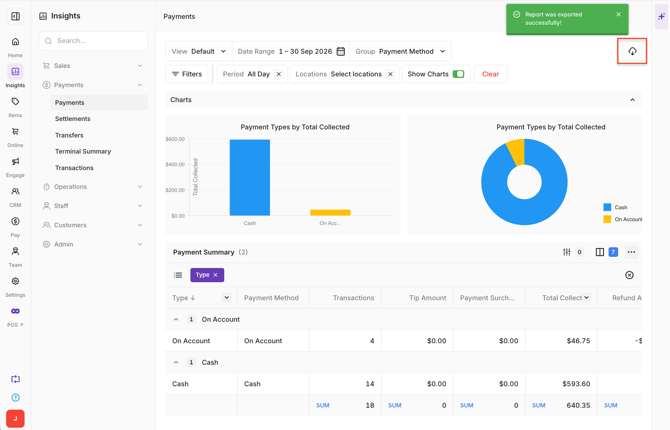
The Payments report in Oolio One provides a breakdown of payments collected across different Payment Types, such as Card, Cash and Gift Cards. Use the report to review transaction volumes, Tips, Refunds and Total Collected for a selected period.
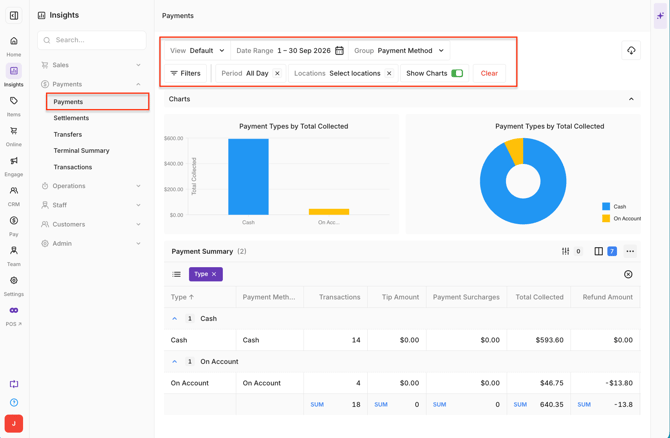
Payment information can be grouped by Payment Method or by Daily, Weekly or Monthly periods.
Open the Payments report
- Open Back Office > Reports > Payments.
- Select how to Group By the payment information.
- Select the required Date or Date Range.
- Select All Day or enter a custom time range.
- Select the required Store or Stores.
-
Group By options include:
- Payment Method
- Daily
- Weekly
- Monthly
Review payment charts
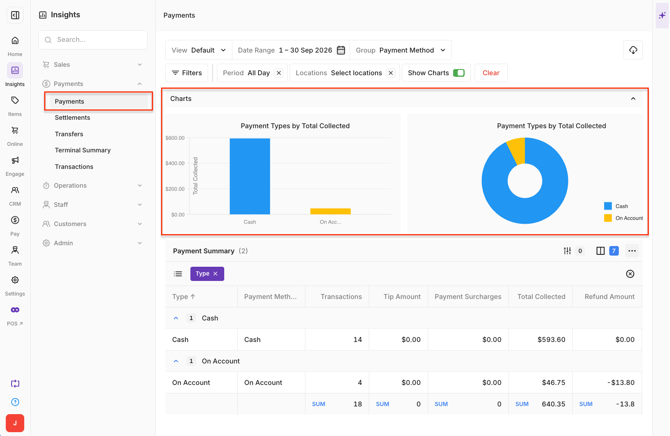
The report provides bar and pie charts showing Total Collected across the Payment Types included in the selected period.
-
Hover over a section of either chart to view the amount for that Payment Type.
Understand the Payment Summary
The Payment Summary provides a detailed breakdown of payment activity.
-
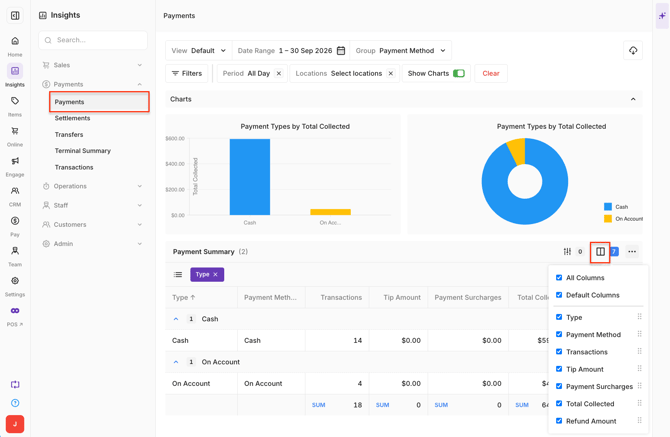
Select the Filter icon to choose which columns are displayed.
-
Available information includes:
- Type: More detailed information about the Payment Type. For Card payments, this can include the Card type used, such as Mastercard, American Express or Savings.
- Payment Type: Payment method used, such as Card, Cash, Gift Card or another configured Payment Type.
- Transactions: Number of transactions for the Payment Type during the selected period.
- Tips: Total Tips collected through Payment Terminals or Online payments.
- Total Collected: Total amount collected, including Net Sales, Taxes, Tips, Payment Surcharge and Cash Rounding.
- Refund Amount: Amount refunded against the Payment Type.
-
The Payment Summary changes according to the selected Group By option and report filters.
-
For example, selecting Group By > Payment Method displays the Payment Summary by Payment Type for the selected period.
 Sort and customise the Payment Summary
Select a column heading to sort its values in ascending or descending order.
-
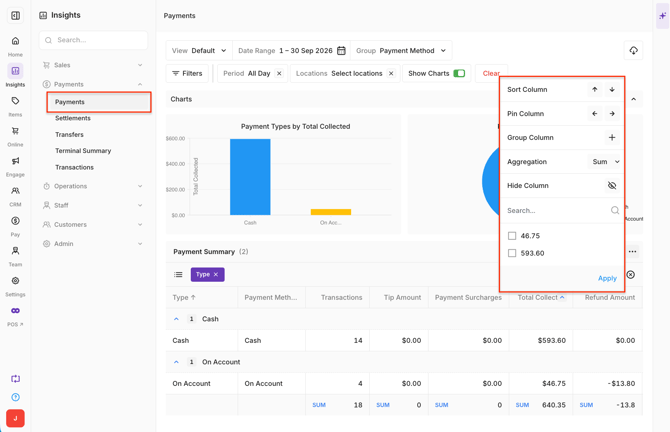
Select the chevron (⌄) on a column for additional options, including:
- Sort, move or pin the column.
- Summarise values using Average, Count, Maximum, Minimum or Sum.
- Select which values are displayed.
Group Payment Summary data
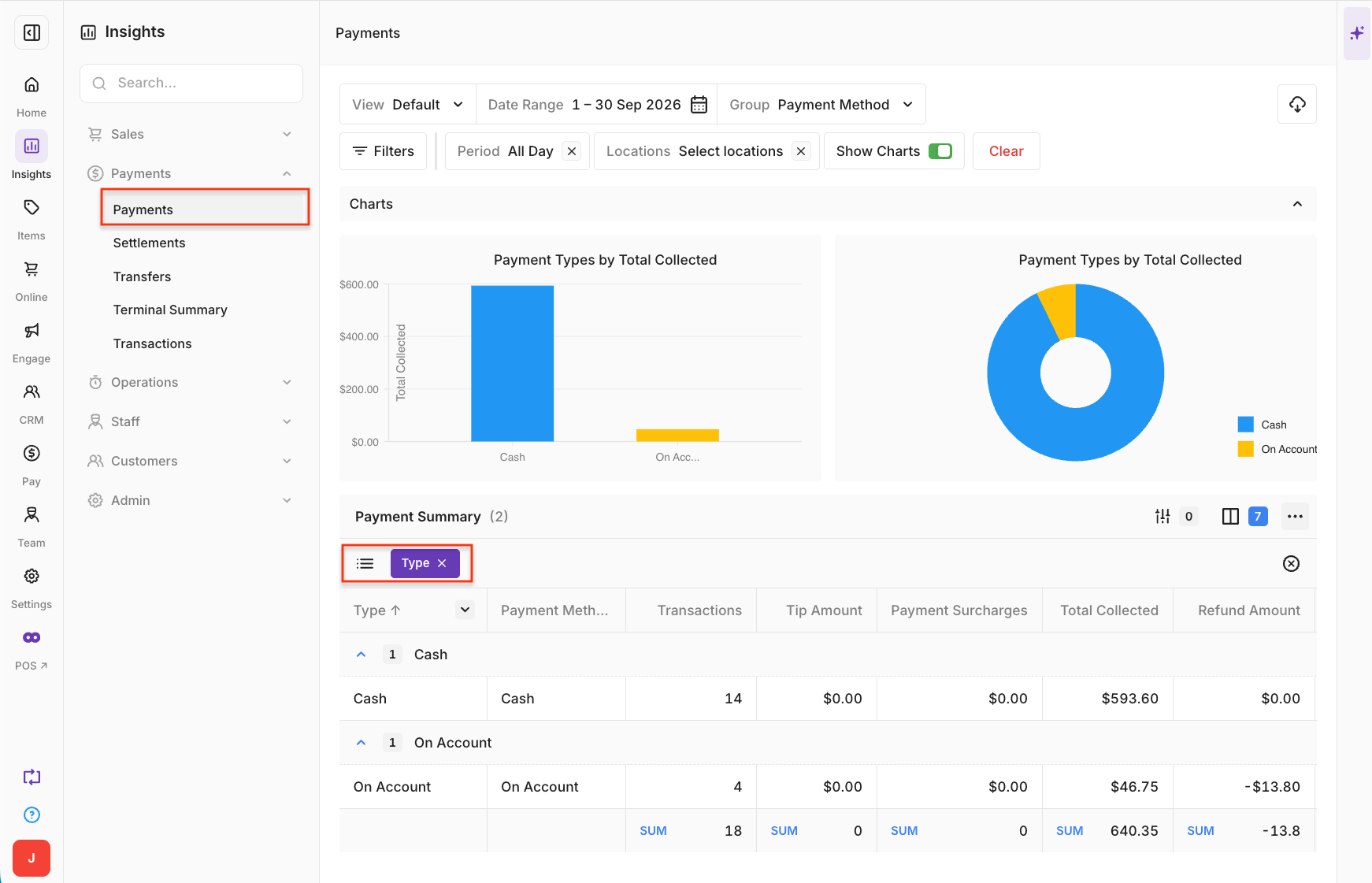
Drag a column into the Drag a column here area to group and compare information using that field.
-
For example, group by Type to compare Total Collected across the different Payment Types.
Filter the Payments report
-
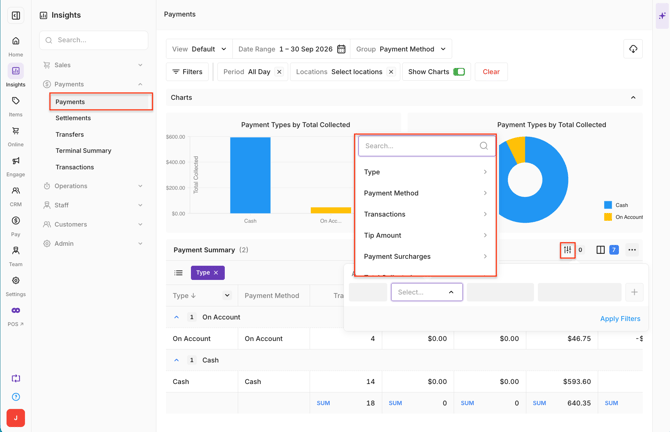
Select the Filter icon to apply additional filters.
-
Available filters include:
- Payment Type: Card, Cash, Gift Card and other configured Payment Types.
- Order Type: Dine In, Pick Up, Catering, Delivery and other configured Order Types.
- Sales Channel: In Store, Online and other available Sales Channels.
- Device: Filter by the Device associated with the payment.
Export payment data
Select the Download icon to export the displayed payment information as a CSV file.
- The export reflects the data displayed in the report.