
The Gift Cards report in Oolio One Insights provides visibility of gift card activations, redemptions, outstanding balances and transaction activity across locations. Use this report to monitor gift card liabilities, investigate transactions and reconcile gift card activity without counting gift card purchases as sales revenue.
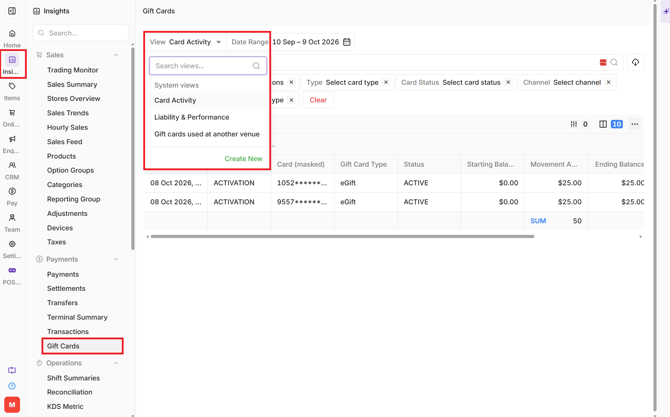
The report includes three views: Card Activity, Liability and Performance, and Gift Cards Used at Another Venue.
Open the Gift Cards Report
- In Oolio One Insights, open Payments > Gift Cards.
- Select the required view:
- Card Activity: Review individual gift card transactions and balance movements.
- Liability and Performance: Review gift card activations, redemptions and outstanding balances.
- Gift Cards Used at Another Venue: Review gift cards purchased at one location and redeemed at another.
The selected report displays information based on the applied reporting filters.
Card Activity Report
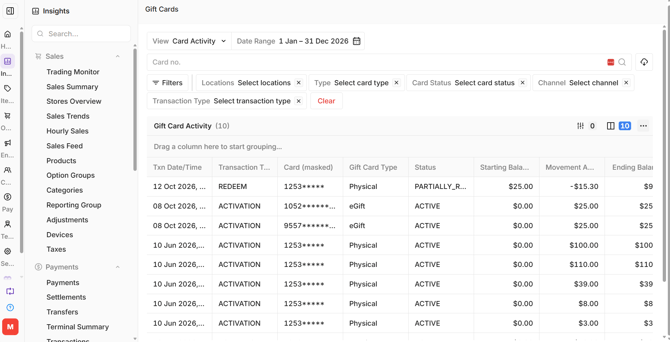
The Card Activity view provides a transaction-level record of gift card movements. Each row represents an individual transaction event, allowing activations, redemptions and other changes to gift card balances to be reviewed.
- In Oolio One Insights, open Payments > Gift Cards > Card Activity.
- Select the required Date Range.
- Use the available filters to locate a transaction:
- Location: Select one, multiple or all locations.
- Card Type: Physical or eGift.
- Card Status: Issued, Active, Partially Redeemed, Fully Redeemed, Expired or Cancelled.
- Channel: The channel through which the gift card was sold.
- Transaction Type: Activation or Redemption.
- Review the transaction details, including the movement amount and card balance.
- Adjust the displayed columns or grouping to investigate activity further.
Card Activity Report Columns
The report includes:
- Transaction Date/Time: When the gift card transaction occurred.
- Transaction Type: The type of gift card movement, such as activation or redemption.
- Card (Masked): Displays the first digits of the gift card number, with the remaining digits masked.
- Gift Card Type: The type of gift card, such as Physical or eGift.
- Status: The gift card's status.
- Starting Balance: The balance before the transaction.
- Movement Amount: The amount added to or deducted from the gift card.
- Ending / Current Balance: The balance after the transaction.
- Store: The store associated with the transaction.
- Order No: The related order reference.
Additional Card Activity Columns
Additional columns can be selected to display:
- Gift Card ID: The unique internal identifier assigned to the gift card.
- Venue: The location where the gift card was sold.
- Purchase Store: The store where the gift card was purchased.
- Terminal / Channel: The channel or terminal used for the transaction.
- Provider: Identifies whether the gift card was issued through Oolio One or an integration partner.
- Purchaser: The purchaser's email address, where available.
- Recipient: The recipient's email address for eGift cards.
- Card Expiry: The gift card's expiry date.
- Notes: Any notes recorded against the gift card.
Gift card numbers are masked by default. Access to the full card number is controlled by user permissions.
Liability and Performance Report
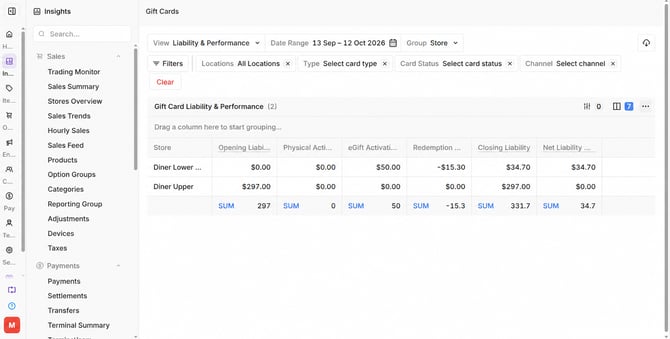
The Liability and Performance view provides an overview of gift card activity and outstanding balances. Use this view to monitor gift card activations, redemptions and outstanding liability.
- In Oolio One Insights, open Payments > Gift Cards > Liability and Performance.
- Select the required Date Range to review activity over a period, or a single date to review outstanding liability at a particular point in time.
- Apply the required filters:
- Group: Group the report by Store, Venue, Gift Card Type, Channel, Daily or Monthly.
- Locations: Select one, multiple or all locations.
- Type: Select Physical or eGift.
- Card Status: Select the required gift card status.
- Channel: Select the channel associated with the gift card activity.
- Review the Liability and Performance metrics.
- Use the report grid to compare gift card activity across locations.
Liability and Performance Report Columns
The report includes:
- Store: The store associated with the gift card activity.
- Opening Liability: The total liability at the start of the selected date range.
- Physical Activation Amount: The value of physical gift cards activated within the date range.
- eGift Activation Amount: The value of eGift cards activated within the date range.
- Redemption Amount: The value of gift cards redeemed within the selected date range. Redemptions are displayed as negative amounts because they reduce the outstanding gift card liability.
- Closing Liability: The outstanding gift Card liability at the end of the selected date range.
- Net Liability Movement: The difference between closing and opening liability for the selected period.
Additional Liability and Performance Columns
Additional columns can be selected to display:
- Physical Activation Count: The number of physical gift cards activated within the selected date range.
- eGift Activation Count: The number of eGift cards activated within the selected date range.
- Reloads / Top-ups: The total value of gift card reloads and top-ups.
- Redemption Count: The number of gift card redemptions within the selected date range.
- Cancellation Count: The number of gift cards cancelled within the selected date range.
- Cancellation Amount: The value of gift cards cancelled within the selected date range.
- Expired Count: The number of gift cards that expired within the selected date range.
- Expired Amount: The remaining value on gift cards that expired within the selected date range.
- Manual Adjustments: The total value of manual gift card adjustments.
- Deactivated Value: The value associated with deactivated gift cards.
Gift Cards Used at Another Venue Report
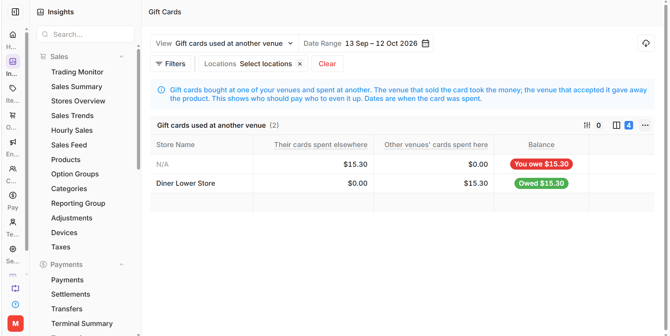
The Gift Cards Used at Another Venue view shows gift card value purchased at one location and redeemed at another. Use this report to review inter-location gift card activity and identify amounts owed between locations.
- In Oolio One Insights, open Payments > Gift Cards > Gift Cards Used at Another Venue.
- Select the required Date Range to review gift card redemptions during that period.
- Select one, multiple or all locations.
- Review the values redeemed across locations and the resulting balances.
Gift Cards Used at Another Venue Report Columns
The report includes:
- Store Name: The store where the gift card was purchased.
- Their Cards Spent Elsewhere: The value of gift cards purchased at this store and redeemed at another store.
- Other Venues' Gift Cards Spent Here: The value of gift cards purchased at another store and redeemed here.
- Balance: The net amount the store owes or is owed based on gift card redemptions across locations.
The report provides reconciliation information but does not automatically transfer funds between locations.
Export Gift Card Reports
Gift Card reports can be exported for further review, reconciliation or recordkeeping.
- In Oolio One Insights, open Payments > Gift Cards.
- Select the required report view.
- Apply the required filters and report configuration.
- Select the Export icon.
- Choose CSV or XLSX.
The report is exported in the selected format.