
Printing issues in Oolio One POS can occur because of configuration, connectivity, or printer hardware problems. Use the message displayed in POS and the Printing Queue to identify where the problem is occurring before checking the printer and its connection.
No Printer Profile Found
Each Product that needs to print must be assigned to at least one Printer Profile, including Products routed to a Kitchen Display Screen (KDS).
-
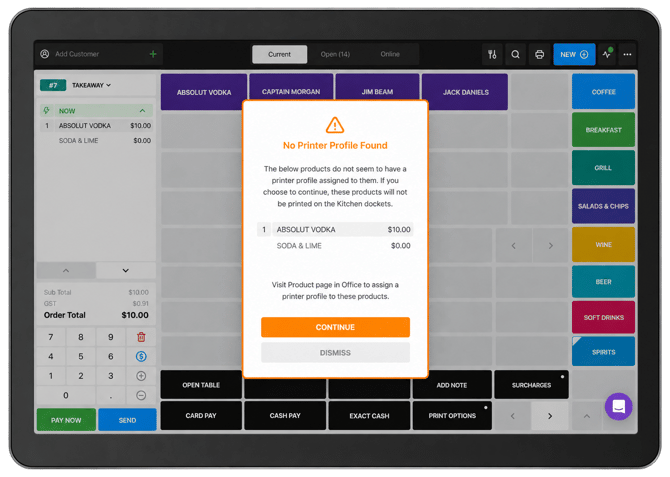
If a Product does not have a Printer Profile assigned, a No Printer Profile Found message appears after selecting Send or Pay Now.
-
The message identifies which Product is missing a Printer Profile.
-
To resolve the issue, open Oolio One Back Office and assign the required Printer Profile to the Product.
-
Once the Printer Profile has been assigned, the message should no longer appear when the order is sent.
Print Job Failed
A Print Job Failed message can indicate that POS cannot communicate with the printer. This may be caused by a network or connection problem, or an issue with the printer itself.
-
Check the Printing Queue
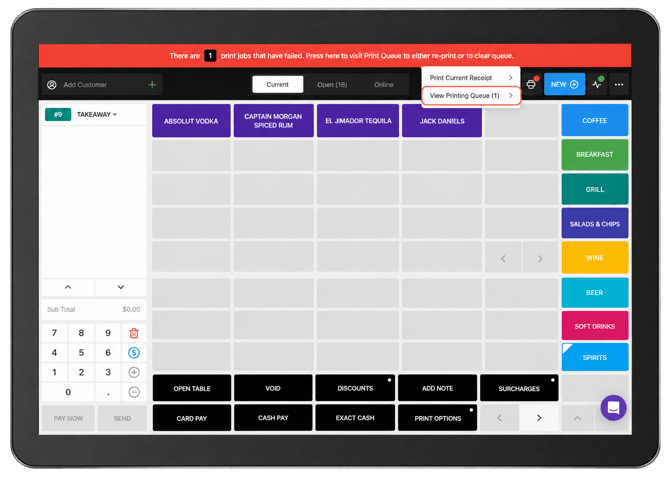
- Select the Printer icon in the top-right corner of POS.
- Select View Printing Queue.
-
-
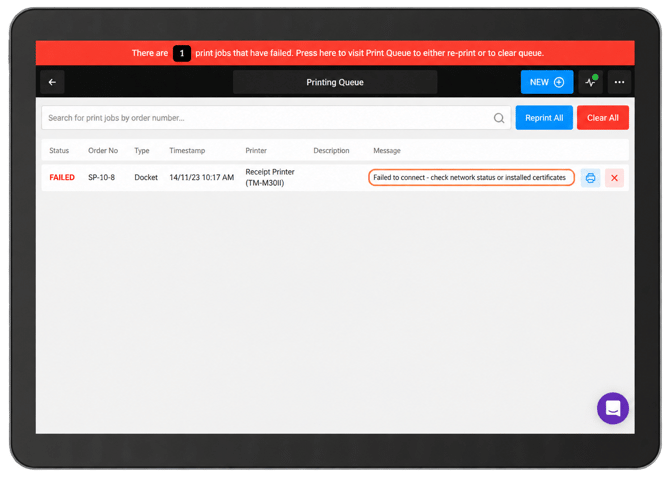
Find the failed print job and review the error message.
-
The error can help identify where to start troubleshooting. For example, a connection failure may indicate that the printer or POS cannot connect to the network.
-
-
Select Reprint All before continuing with troubleshooting.
-
Note: A temporary network interruption may have caused the original failure. If the docket prints successfully, no further action is required.
Check the Physical Printer
If the print job fails again, continue with the checks below
-
Check the paper:
-
Confirm there is paper in the printer.
-
Check that the paper roll is inserted correctly.
-
Check for jammed paper.
-
-
Restart the printer:
-
Turn the printer off.
-
Turn the printer back on.
-
Wait for the printer lights to return before attempting to print again.
-
-
Check the power connection:
-
Confirm the printer power cable is securely connected to the printer and a working power source.
-
-
Check the selected POS device:
-
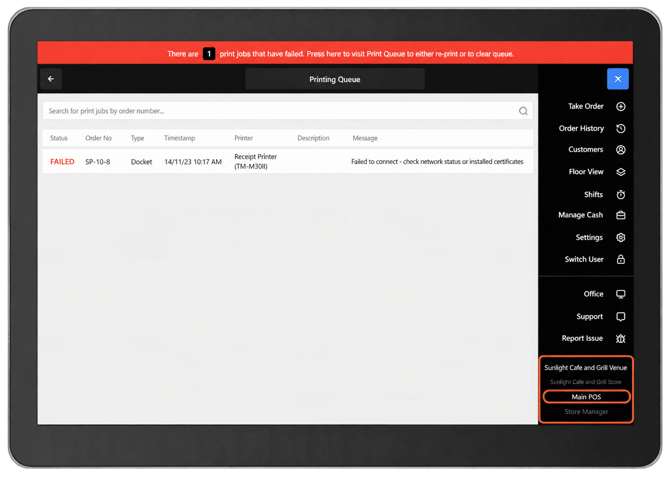
Confirm POS is using the correct device configuration.
-
Check the device shown in the POS navigation area and confirm it matches the physical device currently being used.
-
-
Check a Bluetooth printer:
-
For a printer connected using Bluetooth:
-
Confirm the blue Bluetooth indicator is displayed on the printer.
-
Open the device settings and confirm Bluetooth is turned on.
-
Retry the print job after confirming the connection.
-
-
-
Check a LAN printer:
-
For a printer connected to the local network:
-
Confirm the venue's network is online.
-
Review the Printing Queue for connection-related errors.
-
Retry the print job after confirming the network connection.
-
-