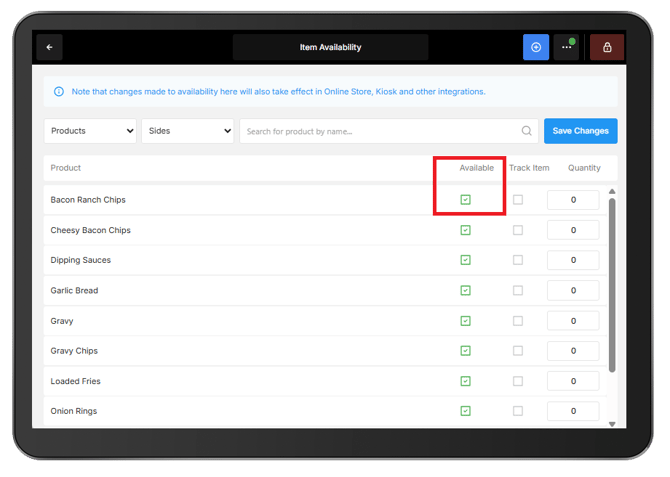
Item Availability helps manage products, modifiers and combos that are running low or sold out by controlling whether they can be ordered across connected sales channels. Availability changes made in Oolio One POS sync to POS, Kiosk, Oolio Online Store and supported third-party ordering channels such as Uber Eats and DoorDash.
Set a remaining quantity for an item or mark it as unavailable to help prevent it from being ordered when it is no longer available.
Item Availability can be managed for products, modifiers and combos, including individual product variants such as Small, Medium and Large.
Open Item Availability
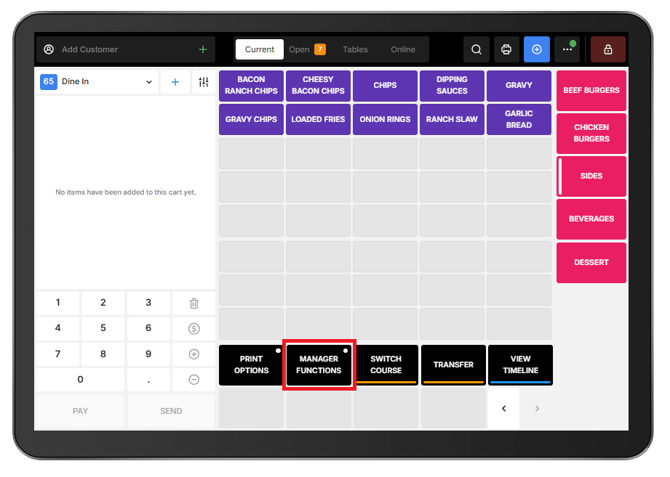
- From POS, locate the Function Map.
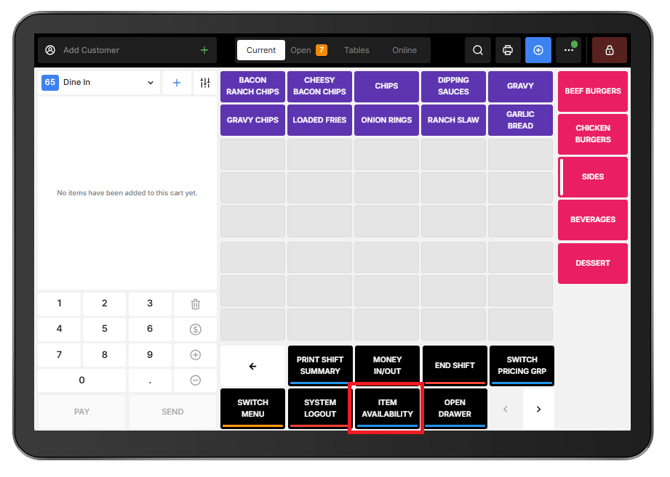
- Select the arrow to open the next page of functions.
- Select Manager Functions.
- Select Item Availability.
Set a remaining quantity
Use Track Item when there is a limited quantity of a product available.
- From Item Availability, select the required Page or search for the product.
- Make sure Available is selected for the product.
- Turn on Track Item.
- Enter the remaining Quantity.
- Select Save Changes.
For example, setting the quantity of a Large Cappuccino to 5 allows five to be ordered before the variant automatically becomes unavailable.
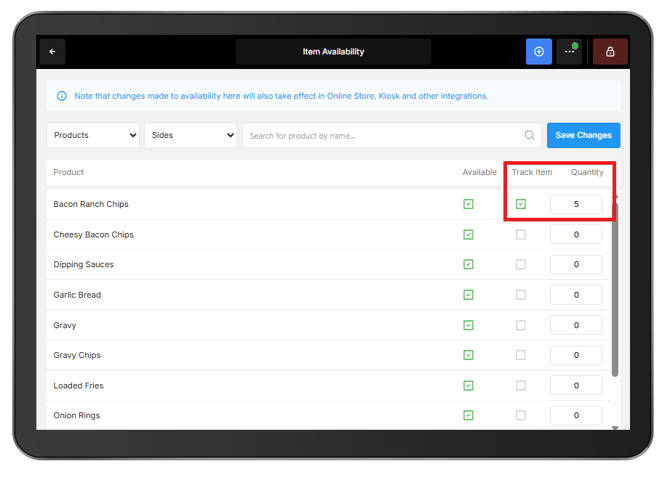
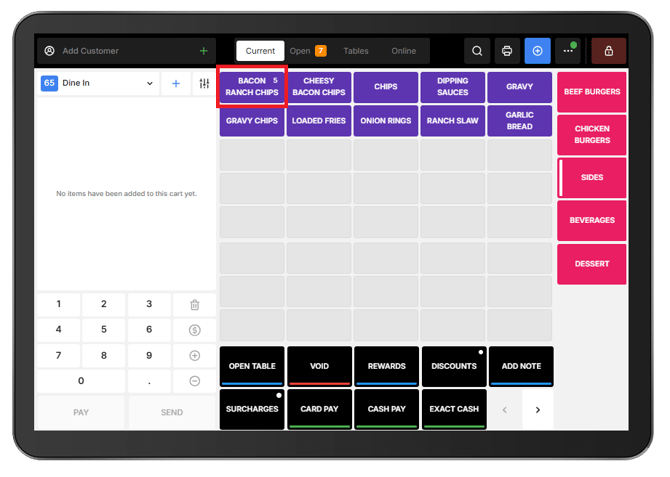
The remaining quantity is displayed in POS.
The remaining quantity is not displayed to customers when ordering through online channels. As tracked items are ordered, the remaining quantity is updated in the background. When the quantity reaches zero, the item automatically becomes unavailable across connected sales channels.
Make an item unavailable
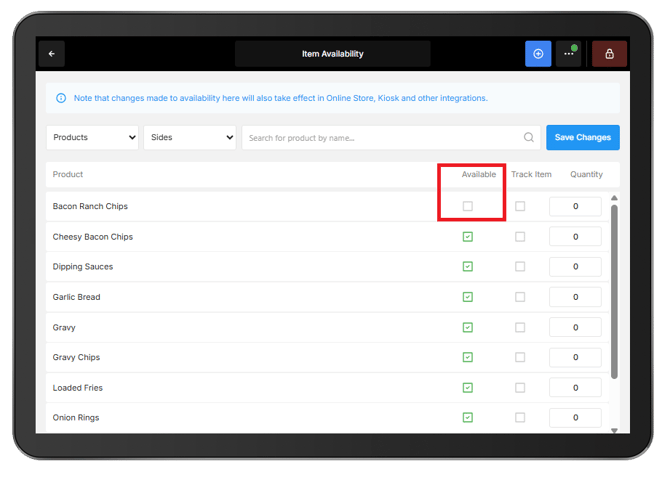
Products, modifiers and combos can also be manually marked as unavailable without tracking a quantity.
- Open Item Availability.
- Find the required item.
- Untick Available.
- Select Save Changes.
Unavailable items in POS
-
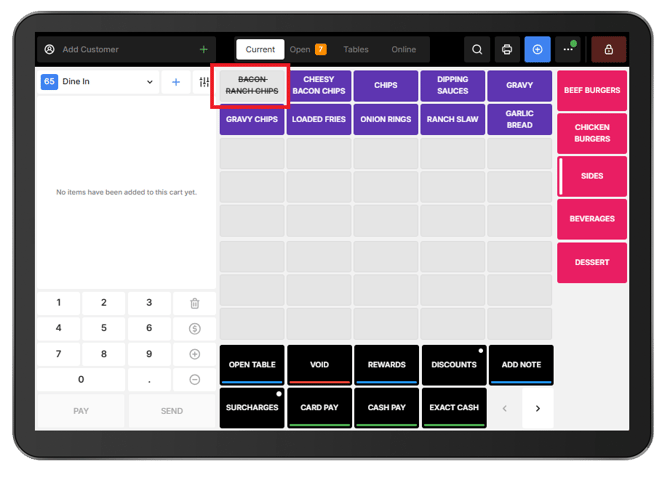
An unavailable item appears greyed out in POS.
-
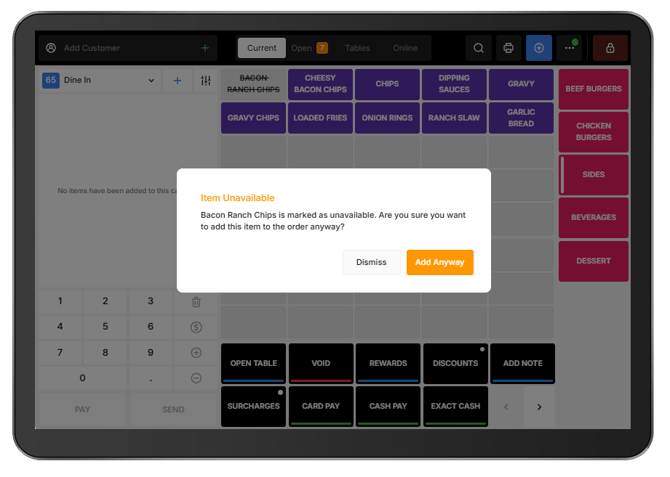
If the item still needs to be ordered, select the unavailable item and then select Add Anyway.
Unavailable products in online ordering channels
When an item is made unavailable:
-
the availability change syncs to Oolio Online Store and supported third-party ordering channels such as Uber Eats and DoorDash, preventing the item from being selected for new orders.
-
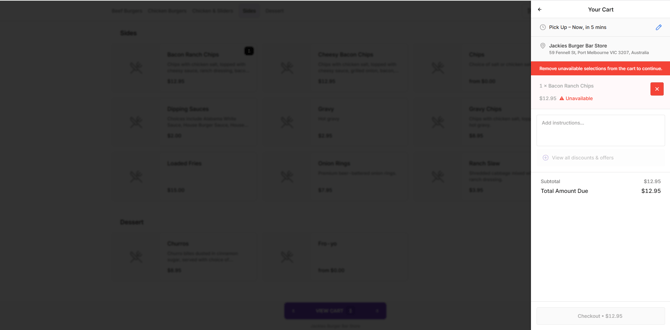
In Oolio Online Store, if a customer already has an item in their cart when it becomes unavailable, the item may remain in the cart but cannot be purchased. The unavailable item must be removed before checkout can continue.
Make an item available again
When the item is available again:
- Open Item Availability.
- Find the required item.
- Select Available.
- If quantity tracking is required, turn on Track Item and enter the new quantity.
- Select Save Changes.
If Track Item is turned off, a quantity of 0 does not make the item unavailable.
The availability change syncs across POS, Kiosk, Oolio Online Store and supported third-party ordering channels.