
Catering is a dedicated order type in Oolio One's Online Store designed for large, pre-
scheduled orders. Customers choose a future date and time, select pickup or delivery, and browse a dedicated catering menu — all in one flow. As a location manager, you control how far in advance orders can be placed, what hours are available, and how orders are sent through to your kitchen.
Step 1 - Enable Catering on Your Store
Navigate to Admin › Online Stores › Stores › Fulfillment Tab
Make sure Oolio Online Orders is active, then turn on the Catering order type.
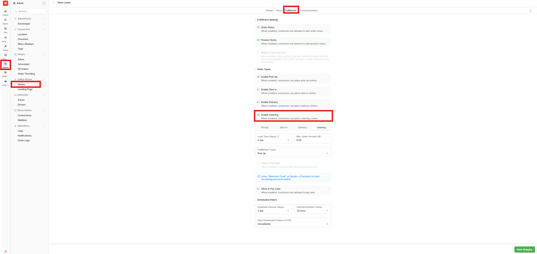
Important: Catering cannot be the only active order type. Enable at least one other order type (e.g. Pickup or Delivery) before turning on Catering.
Step 2 — Configure Catering Fulfillment Settings
Navigate to Admin › Online Stores › Stores › Catering Tab
Once Catering is enabled, open the Catering Tab and set your fulfillment rules:
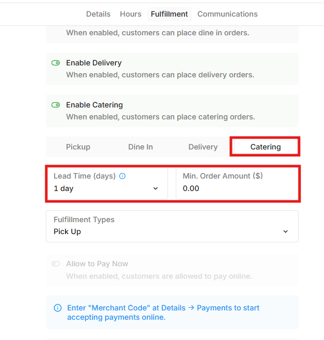
- Lead Time (days) — how many days in advance customers must order. e.g. Lead Time = 3 means customers can't place a catering order for anything sooner than 3 days away.
- Min. Order Amount ($) — the minimum cart value required to complete checkout, after all discounts and surcharges.
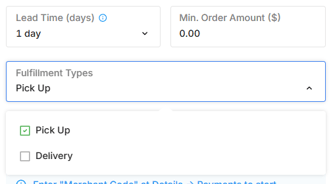
- Fulfillment Types — choose Pickup, Delivery, or both.
Step 3 — Set Your Catering Hours
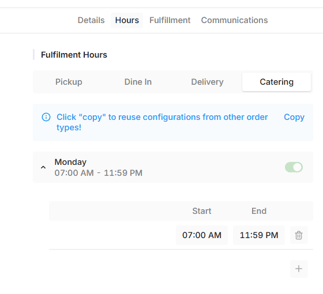
Navigate to Online Stores › Admin > Stores › Catering Tab › Hours
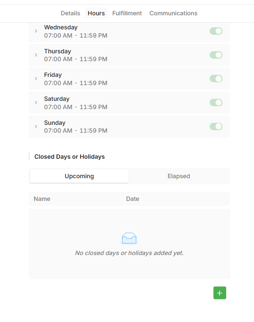
Set the days and times customers can select for catering fulfillment. You can add multiple time slots per day.
For each day:
- Toggle Open or Closed
- Set your Start and End times
- Use the + button to add additional slots if needed
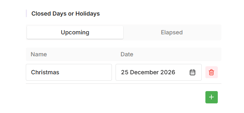
You can also block out one-off closed days for dates your location won't be available — for example, a public holiday that falls on an otherwise-trading day.
Step 4 — Set Up Scheduled Order Rules
Navigate to Admin › Online Stores › Stores › Catering Tab › Scheduled Orders
Control how far ahead customers can order and when your kitchen receives the order.
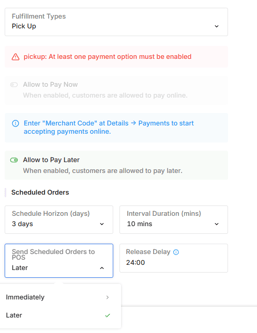
- Scheduled Horizon — the maximum number of days in advance a customer can place a catering order
- Interval Duration — the time slot increments shown to customers (e.g. every 30 minutes)
- Send Scheduled Orders to POS:
- Immediately — the order goes to your POS as soon as it's placed
- Later — the order is sent to your POS a set number of hours/minutes before the fulfillment time (prep times are not included in this calculation)
Tip: Using Later keeps your kitchen focused on today's work. Orders only appear on the KDS, printers, and Scheduled Orders tab when it's time to action them.
Step 5 — Set Up Order Alerts
Navigate to Admin › Operations › Notifications
Set up an alert so your team is notified of new catering orders immediately — regardless of when the order is sent to POS.
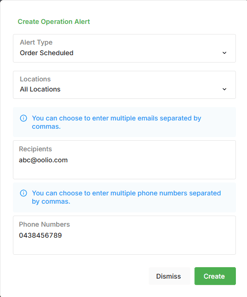
- Select Create
- Set Alert Type → Order Scheduled
- Select the applicable Locations
- Enter email address/es to receive the alert
- Enter mobile number/s if your location has SMS enabled
Important: SMS charges may apply and are not billed by Oolio. Check with your SMS provider before enabling mobile alerts.
Step 6 — Publish a Menu to Catering
Navigate to Home › Menus
Create a new menu or open an existing online menu. Before publishing, make sure Catering is selected as an order type.
Select Save and Publish when ready.
Important: If no menu is published to the Catering order type, customers will see the Catering tab on your Online Store but won't be able to browse or order — they'll see "Unavailable" instead.
Frequently Asked Questions
Why can't I turn on Catering?
Catering requires at least one other order type to be active on your store. Go to Admin › Online Stores › Stores › Fulfillment Tab and make sure Pickup, Delivery, or another order type is enabled first.
Why is my Catering tab showing "Unavailable" to customers?
This means no menu has been published to the Catering order type. Go to Home › Menus, open your menu, enable Catering as an order type, and publish it.
A customer says they can't select a time slot — what's wrong?
The most common cause is that the selected date falls within your Lead Time window. Check your Lead Time setting in the Catering Tab. Also confirm that catering hours are set and that the day isn't marked as a closed day.
When will I receive the order on my POS?
This depends on your Send to POS setting in Scheduled Orders. If set to Immediately, the order arrives as soon as it's placed. If set to Later, it arrives based on your configured release window before the fulfillment time.
Can I get notified of catering orders by email or SMS?
Yes. Set up an Order Scheduled alert in Admin › Operations › Notifications. This sends a notification as soon as an order is placed, regardless of when it's released to your POS.
Can a customer place a catering order for next week?
Only if next week falls within your Scheduled Horizon. If the horizon is set to 7 days, customers can only book up to 7 days ahead. Adjust this in Admin › Online Stores › Stores › Catering Tab › Scheduled Orders.
What happens if a customer's cart doesn't meet the minimum order amount?
They won't be able to complete checkout. A message will appear prompting them to add more items before proceeding.
Can I have different catering menus for pickup vs delivery?
Currently, the same menu is used for both fulfillment modes. You can control which products appear using product availability settings within the menu itself.