
Set revenue targets and create forecasts to help track performance in Oolio One Insights.
Before You Start
-
Insights must be enabled for your location.
-
POS sales data must be reporting into Insights.
-
Reporting Groups should be configured if you want to split budgets by category.
-
Trading Periods can be configured if you require more detailed forecasting.
Key Terms
Budget – Your revenue target for a period.
Forecast – The revenue you expect to trade each day.
Reporting Group – A category used to split revenue targets.
Contribution % – The percentage of the budget allocated to a reporting group.
Baseline Forecast – Oolio's automatically generated forecast based on historical data.
Forecast Status – Indicates whether a forecast is Draft or Locked.
Budgets
Step 1- Configure Forecast Settings
Navigate to Back of House › Insights › Admin › Forecasting Settings
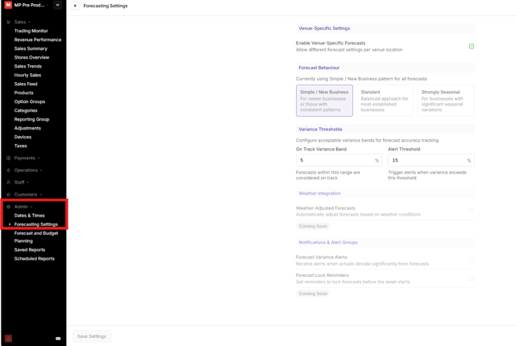
- Multi Location — turn on if your forecasting needs to be reported across multiple locations.
- On Track Variance Band — set the % within which revenue is considered on track (e.g. 5%).
- Alert Threshold — set the % at which you receive a trading alert (e.g. 15%).
Save your settings before moving on.
Step 2- Open Forecast & Budget Planning
Navigate to Back of House › Insights › Admin › Forecast and Budget Planning
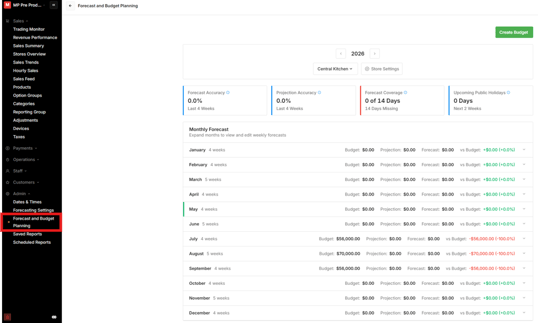
Set the Year and Location before moving on.
Step 3- Create a Budget
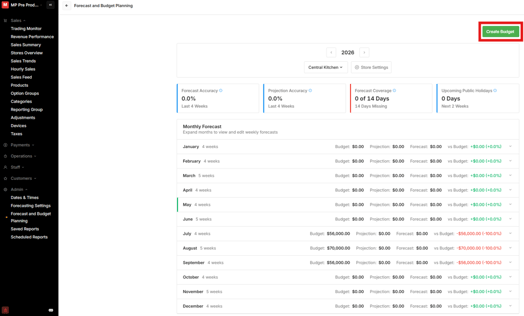
Tap Create Budget
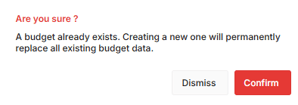
 If a budget already exists for this location, you'll see a warning: "A budget already exists. Creating a new one will permanently replace all existing budget data." Tap Confirm only if you intend to replace it. Tap Dismiss to cancel.
Step 4- Select Duration and Scope
Duration — choose the period your budget covers:
- Next Month — the upcoming calendar month
- Next Quarter — the next 3-month period
- Full Year — January to December
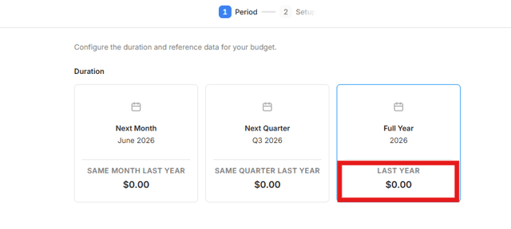
The highlighted area will show the data from the same time last year when the data is available
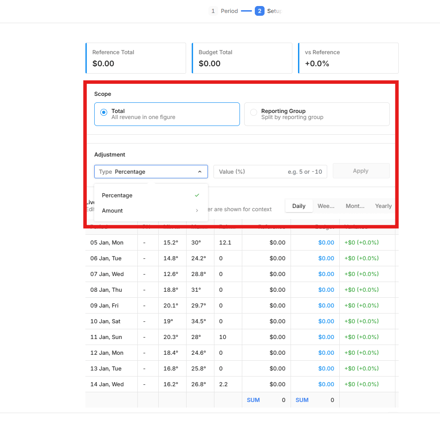
Scope and Adjustment
- Total — one combined revenue target
- Reporting Group — budget split across your configured reporting groups
- Use the Adjustment field to apply a % or $ value across all dates at once, then tap Apply.
Step 5- Enter Budget Values
Enter your daily budget figures.
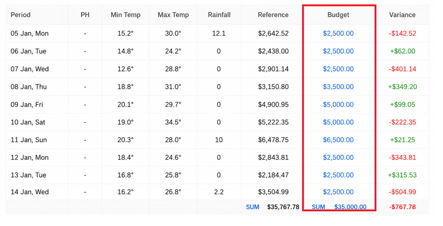
- Budget column - enter the Locations budgets by day
- Reference column shows revenue from the same date last year to guide your entries.
- Weather data (min/max temp, precipitation) is shown to help with daily adjustments.
- If using Reporting Group scope: each group's Contribution % must total a combined 100% per period.
- Variance - the difference between last year's revenue and the new budget.
- Review and if required, use the Adjustment field to apply a % or $ value across all dates at once, then tap Apply.
Step 6: Confirm the Budget
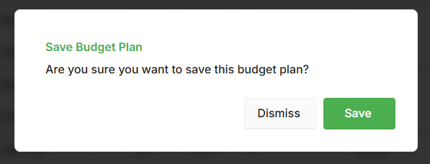
Review everything, then tap Confirm to save. A success message will appear. Tap Back if you need to make changes.
A secondary confirmation is displayed
Enter Forecast
Step 1- Open Forecast and Budget Planning
Navigate to Back of House › Insights › Admin › Forecast and Budget Planning
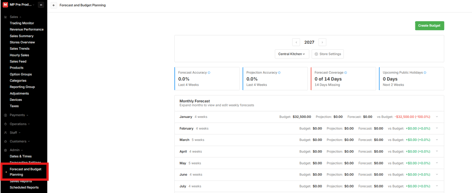
Your forecast is separate from your budget — it's your day-by-day expectation of what you'll actually trade.
Example: Your Monday budget is $5,000, but based on last year and the weather forecast, you expect $5,500. Enter $5,500 as your forecast.
Step 2- Enter Daily Forecasts
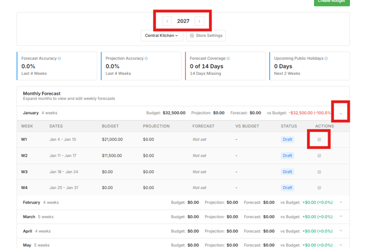
Select your Month, Week, then tap the Edit (pencil) icon next to the week
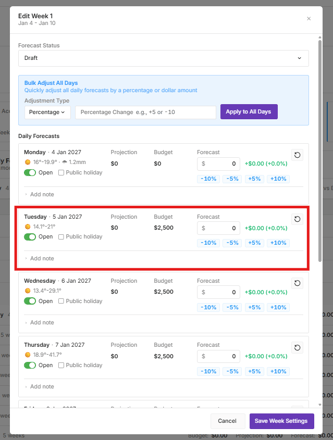 For each day you can:
- Set the day as Open or Closed
- Mark a Public Holiday
- Enter or edit the Forecast value
- Use the +5% / -5% / +10% / -10% quick buttons to adjust quickly
- Add a Note (e.g. "Function of 80 guests booked") to help explain performance later
Use the Bulk Adjust field to apply a % or $ change across all days at once.
Step 9: Save and Lock Forecasts
Check the Forecast Status at the top before saving — set to Draft while entering, Lock once you're happy with the week.
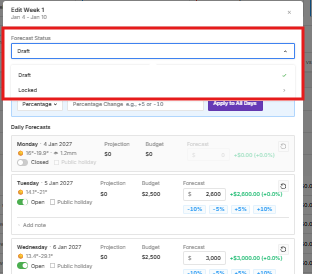 Add any Week Notes at the bottom of the page, then tap Save Week Settings.
Only users with elevated permissions can unlock a forecast once locked.