Customer Account statements provide customers with a record of their account activity and outstanding balance. Statements can be sent manually from Oolio One Back Office or Oolio One POS, or automatically on a weekly, monthly or quarterly schedule.
Statement settings are configured in Back Office and can also be used to send statements automatically when charges or payments are recorded against an account.
Step 1: Configure statement and billing preferences
Configure the information included on Customer Account statements and choose whether statements are sent manually or automatically.
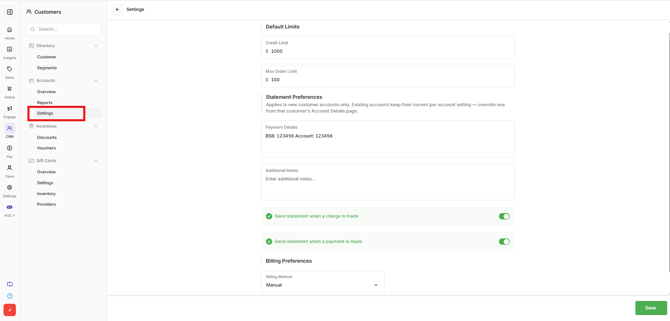
- Open Back Office > CRM > Accounts > Settings.
- Find Statement Preferences.
- Add the business payment details that should appear on customer statements.
- Configure whether statements should be sent when account activity occurs:
- Send statement when a charge is made: Sends a statement when a new charge is added to the Customer Account.
- Send statement when a payment is made: Sends a statement when a payment is recorded against the Customer Account.
- Under Billing Preferences, select how statements should be sent:
- Manual: Statements are sent manually when required from Back Office or POS.
- Automatic: Statements are sent automatically according to a configured schedule.
- If Automatic is selected, configure:
- Payment Frequency: Select Weekly, Monthly or Quarterly.
- Start Date: Select the date from which the automatic statement schedule begins.
The payment details entered under Statement Preferences provide customers with the information required to pay their outstanding account balance.
Send a statement from Back Office
Statements can be manually sent to individual customers from their Customer Account.
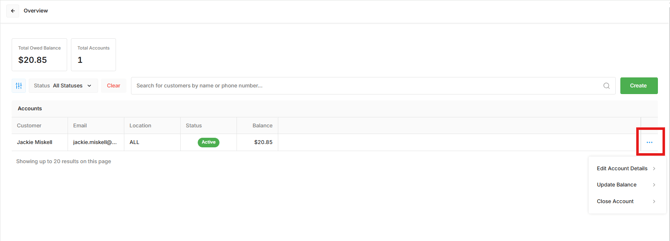
- Open Back Office > CRM > Accounts > Overview.
- Find the required Customer Account.
- Select the Options menu (⋯) on the customer.
- Select Edit Account Details.
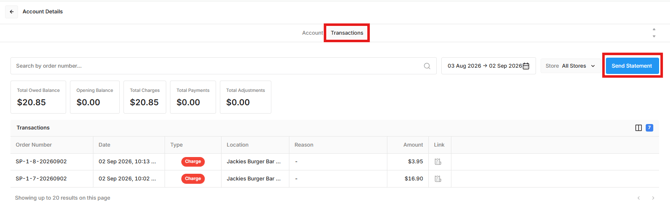
- Open the Transactions tab.
- Select Send Statement.
- Confirm the customer's email address or edit it if required.
- Select the Statement Period to determine which account activity is included.
- Confirm and send the statement.
Send a statement from POS
Statements can also be sent directly from Oolio One POS.
- Open Customers in POS.
- Find and select the required customer.
- Review the customer's account balance and transaction history if required.
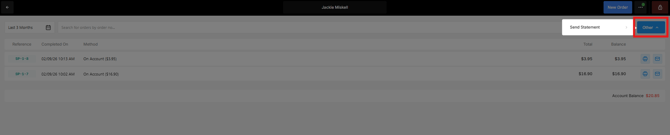
- Select Other.
- Select Send Statement.
- Choose the date range to include in the statement.
- Select Send.
The statement is sent to the customer for the selected period.