
The Schedule a Report feature lets users send a saved report to selected recipients on a chosen date.
Use this guide to create a one-time scheduled report in Oolio One Insights.
Before you start, you will need:
- A saved report
- Access to Scheduled Reports
- At least 1 valid recipient with a name and email address
Key Terms
| Term | Definition |
|---|---|
| Saved Report | A pre-configured report template stored in the system |
| Scheduled Report | A configured send event that delivers a report at a specified time |
| Recipient | A user selected to receive the report, identified by name or email |
| On Date | A one-time send option that sends the report once on the selected date |
Save a Report
Step 1 — Open Insights
Navigate to Back of House > Insights.
Step 2 — Select an Insights Submenu
Choose the Insights view that best suits the reporting need.
Step 3 — Set the Filters
Available filters vary by report type and may include:
- Date — a single date or date range, for example Last Week
- Period — a shift selection set in Settings
- Locations — one or more locations
- Group By — a layout that sections the data clearly
Step 4 — Save the Report
Select the Disk icon in the top right.
Complete these fields:
- Name — a clear report name, for example ABC Sales Summary Last Week
- Description (optional) — a short summary, for example Sales Summary grouped by Sales Channel
- Add users — search for and select 1 or more recipients
- Save and Share — saves the report with the selected filters and recipients
Saved reports are listed under:
Insights > Admin > Saved Reports
If a report is no longer required, it can be deleted from the Saved Reports list.
Schedule a Report
Step 1 — Open Scheduled Reports
Navigate to Back of House > Insights > Scheduled Reports.
From the Scheduled Reports list, select Create to open the window.
Step 2 — Select Frequency and Date
A window opens with On Date pre-selected.
Scheduling options include:
- On Date — sends once on the selected date
- Daily — sends every day at the selected time until disabled
- Weekly — sends every week on the selected day and time until disabled
- Monthly — On Date — sends on the same date each month until disabled
- Monthly — On Day — sends on the first or last day of the month at the selected time until disabled
Step 3 — Enter Report Name / Subject
In the pop up, enter:
- Name — an internal label for the scheduled report
Step 4 — Select a Saved Report
Use the Report dropdown to select a saved report.
Only previously saved reports appear in this list.
Note: Selecting a report does not change it. The scheduled report uses the saved report settings at the time it is sent.
Example: If the report is saved as Sales Summary for Last Week and scheduled for every Monday, it will generate the previous week’s data each Monday.
Step 5 — Select a Date
Use the date picker to choose the send date.
- Historical dates cannot be selected
- Only current or future dates are available
Tip: Confirm the date before saving. Once sent, the report cannot be recalled.
Step 6 — Add Recipients
Use the recipient search field to add recipients:
- Search by name or email
- Select using the checkbox
- At least 1 recipient is required
To remove a recipient, untick their checkbox in the Recipients field.
Step 7 — Save or Dismiss
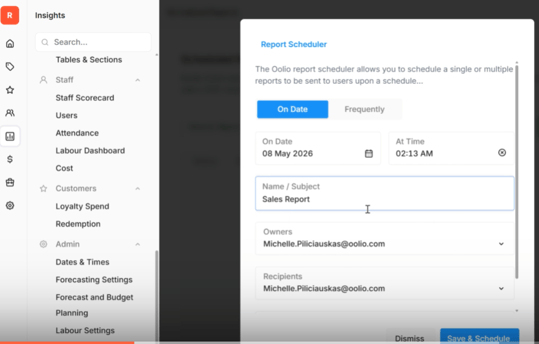
- Save & Schedule — validates required fields and saves the schedule
- Save Changes — updates an existing schedule
- Dismiss — closes the window without saving
Warning: If editing an existing schedule and Save & Schedule is selected, a new schedule is created.
A schedule cannot be deleted, but it can be made inactive in the Scheduled Reports menu.
Common Mistakes and Fixes
| Mistake | What Happens | Fix |
|---|---|---|
| No saved reports exist | The Report dropdown is empty | Create and save a report first |
| Historical date selected | The date picker blocks selection | Choose today or a future date |
| No recipients added | Validation error on save | Add at least 1 recipient |
| Missing Name or Subject | Validation error on save | Complete both fields |
| The report did not send | The schedule was expected to repeat | Confirm it was set as a recurring schedule, not a one-time send |
Verification Checklist
Confirm that:
- A saved report exists
- Name and Subject are completed
- On Date is selected
- A valid future date is selected
- At least 1 recipient is added
- The window closes without error after saving
- The location receives the expected report
What’s Next
- If recurring sends are needed, use the recurring schedule options
- If recipients did not receive the report, check email addresses and spam folders
- For report content issues, review the saved report configuration