
The Revenue Performance Report in Oolio One Insights gives you a single, interactive view of your location's revenue — no spreadsheets, no manual calculations. It has three tabs: Summary for at-a-glance key stats, Explore for flexible table-based analysis, and Tempo for hourly and day-of-week patterns.
Before You Start
- Insights must be enabled — Your location needs Insights access enabled in Oolio One. Contact your onboarding manager if you can't see it.
- User permissions — Your user role must include Insights access. If the report doesn't appear, ask your administrator to check your role in Back of House (BOH) › Users.
- POS categories and channels configured — Filters work best when your categories, sales channels, and reporting groups are set up in Back of House. Missing these won't break the report, but you'll see limited filtering options.
- 30+ days of data recommended — The report defaults to the last 30 days. Recently onboarded locations may see limited comparison data.
Key Terms
|
Term |
Definition |
|---|---|
|
Gross Sales |
Total revenue before discounts and refunds are applied. |
|
Trend (%) |
The percentage change between your selected period and the prior matching period (e.g. this week vs. last week). Green = up, Red = down. |
|
Average Sale |
The average transaction value for the selected period. |
|
Net Sales
|
Gross sales minus discounts and refunds — the actual revenue your location earned. |
|
Trading Period
|
A named time block during a day (e.g. Lunch, Dinner) used to group and compare sales. |
|
Reporting Group
|
A custom grouping of menu items configured in Back of House, used for category-level analysis. |
Accessing the Report
Step 1 › Open the Revenue Performance Report
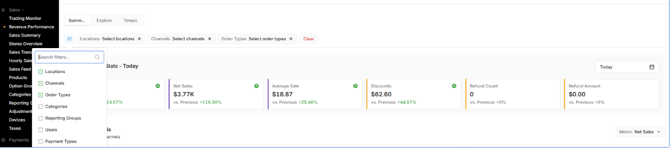
Log in to Oolio One and navigate to the Insights section from the main menu. Select Revenue Performance Report from the Sales reports list.
Oolio One › Main Menu › Insights › Sales › Revenue Performance Report
Tip — If the report takes more than 10 seconds to load, refresh the page. Locations with large datasets may experience a short delay on first load.
Using the Summary Tab
Step 2 › Set Your Filters
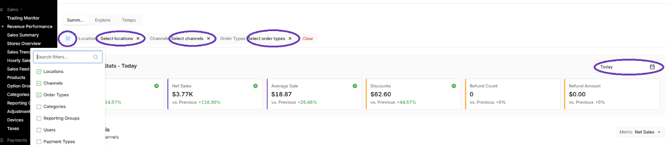
At the top of the Summary tab, set your filters to narrow what you're viewing. Select one or multiple options for each:
- Locations — Defaults to all locations.
- Sales Channels — Filter by Dine-In, Takeaway, Delivery, etc.
- Order Types — Filter by order types if configured in Back of House.
- Date Range — Choose from preset options (Today, This Week, Last Week, Last 30 Days) or set a custom range. Defaults to Last Week.
Step 3 › Read the Summary Tiles
Once your filters are applied, six comparison tiles display your key metrics. Each tile shows the current period value, the prior period value, and a trend percentage.
The six metrics are: Gross Sales, Net Sales, Average Sale, Discounts, Refund Count, and Refund Amount.

- A green +% means the metric improved compared to the prior period.
- A red −% means the metric decreased compared to the prior period.
Tip — Trend percentages always compare to a matching prior period of equal length. "This Week" compares to "Last Week." "Last 30 Days" compares to the previous 30 days.
Important — Always check Net Sales alongside Gross Sales. High Gross Sales with high Discounts or Refunds can mean your actual earned revenue is lower than it looks.
Step 4 › Analyse the Net Sales Heatmap and Trends
Below the summary tiles, the Net Sales Analysis section shows revenue patterns across days, weeks, and months. Use the dropdown at the top to switch between metrics (Net Sales, Gross Sales, Average Sale, Discounts, Refund Count, Refund Amount).
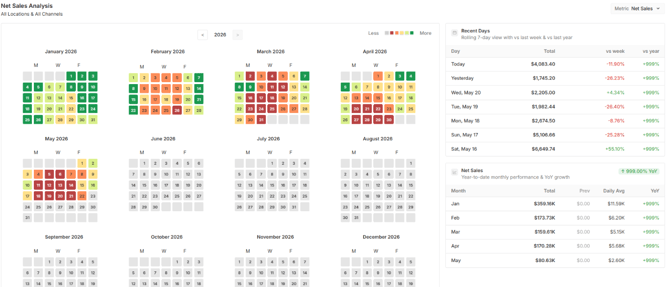
Heatmap colours:
- Green — Higher revenue
- Red — Lower revenue
- Grey — No transactions recorded (not necessarily closed)
Colour coding changes by metric:
- Net Sales / Gross Sales / Average Sale → Green to Red
- Discounts → Light to Dark Purple
- Refund Count / Refund Amount → Light to Dark Red
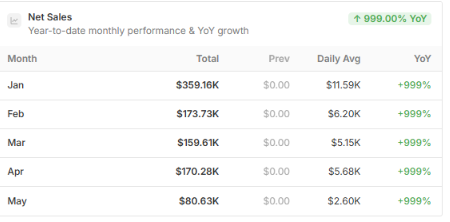
To the right of the heatmap, the Recent Days table shows the last 7 days with comparisons to last week and last year. Below that, the Year-on-Year monthly breakdown shows totals, daily averages, and YoY growth % for each month.
Tip — Use the Discounts metric to spot when promotions are applied most heavily. Dark purple periods may indicate a happy hour, lunch special, or promo event.
Using the Explore Tab
Step 5 › Run a Custom Data View
Select the Explore tab to view revenue data in a flexible table format. Filters on the left match the Summary tab. Use the Report By dropdown to group data your way:
Daily · Weekly · Monthly · By Location · By Sales Channel · By Order Type · By Category · By Reporting Group · By User · By Payment Type
You can also add or remove columns using the column selector on the right.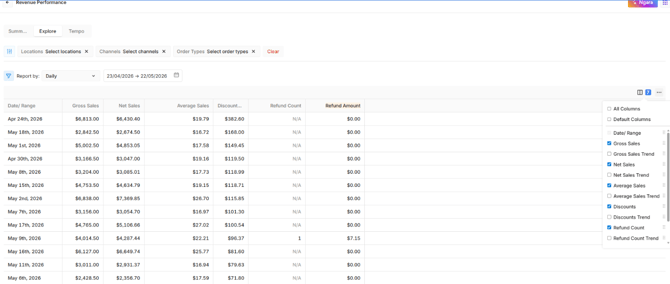
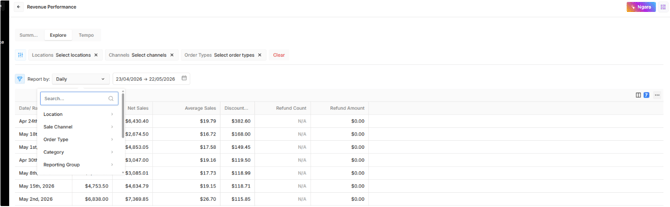
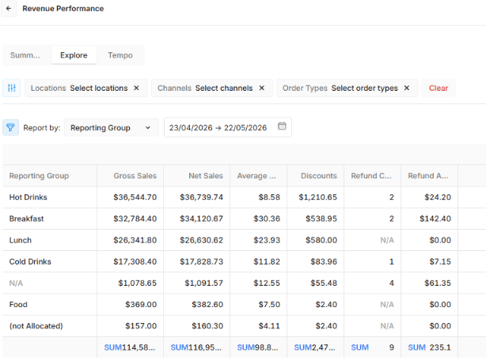
Tip — Try Report By: Reporting Group to see performance broken down by menu category. This can surface useful insights, for example identifying which groups have high refund rates or where discounts are concentrated.
Using the Tempo Tab
Step 6 › View Hourly and Day-of-Week Patterns
Select the Tempo tab for an in-depth hourly view of revenue performance. Default filters are Locations, Channels, and Order Types. Select Additional Filters to also filter by Categories, Reporting Groups, Users, or Payment Types.
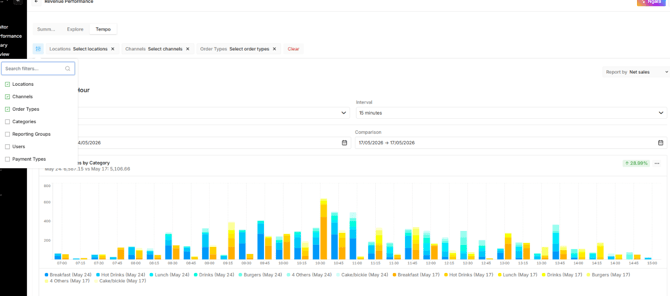
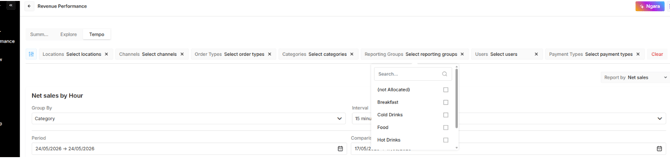
This short video shows how changing filters updates the report:
The Heat Map shows data in a Day vs Hour grid — horizontal axis is the hour of day, vertical axis is the day. When more than one week is selected, values are accumulative.
Below the heatmap, a data grid shows hourly sales for the selected period with additional column fields available via the right-hand dropdown. Where more than one day is selected, results are accumulative per hour.
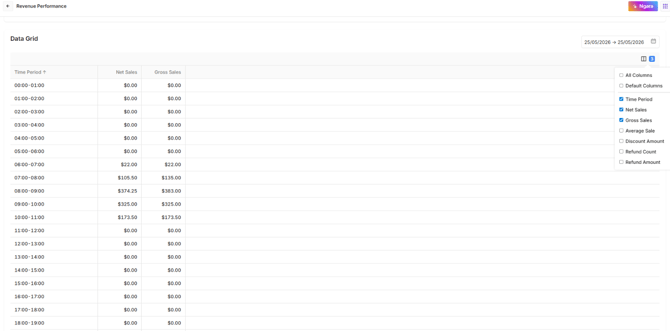
Tip — Use Tempo to identify your busiest and quietest trading hours. Combined with the Discounts metric in Summary, you can assess whether promotional offers are driving uplift during slow periods.
Frequently Asked Questions
Why are my Summary tiles showing zero or no data?
Your filters may be set to a channel or category with no transactions. Clear all filters, then reapply them one at a time to identify the issue. Also check that your date range includes days with trading activity.
What does a grey cell in the heatmap mean?
Grey means no transactions were recorded during that time. It does not necessarily mean the location was closed. If needed, cross-check against your actual trading hours.
Why does my Trend (%) show a negative number even though sales feel good?
The trend always compares to the prior matching period. For example, a −11.9% result for Friday means sales were lower than last Friday. You may still see strong year-on-year growth in the vs. Last Year column.
Why is my Net Sales lower than my Gross Sales?
Net Sales = Gross Sales minus discounts and refunds. The gap between the two shows how much revenue was reduced. A large gap is worth investigating.
Can I export the Explore tab data?
Export options depend on your Oolio One plan and configuration. If you do not see an export option, contact your account manager or support team.
How do I see data for just one location?
Use the Locations filter at the top of any tab and select the specific location you want to view.
What is a Reporting Group?
A Reporting Group is a custom category grouping set up in Back of House. It is used to analyse performance by menu segment, such as Breakfast, Hot Drinks, or Alcohol. If you do not see Reporting Groups as a filter option, they may not be configured. Contact your administrator.
How far back does the data go?
The report can show historical data based on your Oolio One data retention settings. For most locations, at least 12 months of data is available for year-on-year comparisons.