
Restoke is a back-of-house inventory and kitchen management platform that integrates with Oolio One to give locations full visibility from sale through to stock and cost. Connecting Restoke to Oolio One links your front-of-house sales data with back-of-house inventory, recipes, and supplier costs.
Core Back-of-House Features
1. Central Production Kitchen (CPK) Management
The CPK module supports:
- Internal location ordering: individual locations order directly from the production kitchen
- Raw and prepped stock tracking: monitor raw ingredients and finished products at the CPK level, with visibility on what's on hand before the next production run
- Bulk order processing: handle orders across multiple locations
- Central kitchen performance dashboard: track costs, inventory, wastage, variances, and production metrics in one place
2. Inventory Tracking & Stock Control
Restoke uses a live inventory system, giving full visibility across the business. Stock levels adjust automatically in real time as products are prepped, moved between locations, ordered from suppliers, or sent to locations — no manual data entry required. This helps ensure every location has what it needs, and lets operators act early rather than reacting to stock shortages.
3. Stocktakes
Stocktakes are organised by supplier and item, making it quick to see stock on hand and reducing time spent counting, while keeping the data aligned with what's physically in the kitchen.
4. Automated Food Costing & Recipe Management
Restoke uses a recipe hierarchy so every cost is tracked from prep through to sale.
Prep Recipes
The building blocks of a menu — intermediate items (like a house sauce) made in bulk and used as ingredients across multiple dishes.
Dish Recipes
The final items sold to guests. Dish recipes combine supplier-purchased items with prep recipes to give a complete cost profile.
Food Costing
Using OCR scanning, Restoke updates ingredient prices as soon as a supplier invoice is received, so dish costs stay accurate with minimal manual work — recipe costing can be completed in as little as 30 seconds. This makes it easier to maintain margins and adjust menu prices in real time.
5. Invoice Management
The invoice workflow removes manual data entry across locations:
- OCR scanning digitises paperwork instantly, updating food costs as invoices come in
Setting up suppliers gives a clear view of all suppliers and the items available to order, and is a prerequisite for uploading prep and dish recipes to unlock automated recipe costing.
6. Team & Task Management
The MyTeam and Operations features give the production team a clear digital workflow for every shift, organised into:
- Prep and production
- Cleaning
- Dispatch
Admins manage access through MyTeam by inviting staff with specific permissions and roles, so team members only see data and tasks relevant to their position.
7. Oolio One Integration
Restoke integrates with Oolio One to keep front-of-house and back-of-house data connected.
From Oolio One (selling): Restoke pulls live sales data and your list of selling products from Oolio One, so it always knows what's been sold and can calculate real-time inventory depletion and cost of goods sold (COGS).
Inside Restoke (buying & preparation): Buying products (supplier items and raw ingredients) are managed by adding suppliers and scanning invoices directly in Restoke. These buying products are then used to build prep and dish recipes.
The connection: Oolio One selling products are linked to the dish recipes built in Restoke. This link is what allows Restoke to automate food costing and give a complete view of inventory and procurement, updating stock levels and performance metrics automatically with every sale made in Oolio One.
How to Integrate
- Login to the Locations Restoke Account
- Login to Oolio One Back Office
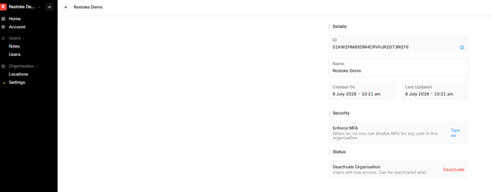
- Navigate to the Org Settings page in Oolio One and copy the Org ID
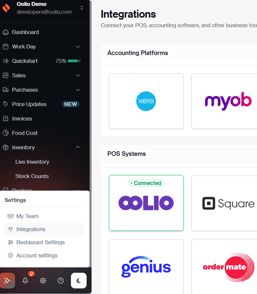
- In Restoke select the Settings gear icon on the bottom left of screen
- Select Integrations
- Scroll and select Oolio
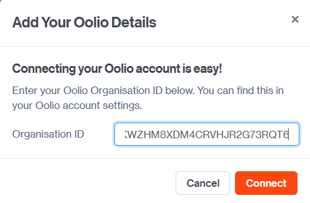
- When prompted, paste the Org ID and select Connect
- You will be prompted to login to Oolio One again and approve access
- Once the sync is complete, the Restoke setup process begins
Import Products and Set Tracking
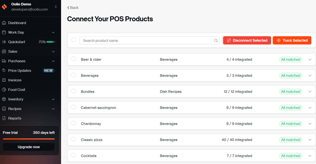
- Selecting Products to track
- Once the products have completed syncing, the Location Owner / Manager needs to select which items they are tracking
- Any items not selected will not use the stock functionality of Restoke
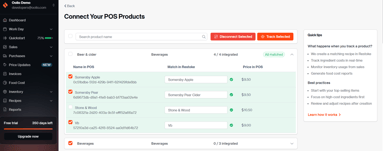
- Once all required Categories / Products are marked, select Track Selected
- An overview will present requiring a confirmation
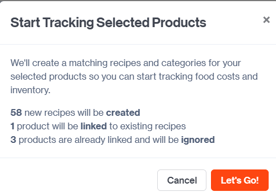
- After this, the products update to All Matched or Partially Matched
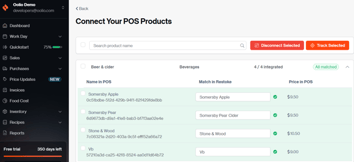
The next step is setting up recipes:
- In the left toolbar, head to Recipes and Menus > Dish Recipes.
- All imported categories or products will appear here.
- If you need to move categories between Dish Recipes to Beverage Recipes, click on the blue circle on the card and then "move category to Dish Recipes".
- If you need to move individual recipes between categories, head into the recipe card and choose the desired category in the top right corner.
- Note: you can also put your recipes into list view and use bulk actions to copy.
- From here, you can start costing your Dish or Beverage Recipes but ensure you have first completed costing all prep recipes