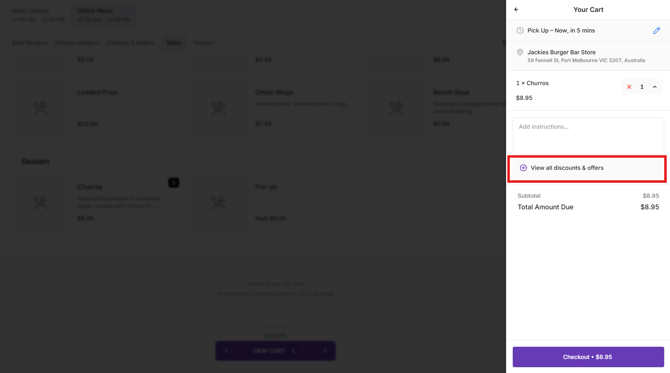
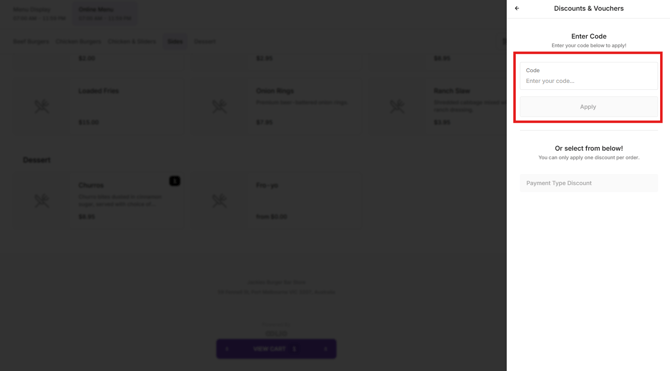
Vouchers can be redeemed in Oolio One POS or the Oolio Online Store, allowing customers to receive discounts on their orders.
In POS, Vouchers can be redeemed directly from a customer's account or by scanning or entering a Voucher code. Staff can also generate Vouchers in POS for customers to redeem on a future visit.
For instructions on creating and configuring Vouchers, see 🔗 Create and Distribute Vouchers.
Step 1: Redeem a Voucher assigned to a customer in POS
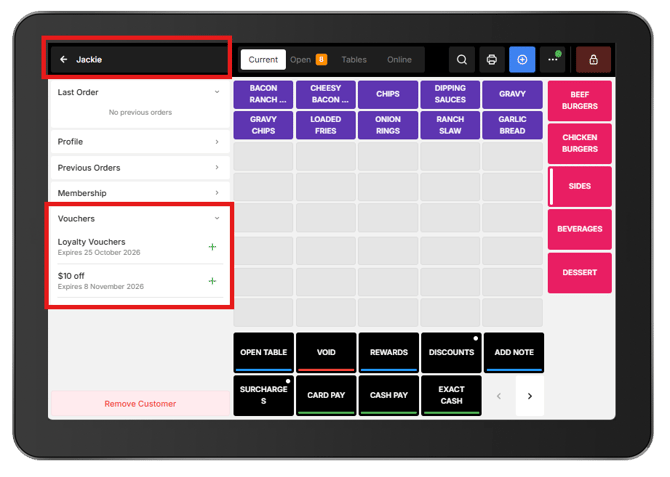
When a Voucher has been allocated to a customer, it can be redeemed directly from their customer details in POS.
- Add the customer to the order. Their details will appear in the Cart.
- Select Vouchers from the customer details.
- Review the available Vouchers assigned to the customer.
- Select the green + next to the Voucher to redeem it.
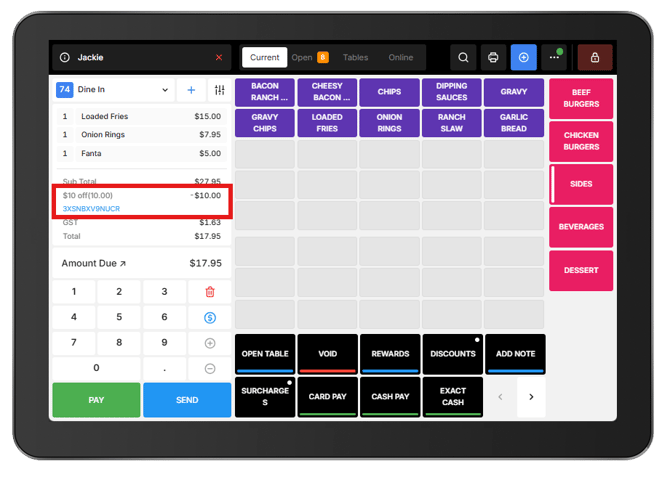
The Voucher and discount amount will appear in the Cart.
To return to the customer details and view their Vouchers again, select the customer name at the top of the Cart.
Step 2: Redeem a Voucher code in POS
When a customer has a Voucher code, it can be redeemed without adding a customer to the order.
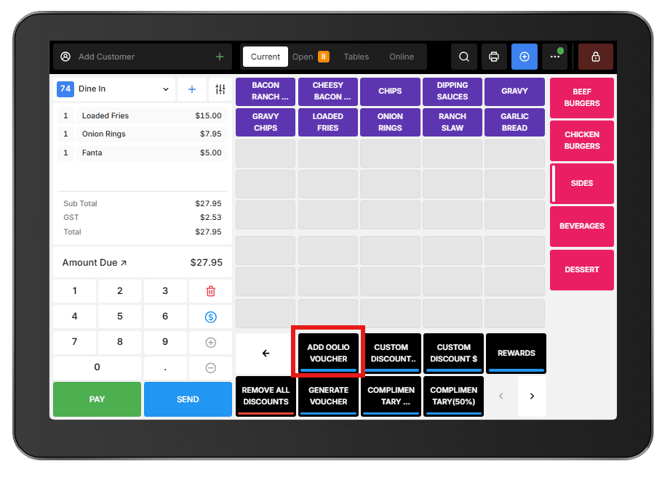
- Open Discounts in POS.
- Select Add Oolio Voucher.
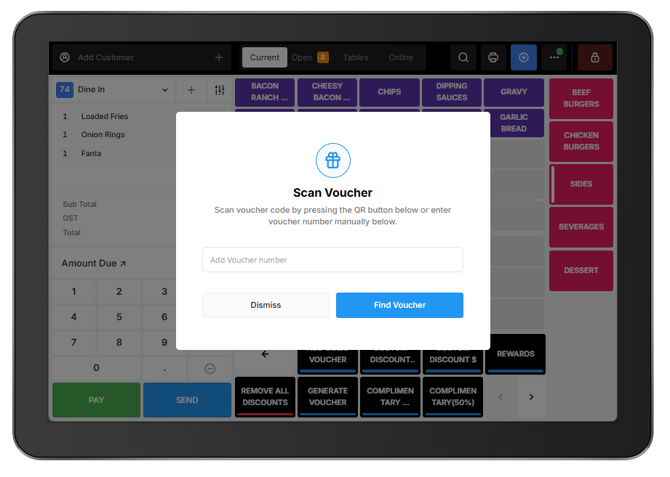
- Scan the Voucher code or enter it manually.
The Voucher and discount amount will appear in the Cart.
Step 3: Generate a Voucher in POS
Vouchers can be generated directly in POS to give customers a discount to redeem on a future visit. This is useful when issuing a Voucher during service, such as a goodwill gesture or promotional offer.
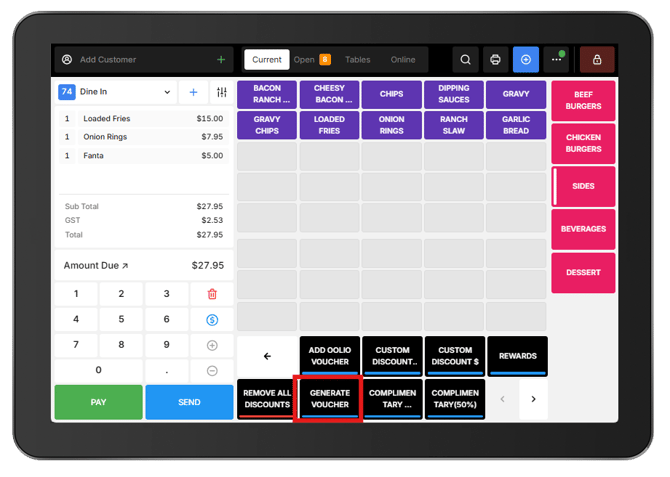
- Open Discounts in POS.
- Select Generate Voucher.
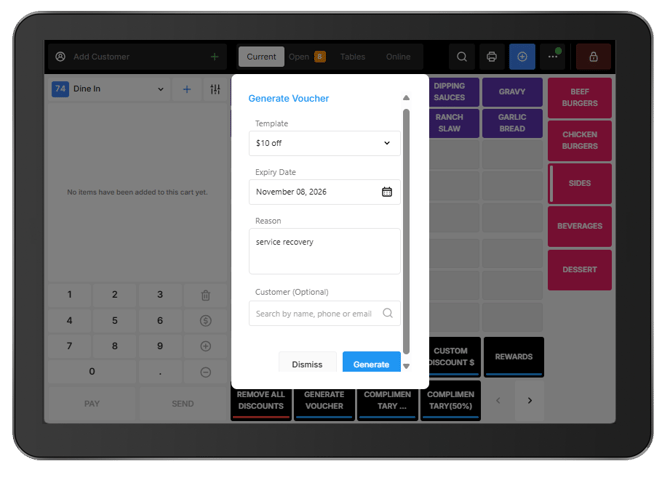
- Choose the Voucher to generate.
- Enter the Expiry Date.
- Enter a Reason for issuing the Voucher.
- Optionally, select a Customer to assign the Voucher to.
- Select Generate and a receipt will print with the voucher code.
If a customer is selected, the Voucher is automatically assigned to their account and can be redeemed on a future order.
Step 4: Redeem a Voucher in the Online Store
Customers can also redeem Voucher codes when placing an order through the Oolio Online Store.
- Add products to the Cart.
- Select View All Discounts and Offers.
- Enter the Voucher code to apply it to the order.
The Voucher discount will be applied to the order.