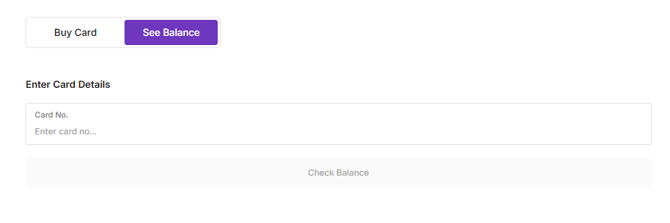
Oolio Gift Cards can be redeemed as full or partial payment in Oolio One POS and can also be used when checking out through the Oolio Online Store. When only part of the available balance is redeemed, the remaining value stays on the Gift Card for future purchases.
Gift Card balances can also be checked in Oolio One POS or online through the Oolio Gift Card Store.
Redeem a Gift Card in POS
When a customer presents a Gift Card in-store, apply it as full or partial payment to the order.
Step 1: Apply the Gift Card
- Open the order in Oolio One POS.
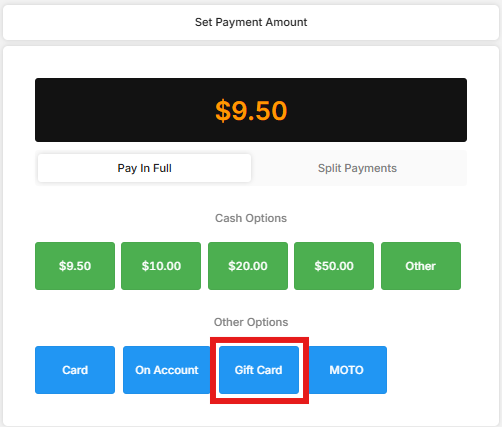
- Select Pay.
- Select Gift Card.
- Select Gift Card again in the next window.
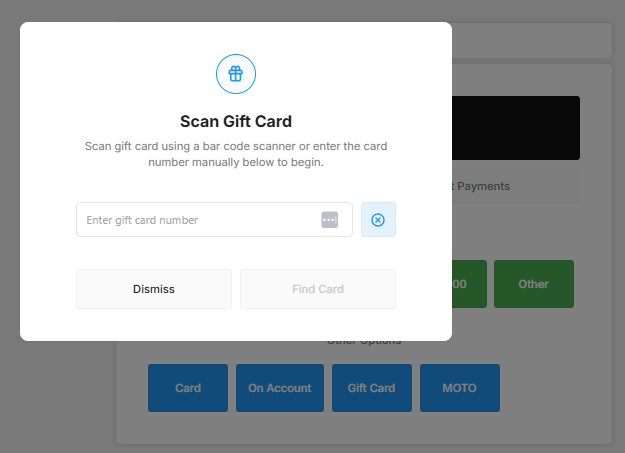
- Scan, swipe or enter the Gift Card code.
The Gift Card details are displayed, including the available balance.
Step 2: Apply full or partial payment
For full payment using the Gift Card:
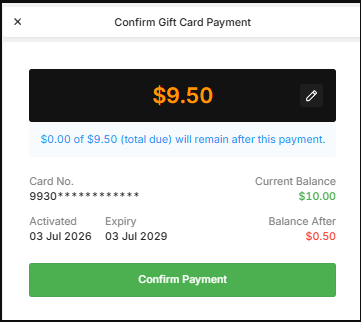
- Confirm the amount being applied.
- Select Confirm Payment.
For partial payment using the Gift Card:
- Select the edit pencil beside the payment amount.
- Enter the amount to apply from the Gift Card.
- Select Confirm.
- Select Confirm Payment.
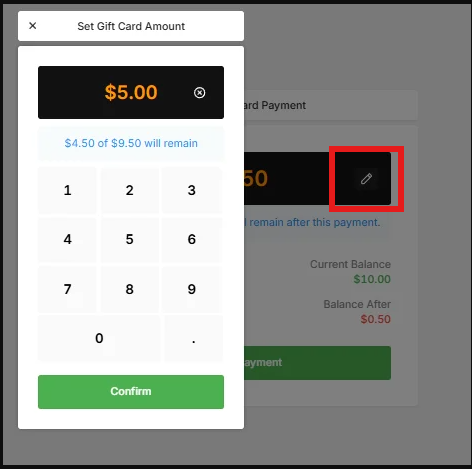
Any remaining Gift Card balance stays on the card and can be used for a future purchase.
If an amount remains owing on the order, continue applying payment using the normal POS payment workflow.
Redeem a Gift Card in the Online Store
Oolio Gift Cards can also be redeemed during checkout in the Oolio Online Store.
- Add the required items to the cart.
- Continue to checkout.
- Enter the Gift Card number in the Gift Card field.
- Apply the Gift Card to the order.
- Complete checkout.
If the Gift Card does not cover the full order value, complete the remaining payment using an available payment method.
Any unused Gift Card balance remains available for future purchases.
Check a Gift Card balance
Gift Card balances can be checked in Oolio One POS or online through the Oolio Gift Card Store.
Check a Gift Card balance in POS
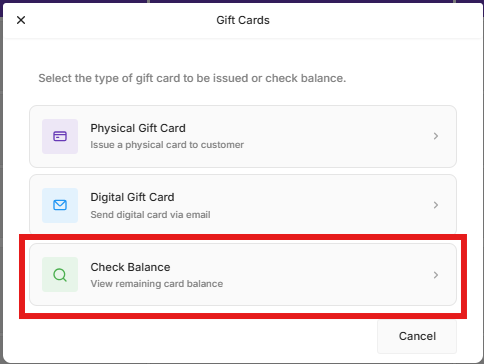
- Select the Gift Card function key in the POS function key panel.
- Select Check Balance.
- Scan, swipe or enter the Gift Card code.
- Select Find Card.
The current Gift Card balance is displayed.
If the card is not in a valid status, an error is displayed. Check the Gift Card under Oolio One Back Office > CRM > Gift Cards > Overview to review its current status.

Check a Gift Card balance online
Customers can check their remaining Gift Card balance through the Oolio Gift Card Store.
- Open the Gift Card Store.
- Select See Balance and enter the Gift Card code in the search field.
- Submit the request.
- Review the remaining Gift Card balance.