
The Reconciliation report in Oolio One gives you a complete picture of your trading period — from gross sales and discounts through to cash, card, and payment variances.
Step 1 — Navigate to Reconciliation
From the left navigation, go to Back Office > Insights > Operations › Reconciliation.
The report opens with the current week grouped by day, with filter controls at the top.
💡 Tip: Use View to switch layouts. Use Group By to change from Daily to Weekly.
-jpg.jpeg?width=670&height=331&name=RECON%201%20(1)-jpg.jpeg)
Step 2 — Set Your Filters
Use the filter bar to set Date Range, Period, and Locations.

Toggle Show Reporting Groups on to break sales down by category (Food, Drinks, Beverage).
💡 Tip: Select a specific location to reconcile a single terminal or trading area.
Step 3 — Review Shifts Summary & Reporting Groups
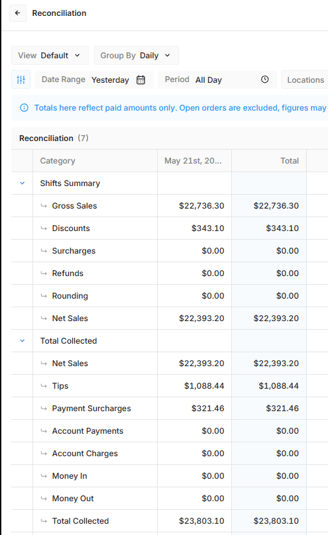
The Shifts Summary shows Gross Sales, Discounts, Surcharges, Refunds, Rounding, and Net Sales per day.
With Show Reporting Groups enabled, sales break down by category — Beverage, Drinks, Food, Others.
💡 Tip: Net Sales in Total Collected should match Net Sales in Shifts Summary. Any difference indicates an unresolved payment.
Step 4 — Review Cash & Card Totals
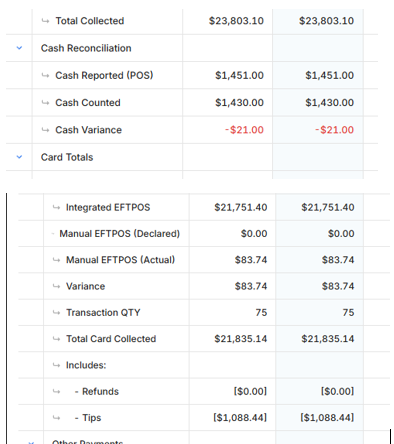
Cash Reconciliation
After the shift is closed and the cash counts have been entered into the POS.
- Cash Reported (POS) - The total cash recorded via the payments at the POS
- Cash Counted - Total cash entered at the close of shift
- Cash Variance - A positive or negative variance as a total of Cash Reported minus Cash Counted
Card Totals
An overview of all card transactions recorded at the POS for the shift
- Integrated EFTPOS - All standard card transactions processed by triggering the EFTPOS payment method from the till
- Manual EFTPOS (Declared) - A card payment made directly through the Oolio Pay terminal without use of the POS integration and the sale recorded in the POS as a Manual EFTPOS payment
- Manual EFTPOS (Actual) - The actual amount pulled from the Oolio Pay terminal summary
- Variance - a positive, negative, or zero variance calculating the card payment totals
- Transaction QTY - Total number of card transactions processed for the shift
- Total Card Collected
- Includes
- MOTO - Transactions processed through the POS and on the integrated Oolio Pay terminal without the card present
- Refunds - Any refunded transaction (negative amounts)
- TIPS - Customer initiated payment of a TIP through the Oolio Pay terminal
- Includes
⚠️ Important: A negative Cash Variance means counted cash is less than POS recorded. Investigate before closing your shift.
Variance Summary and Tax
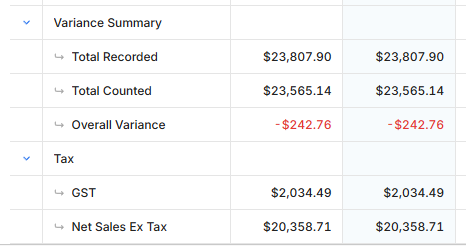
- Total Recorded - The total of all monetary values for the shift; positive and negative, including all payment types that have been recorded in the POS
- Total Counted - The total of all monetary values entered by the Location as the Actual values they have counted
- Overall Variance - A total calculation of all recorded - counted = zero variance, a positive variance or a negative variance.
Other Payment Types
This shows additional payment types configured for your location (e.g. Gift Cards).
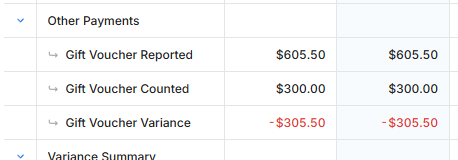
- Gift Voucher Reported - Total value received as payment from gift cards
- Gift Voucher Counted - Verified total of voucher payments
- Gift Voucher Variance - Reported minus Counted — $0.00 means balanced
Step 5: Identify Variances
Variances (red text) highlight discrepancies between System Takings and Actual Takings.
Where to look:
- Cash Variance — Physical cash counted vs. POS record
- Card Variance — Declared card amount vs. Gateway settlement
- Payment Method Variances — Any payment type showing red
What it means:
- Negative variance = Location counted/received less than POS recorded (shortage)
- Positive variance = Location counted/received more than POS recorded (overage, rare)
⚠️ Important: Reconciliation calculations use paid amounts only. Open or unpaid orders are excluded. This often causes perceived discrepancies when comparing Reconciliation to real-time dashboards.
Step 6: Export the Report
To download data for external audit or record-keeping:
- Locate the Export icon (top-right corner)
- Select CSV
- File downloads as
Reconciliation_[Date_Range].csv
The CSV includes all visible data — Shifts Summary, Reporting Groups (if shown), Total Collected, and Tax sections.
Tip: Export before shift closure is finalized if you need a snapshot for audit purposes.
Frequently Asked Questions
Why does my Reconciliation total differ from my Sales report?
The Reconciliation report only includes paid orders. Open or unpaid orders are excluded, which can cause differences.
What does a negative Cash Variance mean?
Counted cash is less than what the POS recorded. Investigate before closing the shift.
How do I filter by a specific location?
Use the Locations filter in the report header to select one or more locations.
What is included in Total Collected?
Net Sales, Tips, Payment Surcharges, Account Payments, and Account Charges.
Can I export the Reconciliation report?
Yes — use the export icon top right or set up a Scheduled Report via Admin › Scheduled Reports.
Why is today showing $0.00?
Figures only populate once a shift is closed and payments are finalised.
Troubleshooting
|
Issue |
What You'll See |
Fix |
|---|---|---|
|
Cash Variance showing red |
Negative amount in red under Cash Variance |
Recount cash. If discrepancy remains, review individual transactions for the shift. |
|
Today's figures all $0.00 |
All columns show $0.00 |
Confirm shifts have been closed. Open shifts do not appear in Reconciliation. |
|
Reporting Groups not visible |
Beverage, Drinks, Food rows missing |
Toggle Show Reporting Groups on in the filter bar. |
|
Location data missing |
Totals appear low or incomplete |
Check the Locations filter — ensure all required locations are selected. |
|
Card Variance showing unexpectedly |
Manual EFTPOS Actual differs from Declared |
Review manual EFTPOS entries and ensure all transactions were declared at shift close. |