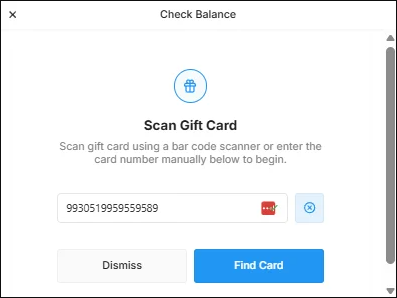
Oolio Gift Cards can be sold through the Oolio Gift Card Store or directly from a venue using Oolio One POS. Depending on the options offered by the venue, customers can purchase digital Gift Cards for email delivery or physical Gift Cards for use in-store.
Digital Gift Cards can be sent immediately or scheduled for later delivery. Recipients can also add supported digital Gift Cards to Apple Wallet or Google Wallet for easier access.
Gift Cards must be enabled and configured before they can be sold through the Gift Card Store or Oolio One POS. See Configure Oolio Gift Cards for setup instructions.
Sell a Gift Card online
Customers can purchase digital Gift Cards through the venue's Oolio Gift Card Store.
Step 1: Choose the Gift Card
- Open the venue's Gift Card Store.
- Select a Gift Card design.
- Select one of the available preset amounts or enter a custom amount.
The designs and purchase amounts available are determined by the venue's Gift Card configuration.
Step 2: Enter the Gift Card details
Enter the information required to send the Gift Card:
- Enter the sender details.
- Enter the recipient details.
- Add a message if required.
Only one recipient can be added to each Gift Card purchase.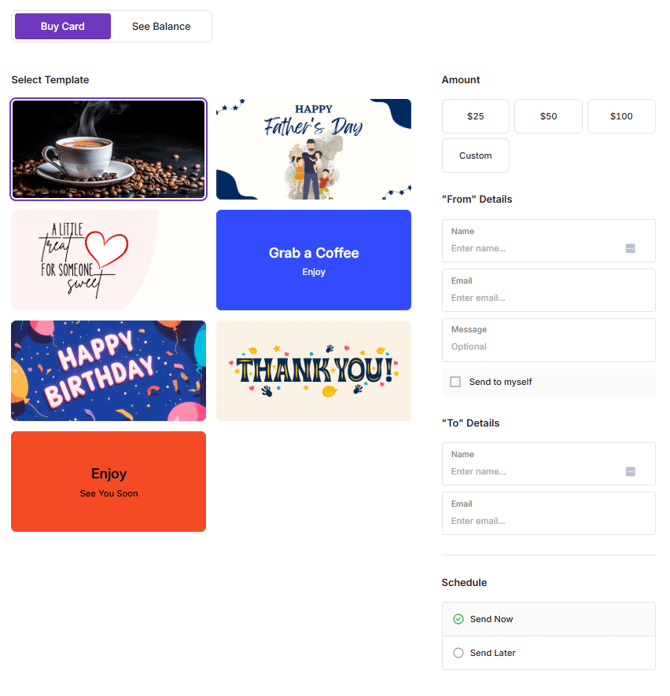
Step 3: Choose when to send the Gift Card
Select when the recipient should receive the Gift Card:
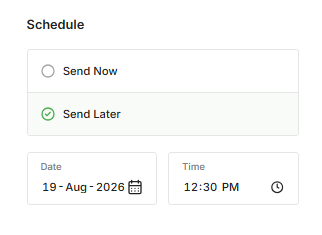
- Send Now: Sends the Gift Card immediately after the purchase is completed.
- Send Later: Schedules the Gift Card for delivery at a selected date and time based on the applicable timezone settings.
After the purchase is completed:
- the sender receives a purchase receipt
- the recipient receives an email with the Gift Card, including the Gift Card code and a link to view the balance
Sell a Gift Card in-store
Gift Cards can also be sold through Oolio One POS when the venue has enabled Gift Card sales.
The Gift Card function key appears in the POS function key panel when Gift Cards are enabled.
Sell a Physical Gift Card at POS
Physical Gift Cards use a card that has already been added to the venue's Gift Card inventory.
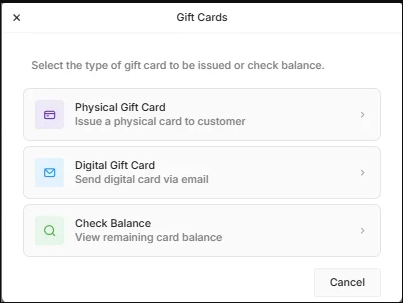
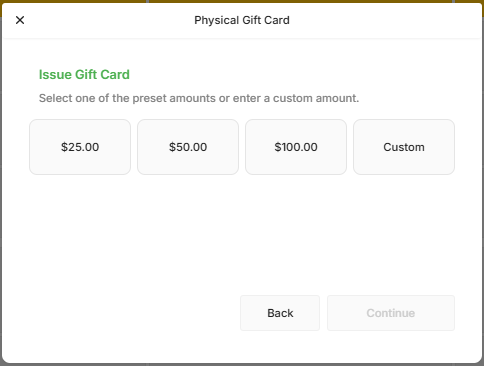
- Select the Gift Card function key.
- Select Physical Gift Card.
- Select the required Gift Card value, or select Custom and enter an amount.
- Select Continue.
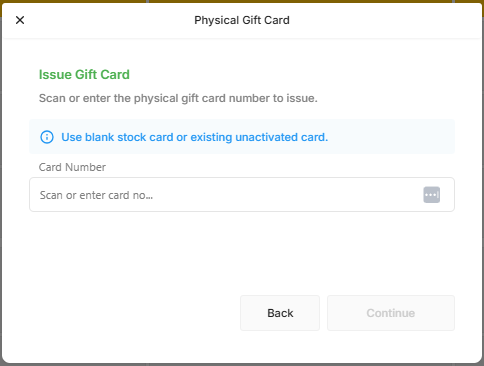
- Swipe, scan or enter the physical Gift Card code.
- Select Continue.
- Review the Gift Card details.
- Select Add to Cart.
- Complete payment using the normal POS payment process.
The physical Gift Card is activated with the purchased value after the sale is completed.

Sell a Digital Gift Card at POS
Digital Gift Cards can also be purchased in-store and delivered directly to the recipient.
- Select the Gift Card function key.
- Select Digital Gift Card.
- Select the required Gift Card value, or select Custom and enter an amount.
- Select Continue.
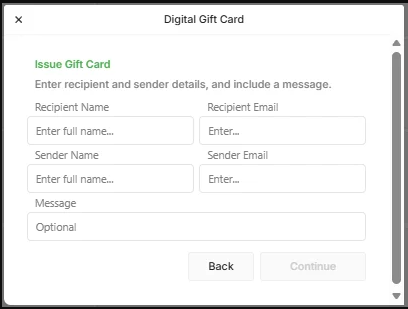
- Enter the recipient details.
- Select Continue.
- Select a Gift Card template. Only templates made available by the venue are displayed.
- Scroll to the bottom of the screen and select Continue.
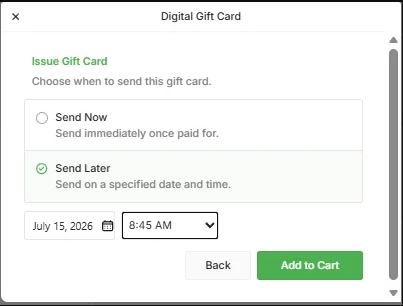
- Choose when to deliver the Gift Card:
-
- Send Now: Adds the Gift Card to the cart for immediate purchase and delivery.
- Send Later: Select the required delivery date and time before adding the Gift Card to the cart.
-
- Select Add to Cart.
- Complete payment using the normal POS payment process.
The digital Gift Card is sent to the recipient according to the selected delivery option.
Add a Digital Gift Card to a mobile wallet
A recipient can add a digital Gift Card to a supported mobile wallet for easier access when paying in-store.
Supported wallets include:
- Apple Wallet
- Google Wallet
To add the Gift Card:
- Open the Gift Card email received after purchase.
- Open the Gift Card link.
- Select Add to Apple Wallet or Add to Google Wallet, depending on the device.
- Confirm the action to add the Gift Card to the wallet.
Once added, the Gift Card is available from the customer's mobile wallet and may display information including the Gift Card code, current balance and expiry date.
Present the Gift Card from the mobile wallet when redeeming it in-store.
Check a Gift Card balance at POS
Gift Card balances can be checked using Oolio One POS.
- Select the Gift Card function key.
- Select Check Balance.
- Scan, swipe or enter the Gift Card code.
- Select Find Card.
The current Gift Card balance is displayed.
If the Gift Card is not in a valid status, POS displays an error. Check the Gift Card in Oolio One Back Office > Engagement > Gift Cards > Overview to review its current status.