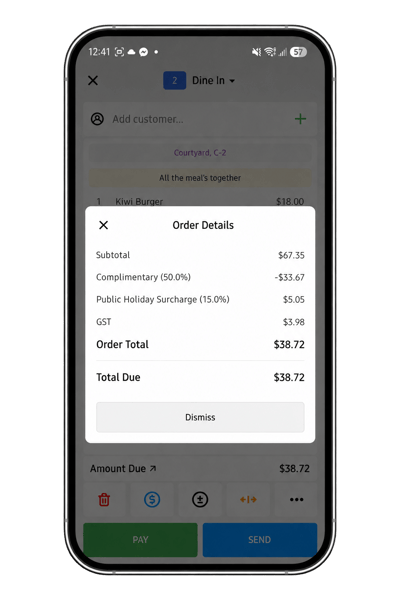
mPOS provides a compact ordering experience for taking orders from a mobile device. It can be used by staff moving around the venue to take and manage table orders without returning to the main POS terminal.
From mPOS, products and modifiers can be added to an order, quantities and notes can be changed, and discounts or surcharges can be applied.
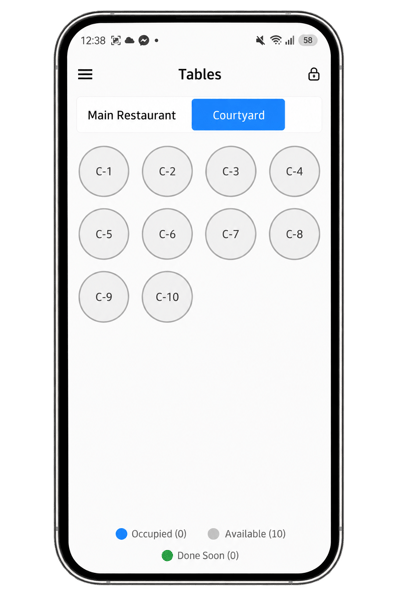
Start a table order
- If the venue has multiple Sections, select the required Section from the dropdown.
- Select an available table to start an order.
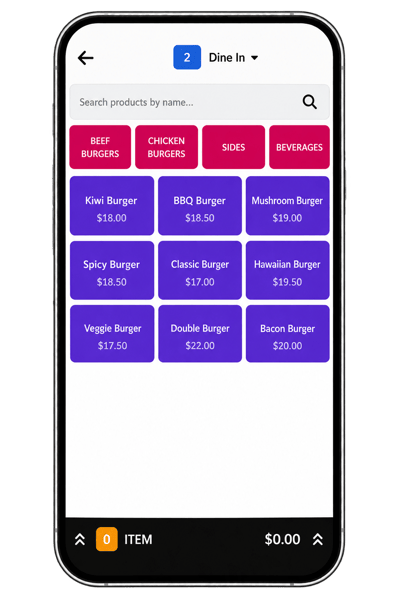
Add products
- Scroll horizontally to find the required Page.
- Select the required product.
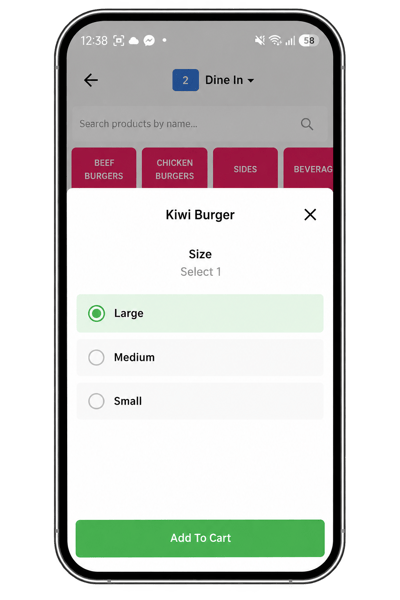
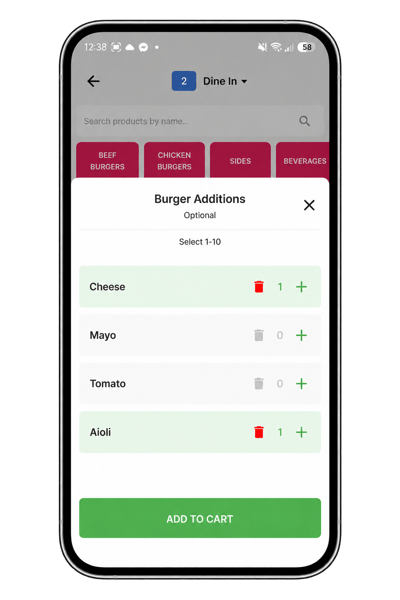
- If the product has variants, select the required options.
- Continue adding products as required.
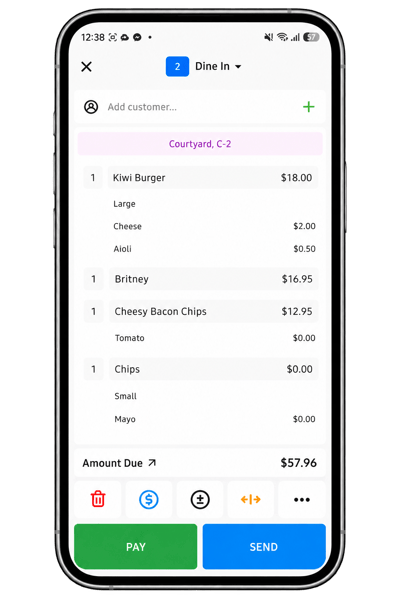
View the Cart
-
Select Cart to review the current order.
-
From the Cart, select the cutlery icon to return to the Pages and continue adding products.
-
To discard the current order, select the X.
Change an item quantity
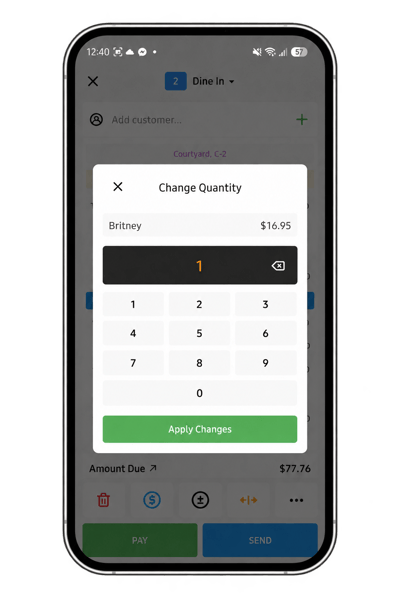
From the Cart:
- Select the required product.
- Use:
- + to increase the quantity.
- - to decrease the quantity.
- Bin to remove the product.
Change a product's modifiers
To change modifiers after a product has been added:
- Select the product in the Cart.
- Select the Edit (...) option.
- Select Edit Product.
- Change the required modifiers.
- Select Confirm.
Note: Edit Product is unavailable until a product has been selected.
Add an order note
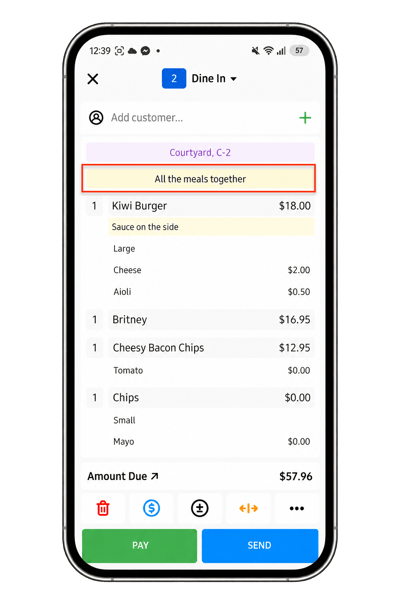
Add an order note when the instruction applies to the entire order.
- From the Cart, make sure no individual product is selected.
- Select Edit (...).
- Select Add Note.
- Enter the note.
- Select Save Note.
The note appears at the top of the order and prints with the order.
Add an item note
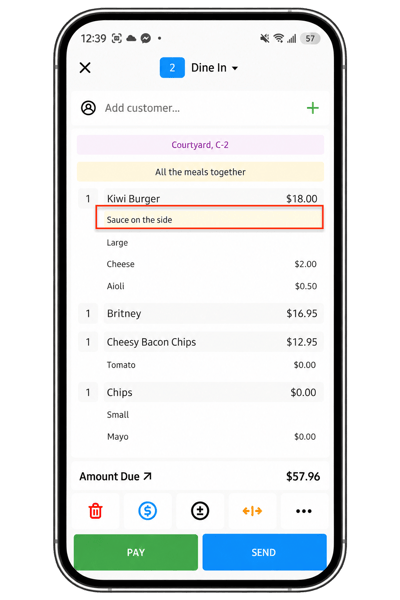
Add an item note when an instruction applies to a particular product.
- Select the product in the Cart.
- Select Edit (...).
- Select Add Note.
- Enter the note.
- Select Save Note.
The note appears below the selected product and prints with the order.
Apply a discount or surcharge to a product
- Select the required product in the Cart.
- Select Edit (...).
- Select Discount or Surcharge.
- Choose whether to apply a:
- Dollar amount ($)
- Percentage (%)
- Enter the required value.
- Select Apply.
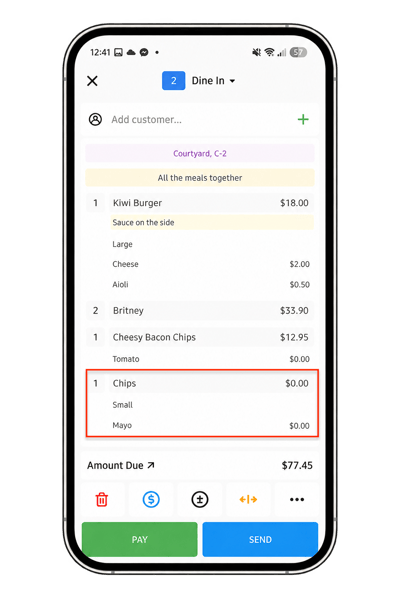
The discount or surcharge appears against the selected product.
Apply a discount or surcharge to the entire order
- Make sure no individual products are selected in the Cart.
- Select Edit (...).
- Select Discount or Surcharge.
- Choose whether to apply a:
- Dollar amount ($)
- Percentage (%)
- Enter the required value.
- Select Apply.
Select Total Due to view the discount or surcharge applied to the overall bill.