
Use the Pickup Order Type in Oolio One POS for orders that customers will collect from the venue. Pickup orders can prompt for a customer name, helping staff identify the correct order when it is ready for collection.
Start a Pickup order
A Pickup order can be started from the main POS screen or Floor Plan.
From POS:
-
Start a new order using either of these options:
- Select New, then select Pickup as the Order Type.
- Select the Order Type dropdown in the Cart and choose Pickup.
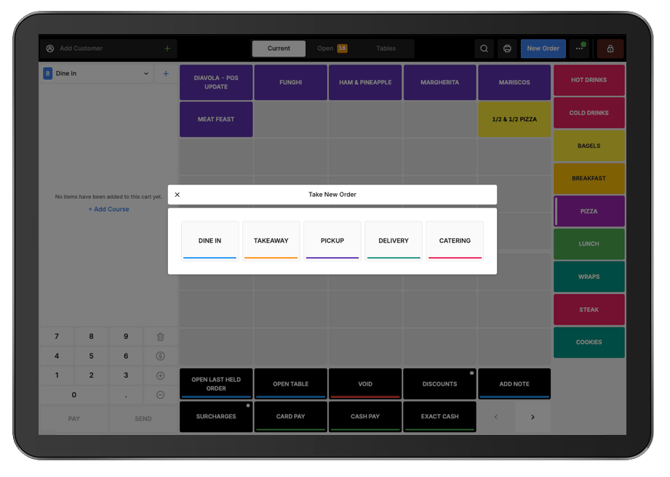
From the Floor Plan:
-
If the Floor Plan is enabled
- Open the Floor Plan.
- Select New Order.
- Select Pickup as the Order Type.
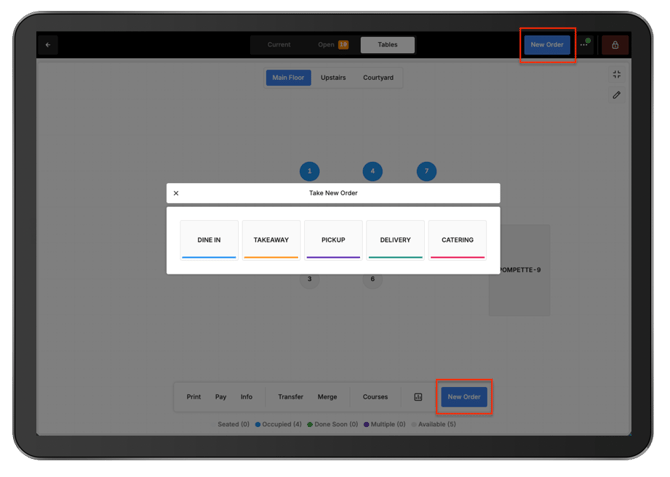
Add products:
-
Add the required products, variants, and modifiers to the order as usual.
-
When the order is ready:
-
Select Send to send the order for preparation, or Pay Now to proceed to payment.
-
Enter the customer's name when prompted.
-
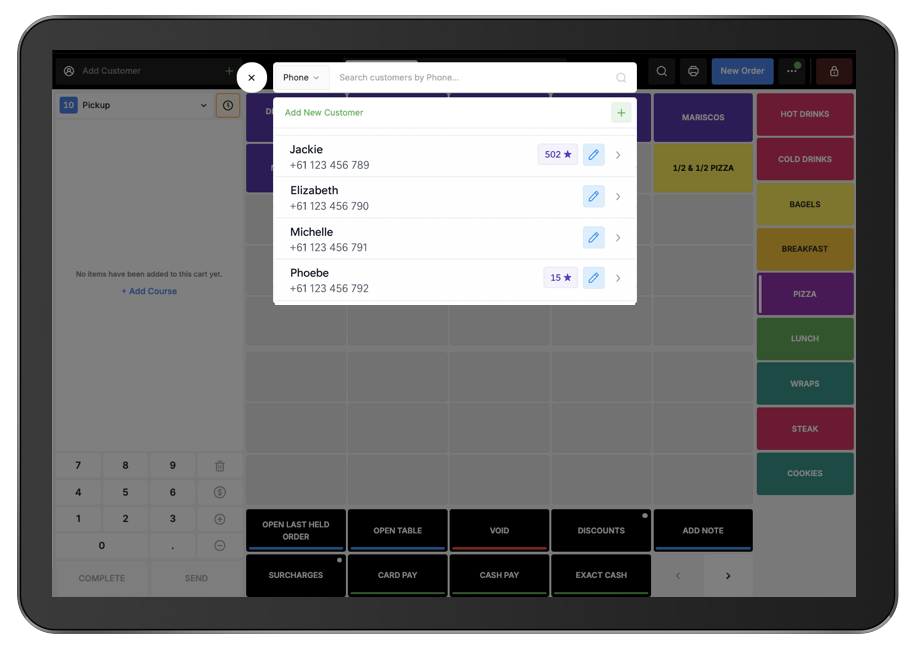
The entered name prints at the top of the preparation docket, making the Pickup order easier to identify when it is ready.