
Temporarily pause DoorDash orders directly from the Oolio One POS during busy periods, staff shortages or early closures. Orders can be paused for a selected duration or until the following day, and reactivated at any time.
Pausing orders does not change the store's regular opening hours. To update trading hours, see 🔗 Set DoorDash Store Hours in Oolio One
Pause DoorDash orders
DoorDash orders can be paused directly from the Oolio One POS.
- On the Oolio One POS, open the Online tab.
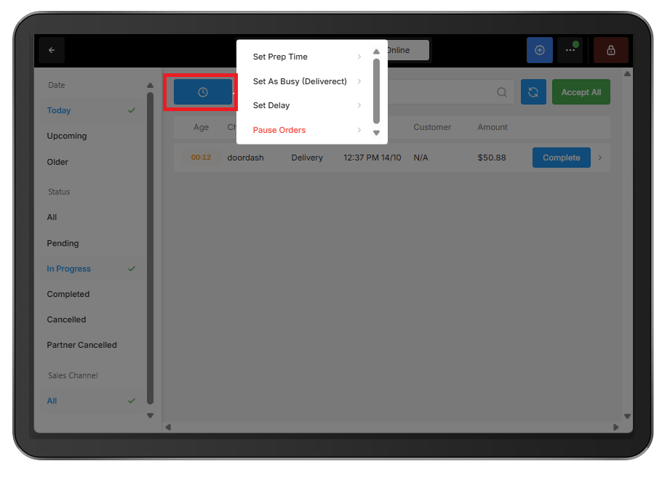
- Select the blue clock icon in the top-left corner.
- Select Pause Orders.
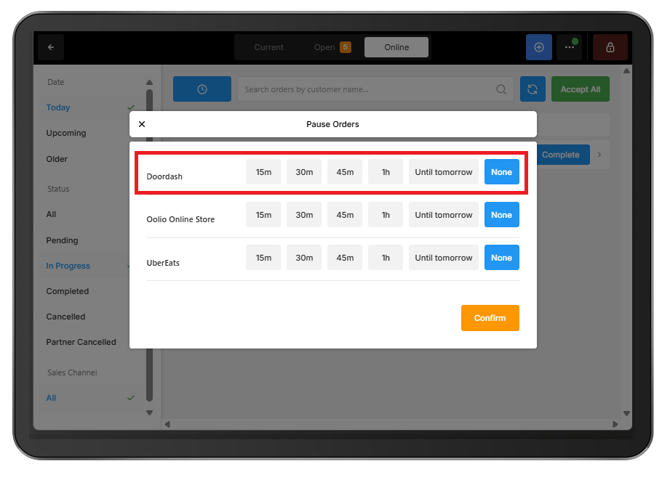
- Next to DoorDash, select the required pause duration:
- 15m, 30m, 45m or 1h to pause orders for a set period.
- Until tomorrow to pause orders until midnight (12:00am).
- Select Confirm.
While paused, DoorDash will stop accepting new orders. Orders received before the pause will remain in the POS and should continue to be prepared as normal.
DoorDash orders will automatically resume when the selected pause duration ends, provided the store is within its scheduled opening hours.
Reactivate DoorDash orders
DoorDash orders can be manually reactivated before the selected pause duration ends.
- On the Oolio One POS, open the Online tab.
- Select the blue clock icon.
- Select Pause Orders.
- Next to DoorDash, select None.
- Select Confirm.
DoorDash orders will resume within 5 minutes, provided the store is within its scheduled opening hours.
Pause multiple online ordering channels
The Pause Orders window displays each connected online ordering channel separately, such as DoorDash, Oolio Online Store and Uber Eats.
- To pause DoorDash only, select a pause duration next to DoorDash and leave the other channels set to None.
- To pause all online ordering channels, select a pause duration for each channel.
Select Confirm to apply the changes.
Pausing one channel does not affect orders from other channels unless they have also been paused.
Troubleshooting
DoorDash orders are still being received after pausing:
-
Check that a pause duration was selected for DoorDash and that Confirm was selected.
-
Orders placed immediately before the pause may still be received and should be processed as normal.
DoorDash is still closed after the pause has ended:
-
Open Pause Orders and confirm that DoorDash is set to None.
-
Also check that the current time falls within the DoorDash Online Menu schedule. Orders cannot be received outside the configured opening hours.
DoorDash needs to close for the remainder of the day:
-
Select Until tomorrow when pausing DoorDash orders. Orders will automatically resume at midnight, subject to the configured opening hours.
DoorDash needs to close for longer than one day:
-
For longer closures, update the DoorDash Online Menu schedule in Oolio One Back Office and publish the changes.