Before creating an Online Menu, ensure you have created Products and the Standard Menu for POS. Also ensure that your online store has been activated.
When creating the menu for your online store, it is important to understand the way Pages function within Oolio. A single menu page can be used across POS, Kiosk and Online ordering if desired, and is connected through all three, meaning edits to one page affect all three menus at once. This is useful if the offering is the same everywhere, and makes managing multiple menus at once much easier.
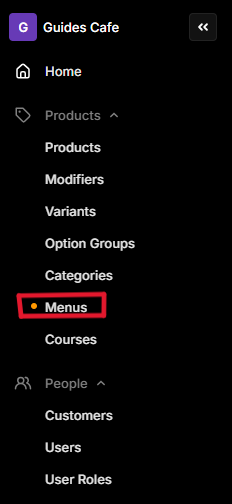
- Beginning in Back Office, navigate to Menus from the options in the left hand column.
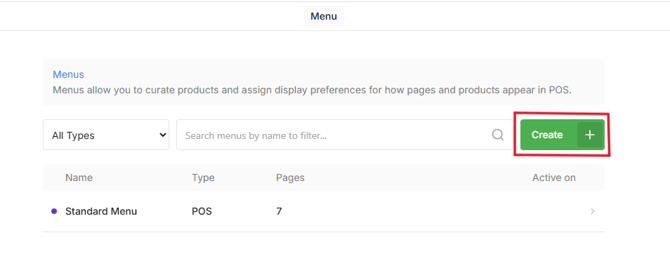
- From the Menus screen, click the green Create button
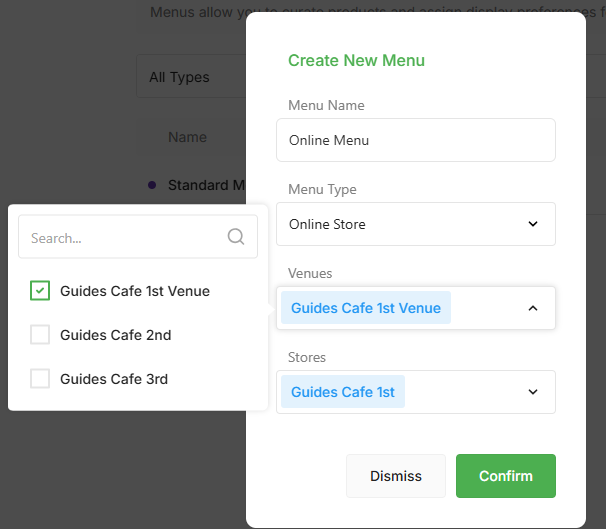
- Fill in the fields in the pop-up for Menu Name, Type, and what Venue/Store you want your menu to show up in, then click Confirm.
- Once the blank template has been created, click the arrow next to Online Menu to take you into the Menu Settings screen. This looks slightly different to the Standard Menu screen.
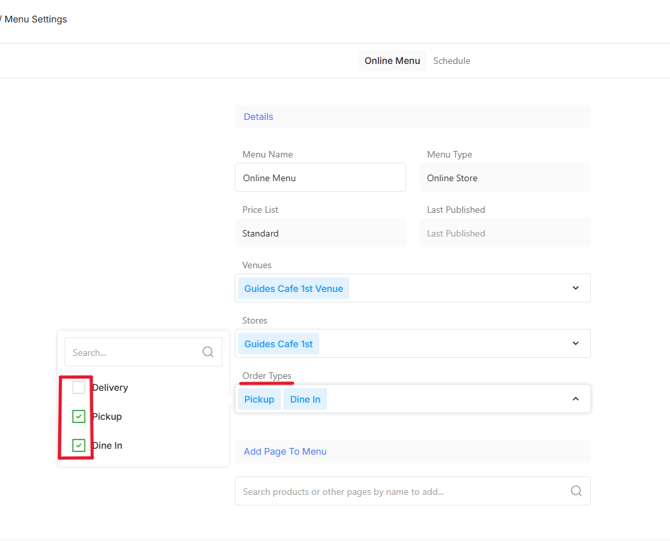
- Click on Order Types, just below Stores, to select the types of ordering to allow via the Online Store.
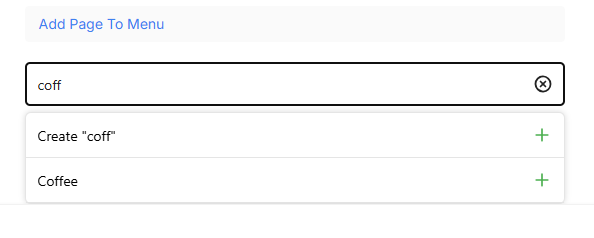
- Next, click into the search bar below Add Page To Menu. If you are using the same exact menu as your POS for your Online Store, begin typing the names of the existing menu pages that have already been created.
- Adding pages that have already been created pulls all the products included in that page into your new online menu. You can see the category and list of products by clicking on the pencil icon to open the Page Detail.
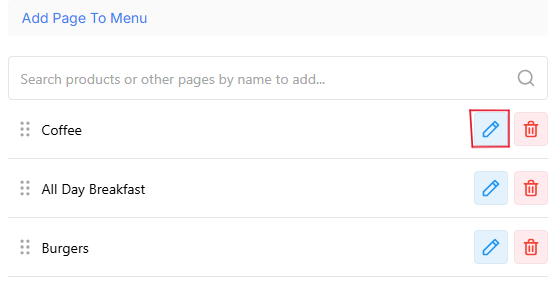
- Remember that these pages are connected to your POS menu, and any changes made will also change the way the Page in your POS looks.
- Continue adding Pages to your menu until it is complete. Add as many or as few pages as you would like to offer in your Online Store. Click Save, and then click Schedule at the top of the screen. This is where you will enter the days and times the Online Store is available to accept orders.
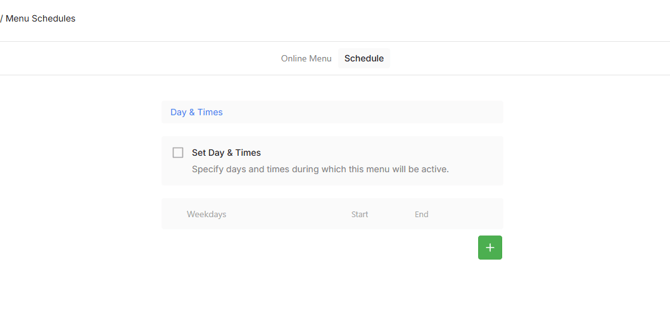
- Clicking the plus sign adds a line that includes All Days, with the hours set from 7am to 11:59pm. Clicking All Days opens a drop down menu allowing you to choose which days of the week your online store will be 'open'
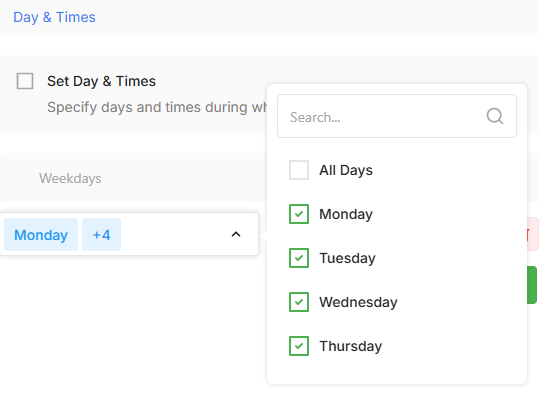
- Adjust the hours to your store's chosen hours of operation, and Save. If you are happy with the Pages and products included, click back into Online Menu at the top of the screen, then click Save & Publish in the lower right corner
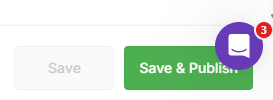
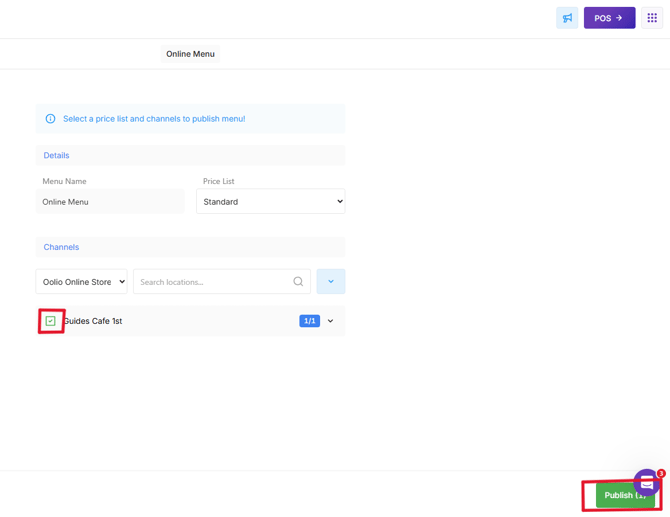
- Clicking this opens a new screen, the Menu Publish screen, where you can choose the Channel and Price List you want to attach to the Online Menu.
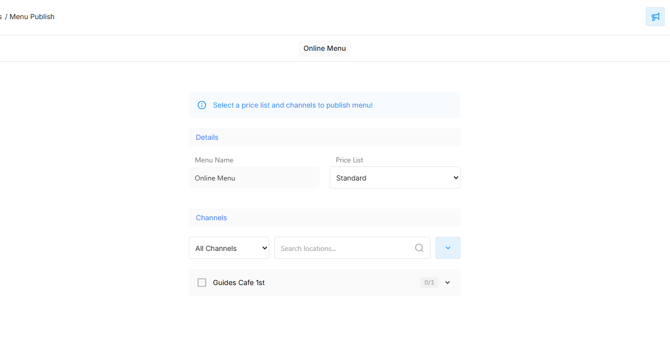
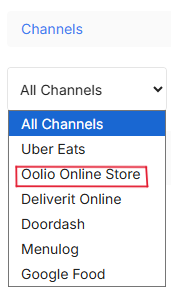
- Clicking All Channels opens the drop down menu with the various integrations that this menu can be connected to. Click Oolio Online Store.
- Next, tick the box next to the store name, and then click Publish in the lower right corner.