
Oolio Kitchen Display Screens (KDS) displays orders from Oolio POS, mPOS and online ordering channels so kitchen and service teams can manage preparation without relying on printed dockets. Each order appears as a docket on KDS and can be progressed through preparation, completion and service.
View new orders
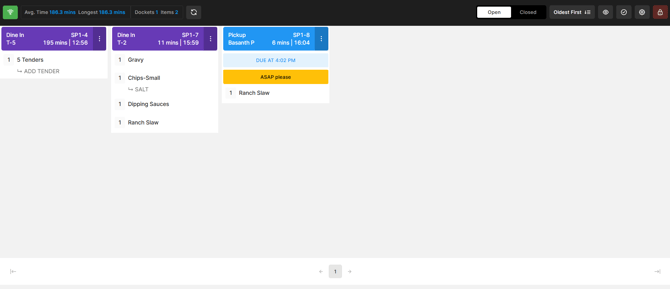
When a new order is received, a docket appears on KDS. Dockets display across the screen from left to right.
Each docket contains information to help identify and monitor the order:
- Number: A unique ticket number, such as SP1-..., used to identify the order.
- Age: Shows how long the order has been open.
- Order Type: Identifies the type of order, such as Dine In, Takeaway, Delivery or Pickup.
- Dine In: Displays in purple and includes the Section and Table Number.
- Takeaway, Delivery and Pickup: Display in blue. Customer details appear at the top of the docket when they have been added to the order.
- Order Notes: If an order note has been added, it appears below the Order Type in orange.
Progress individual items
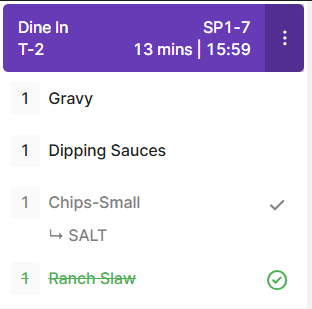
Items within an order can be progressed individually as they move through preparation.
With the standard fulfilment workflow:
- Select an item once to tick it.
- Select the item again to strike it through in green, indicating that it is complete.
The appearance of the item changes as it progresses through preparation.
Use Two-Level Fulfilment
Two-Level Fulfilment adds another stage for kitchens where items pass through multiple preparation stages or stations before they are complete.
To enable Two-Level Fulfilment:
- Select Settings in the upper-right corner of KDS.
- Enable Two-Level Fulfilment.
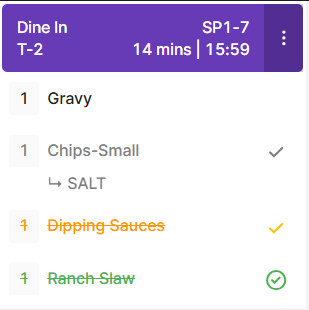
With Two-Level Fulfilment enabled:
- Select an item once to tick it.
- Select it a second time to strike it through in orange, indicating that the first stage of preparation is complete.
- Select it a third time to strike it through in green, indicating that the final stage is complete.
This can be useful where one station completes the initial preparation before another station completes the final preparation or assembly.
Complete an entire order
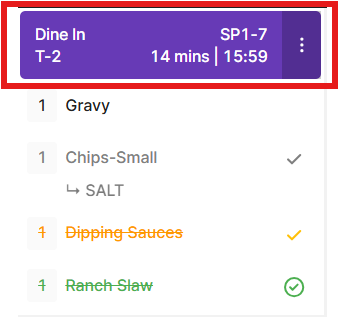
Instead of progressing each item individually, the entire order can be completed from its docket.
- Select the top of the docket.
- The order is marked as complete and its docket moves to Closed.
Completed orders can be accessed by selecting Closed at the top of KDS.
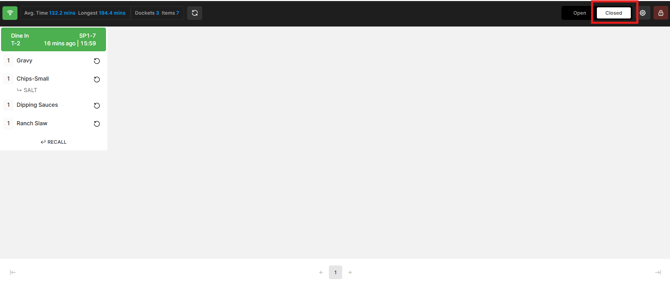
Note: Only orders from the current day remain visible under Closed. Older orders may disappear shortly after being moved to Closed.
Recall a closed docket
If an order is completed by mistake or needs to return to preparation, recall its docket from Closed.
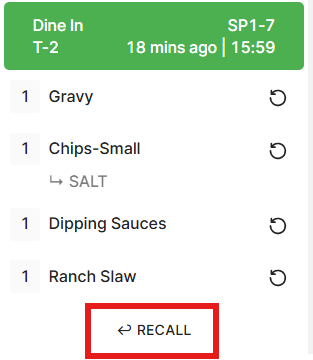
- Open Closed.
- Find the required docket.
- Select RECALL to move it back to Open.
The docket returns to the active orders on KDS.
Change the order of dockets
Change how dockets are arranged on KDS to suit the way orders are managed at the station.
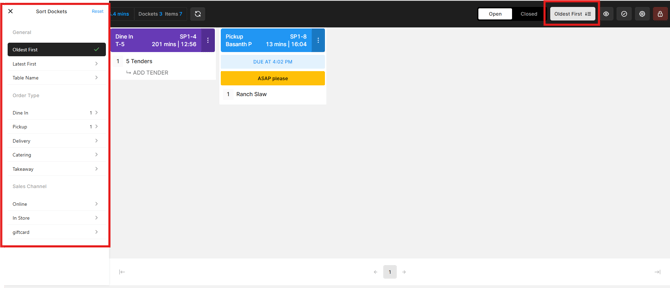
Select the Sorting icon and select how the dockets should be ordered:
- Oldest first
- Latest first
- Table Name
- Order Type
- Sales Channel
The active dockets are rearranged using the selected option.
Move or rush a docket
Individual dockets can be repositioned when an order needs to be prioritised or moved within the queue.
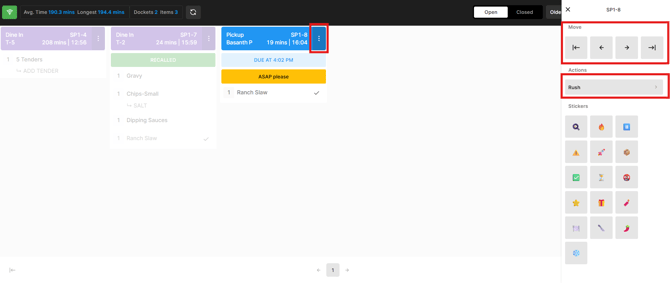
- Select the Options Menu in the header of the required docket.
- Choose the required action:
- Use the arrows to move the docket left or right across the screen.
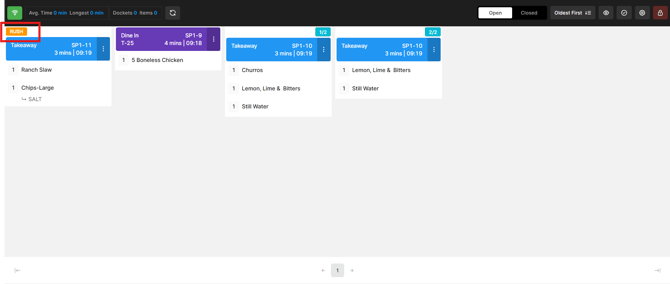
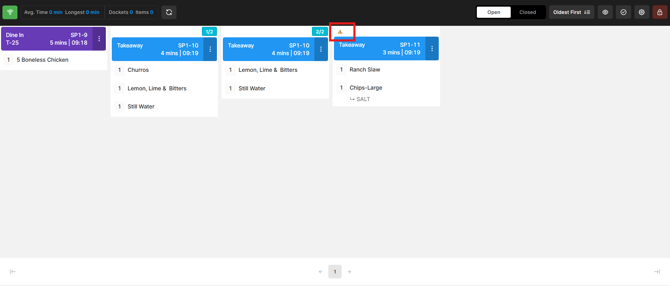
- Select Rush to move the docket to the front of the queue. Rush appears in orange on the docket so the priority order is clearly visible to staff.
Add a sticker to a docket
Stickers can be added to dockets to make particular orders stand out during service. For example, a sticker could be used to identify a VIP order or another order requiring special attention.
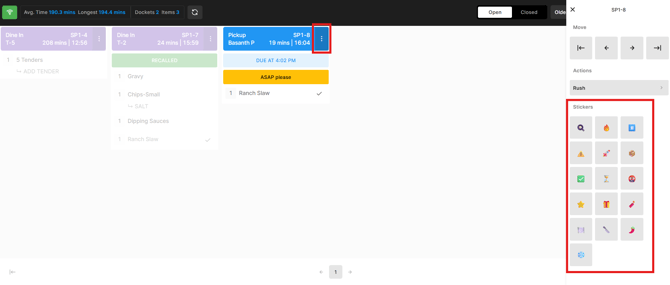
- Select the Options Menu in the header of the required docket.
- Select one of the available Stickers.
The selected emoji or sticker appears on the docket, making the order easier for staff to identify.
 View the All Day Display
Enable the All Day Display to see a summary of the total products currently on order.
This provides an overall view of the products that need to be prepared across active orders without checking each docket individually.
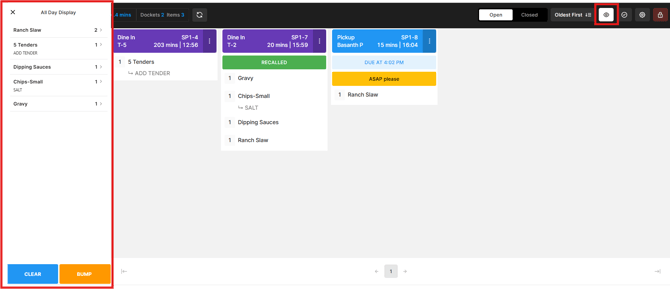
- Select the Eye icon.
- The All-Day Display appears on the left of the screen.
The product totals are displayed alongside the active order dockets.
Items can also be progressed in bulk from the All-Day Display:
- Select the required product in the All-Day Display.
- Select Bump.
- The product is ticked on all active dockets containing that product.
This is useful when multiple quantities of the same product are being prepared together, allowing them to be progressed across all relevant orders at once.
Manage other KDS settings
Additional settings control how dockets and items appear and behave on each KDS, including the layout, text size, modifier styling, seat numbers, dark mode and fulfilment options.
See 🔗 Manage Kitchen Display settings for configuration instructions.