
Online orders from Oolio Online Store, Uber Eats and DoorDash can be received and managed directly in Oolio POS. Staff can view incoming orders, accept orders when required, monitor their status, edit unpaid orders and complete orders from the Online tab.
How incoming orders are handled depends on settings such as Auto Accept, Auto Complete and the preparation time configured in Oolio One Back Office.
Step 1: View online orders
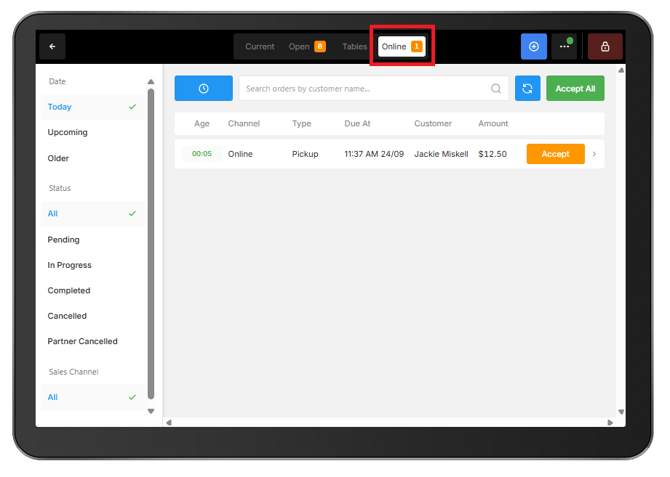
When a new online order is received, POS sounds an alert and a yellow number appears on the Online tab. If Auto Accept is disabled, the alert continues until the incoming order is actioned.
- Open the Online tab.
- Select the required order to view its details.
- Use the filters on the left to find orders by:
- Date: Today, Upcoming or Older
- Status: All, Pending, In Progress, Completed or Cancelled
The Age field shows how long it has been since the order was placed.
Step 2: Accept an online order
The action required when a new order arrives depends on whether Auto Accept is enabled.
Auto Accept enabled:
-
Incoming orders are automatically accepted and sent to the configured kitchen workflow, such as a printed docket or Kitchen Display Screen (KDS).
-
POS sounds an alert when the order arrives, but no action is required from staff to accept it.
Auto Accept disabled:
-
Incoming orders remain pending until they are accepted or rejected.
-
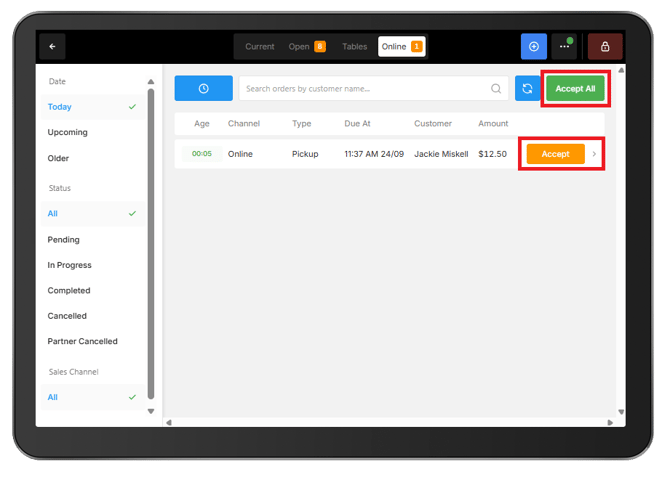
To accept orders:
- Open the Online tab.
- Select an individual order to accept it, or select Accept All to accept all pending orders.
Reject an online order:
-
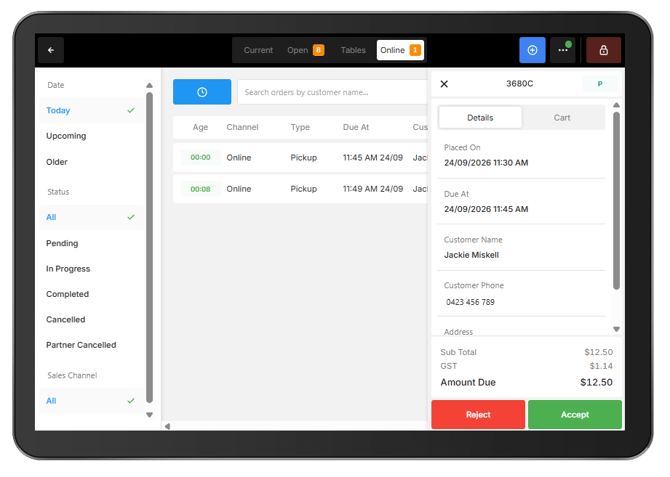
When Auto Accept is disabled, an incoming order can be rejected instead of accepted.
- Open the Online tab.
- Select the incoming order.
- Select Reject.
- Enter a rejection reason if prompted.
- Confirm the rejection.
-
When an order is rejected:
- The order is cancelled and its status is updated in Oolio One POS.
- For Oolio Online Store orders, the customer is notified that the order has been rejected. The rejection reason is included when one is provided.
- If the order has already been paid, the payment is refunded to the original payment method.
- Any eligible loyalty reward or voucher held against the order is made available again.
- For Uber Eats and DoorDash orders, the rejection is sent back to the marketplace. The marketplace manages the customer notification and refund.
- Any associated delivery dispatch is cancelled.
Important: An order can only be rejected before it has been accepted. Once accepted, the order must be refunded using the standard POS refund process.
Step 3: Manage an unpaid online order
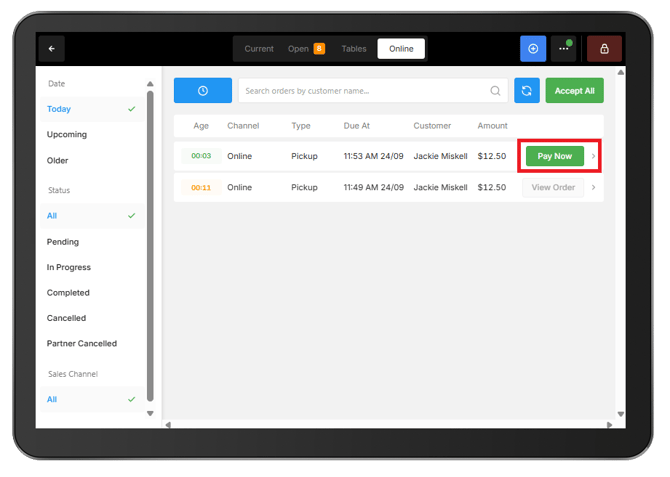
Orders placed using Allow to Pay Later remain unpaid when they reach POS.
Once the order has been accepted, Pay Now appears on the order in the Online screen.
Take payment:
-
Select Pay Now on the order to open the standard POS payment screen and complete the payment.
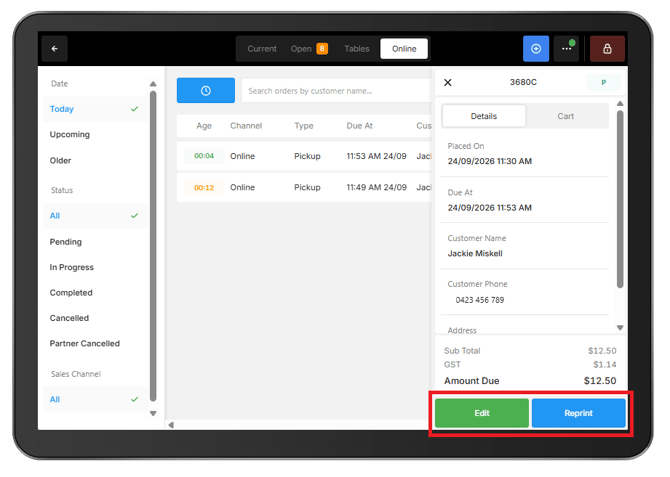
Edit the order:
-
To make changes to the order:
- Select the order to open its details.
- Select Edit.
- Make the required changes, such as adding or removing products or applying adjustments.
Reprint the docket:
-
To print another copy of the prep docket:
- Select the order to open its details.
- Select Reprint Docket.
Note: Allow to Pay Later is configured for the required Order Type in the Online Store fulfilment settings.
Step 4: Complete an online order
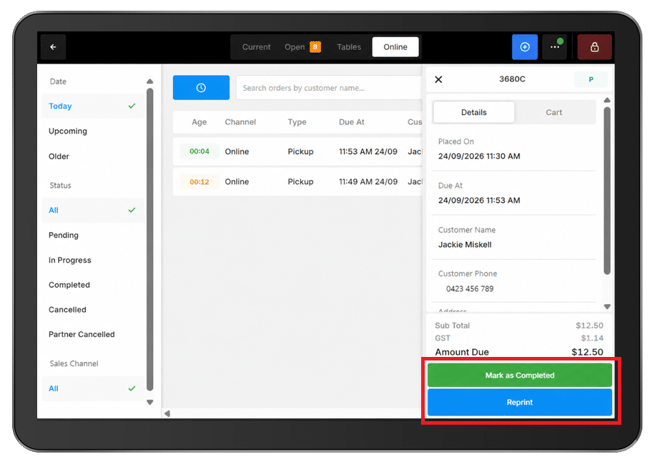
When Auto Complete is disabled, accepted orders can be manually completed from the Online tab once the order is ready.
Important: Online orders only appear in shift reports once they have been completed. If an order remains In Progress, it will not yet be included in the shift report.
- Open the Online tab, select the order to open its details and select Mark as Completed.
-
If Auto Complete is enabled, the order is automatically completed after the configured period and added to the order history and shift summary.
-
A receipt can also be reprinted from an accepted order.
Manage online order timing from POS
During busy periods, preparation times can be temporarily increased or online ordering channels can be paused directly from Oolio One POS.
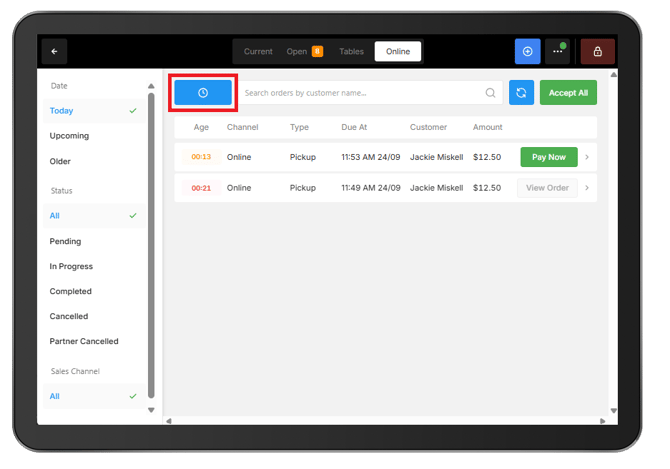
Open the Online tab and select the time icon to access the available controls.
Set Delay:
-
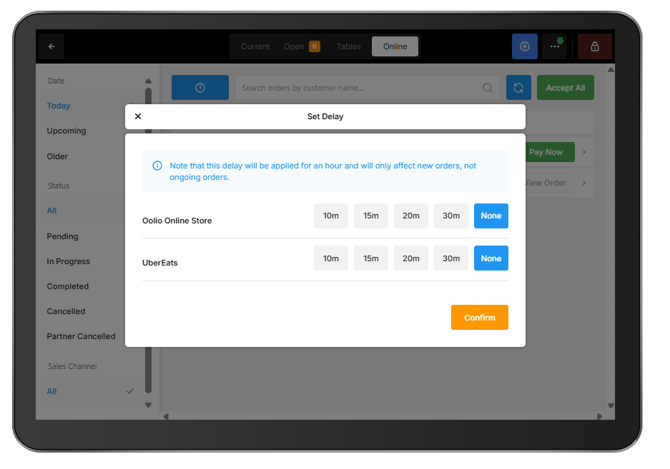
Use Set Delay to temporarily increase the preparation time for new orders from Oolio Online Store or Uber Eats.
- Select Set Delay.
- Select the required Oolio Online Store or Uber Eats channel.
- Enter the amount of time to add to the current preparation time.
- Confirm the change.
-
The delay is added to the channel's default preparation time. For example, if the default preparation time is 20 minutes and a 15-minute delay is added, new orders will use a preparation time of 35 minutes.
-
The delay remains active for one hour, then the channel automatically returns to its default preparation time.
Note: Set Delay does not apply to DoorDash orders.
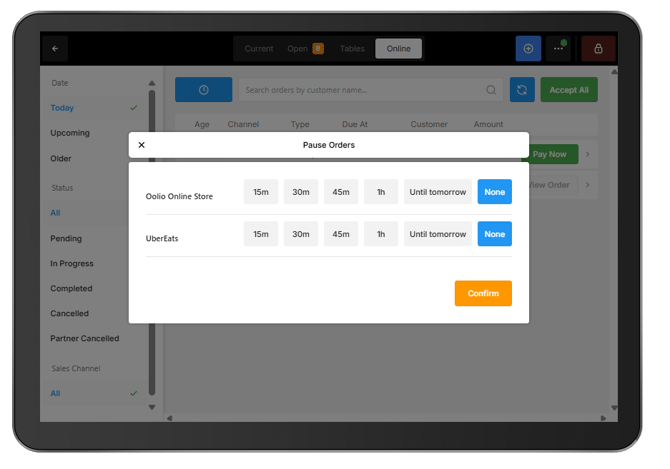
Pause Orders:
-
Use Pause Orders to temporarily stop new orders from being placed through an online ordering channel.
-
- Select Pause Orders.
- Select the required Oolio Online Store, Uber Eats or DoorDash channel.
- Choose how long orders should be paused:
- Select a specific amount of time or Until Tomorrow.
- Confirm the change.
-
While paused, the selected channel is closed to new orders. Other online ordering channels continue accepting orders unless they are paused separately.
Configure online order settings in Back Office
Online order behaviour can be configured in Oolio One Back Office before orders reach POS.
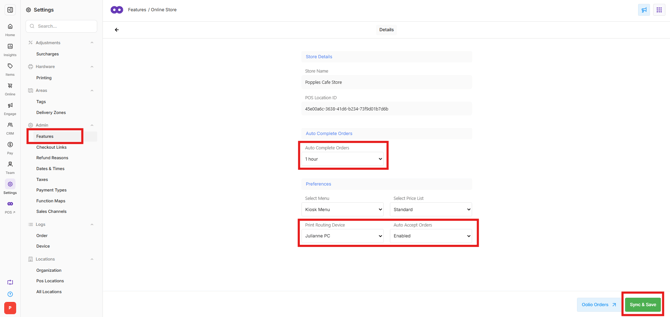
Configure Auto Accept and Auto Complete:
-
Open Back Office > Settings > Features > Integrations > Oolio Orders > Settings
-
Select the cog icon next to the required store and configure the settings:
- Auto Accept: Automatically accepts incoming online orders without requiring staff to accept each order from POS.
- Auto Complete: Automatically completes accepted online orders after the configured period. Online orders only appear in shift reports once they have been completed.
- Print Routing Device: Select the POS device whose printing workflow should be used for online orders. This determines how online orders are routed to the configured printers.
Select Sync & Save after updating the settings.
Set the default preparation time:
-
The default preparation time is configured differently for Oolio Online Store and third-party ordering channels.
-
Oolio Online Store:
- Open Back Office > Online > Stores.
- Select the required store.
- Open Fulfillment.
- For each fulfillment type, enter the required Preparation Time.
-
For full setup instructions, see Create an Online Store.
-
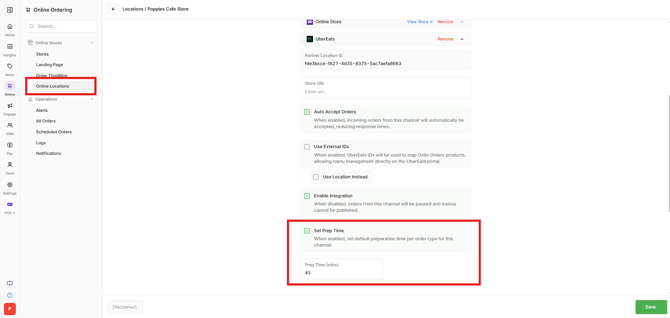
Uber Eats and DoorDash:
- Open Back Office > Online > Online Locations.
- Select the required Location.
- Expand the Uber Eats or DoorDash channel using the arrow beside the channel.
- Enable Set Prep Time.
- Enter the required preparation time.
- Save the changes.
Customer notifications
Customers receive notifications as their online order progresses. Notifications include:
- An email when the order is placed.
- An SMS when the order is placed.
- Notifications when the order status changes, such as when the order is completed.
Refund an online order
Online orders follow the same refund process as other POS orders.
See🔗 Process a Refund for instructions.