
DoorDash orders can be received and managed directly in Oolio One POS, alongside other online orders. Staff can view incoming orders, accept or reject orders, monitor their progress and complete orders without requiring a separate DoorDash tablet.
Orders can also be viewed and managed in Oolio One Back Office under Online > Orders > All Orders.
Step 1: View DoorDash orders
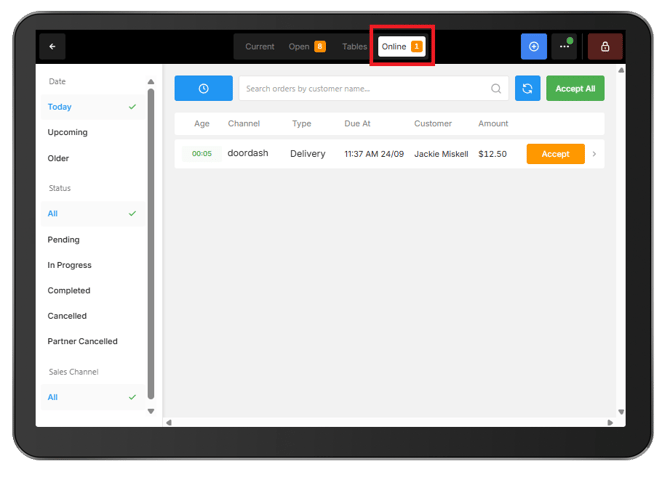
When a new DoorDash order arrives, the POS sounds an alert and displays a yellow number on the Online tab. If Auto Accept is disabled, the alert continues until the order is actioned.
- On the Oolio One POS, open the Online tab.
- Use the filters on the left to find orders by:
- Date: Today, Upcoming or Older.
- Status: All, Pending, In Progress, Completed, Cancelled or Partner Cancelled.
- Sales Channel: Select DoorDash to display DoorDash orders only.
- To find a specific order, enter the customer's name in the search bar.
- Select an order to view its details on the right of the screen.
The Age field shows how long it has been since the order was placed.
Note: Set the Status filter to Pending to display DoorDash orders waiting to be accepted.
Step 2: Accept a DoorDash order
The action required when a new order arrives depends on whether Auto Accept Orders is enabled.
Auto Accept enabled:
- Incoming DoorDash orders are automatically accepted and sent to the configured kitchen printer or Kitchen Display Screen (KDS).
- The POS sounds an alert when an order arrives, but no action is required to accept it.
Auto Accept disabled:
-
Incoming DoorDash orders remain Pending until manually accepted or rejected.
-
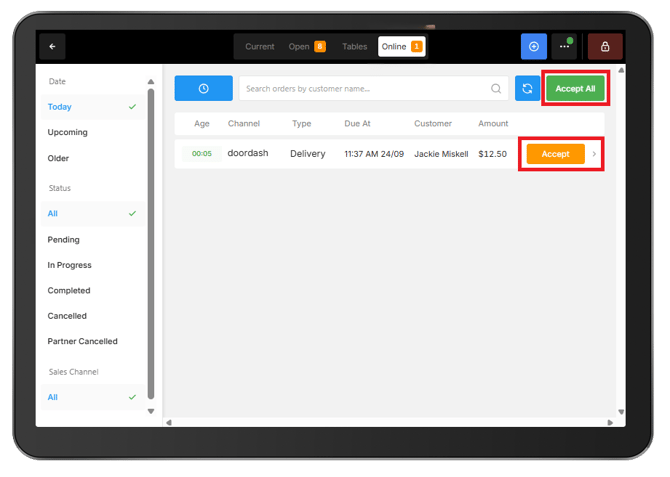
To accept an order from the POS:
- Open the Online tab.
- Find the pending DoorDash order.
- Select Accept.
-
To accept all pending orders at once, select Accept All.
Accept an order from Back Office:
-
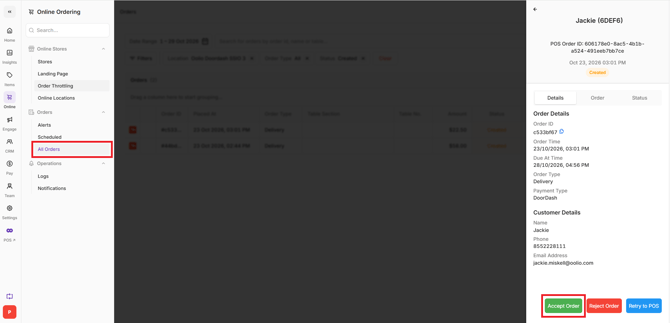
DoorDash orders can also be accepted from Oolio One Back Office.
- Navigate to Online > Orders > All Orders.
- Find and open the pending DoorDash order.
- Select Accept Order.
Step 3: Configure automatic order acceptance
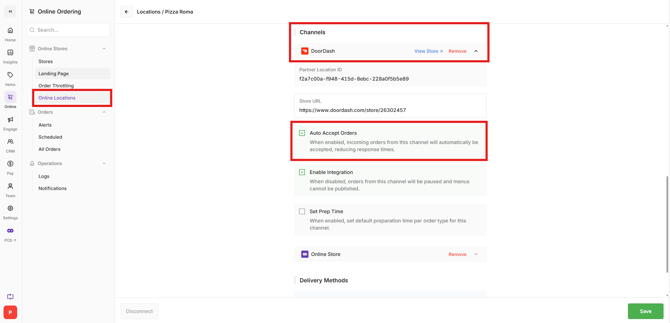
Auto Accept Orders allows DoorDash orders to be accepted automatically without staff needing to manually accept each incoming order.
To enable this setting:
- In Oolio One Back Office, navigate to Online > Online Locations.
- Select the relevant location.
- Under Channels, find DoorDash.
- Select the down arrow next to DoorDash to expand the channel settings.
- Tick Auto Accept Orders.
Important: Once a DoorDash order has been accepted, it cannot be rejected through Oolio One. When Auto Accept Orders is enabled, cancellations must be requested through DoorDash support.
Step 4: Reject a DoorDash order
DoorDash orders can only be rejected before they have been accepted.
Reject an order from the POS:
- Open the Online tab.
- Select the pending DoorDash order.
- Select Reject.
- Under Select Reason, choose the reason for rejecting the order.
- Enter an additional note if required.
- Select Reject Order to confirm.
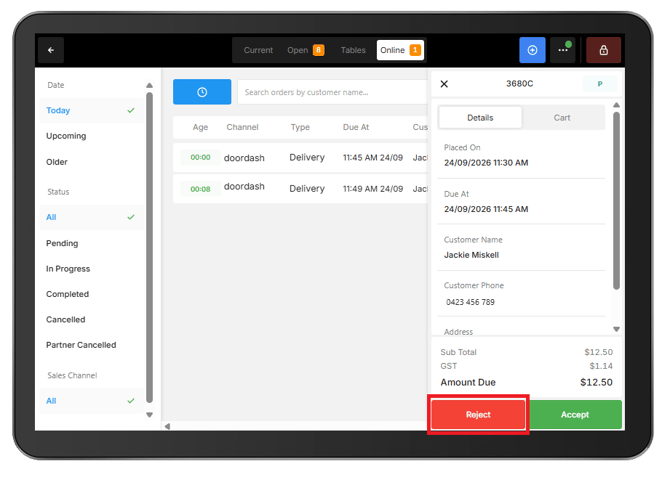
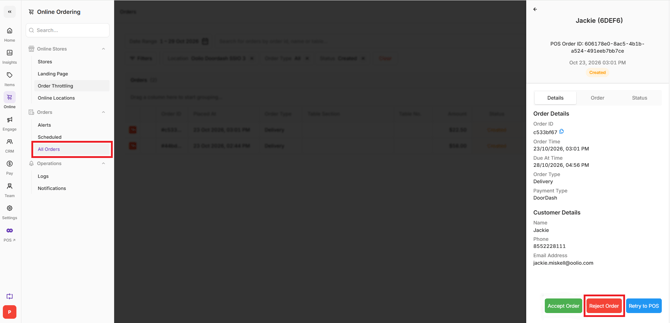
Reject an order from Back Office:
- In Oolio One Back Office, navigate to Online > Orders > All Orders.
- Find and open the pending DoorDash order.
- Select Reject Order.
- Choose a rejection reason and enter an additional note if required.
- Select Reject Order to confirm.
-
When an order is rejected:
- The order status changes to Cancelled.
- DoorDash is notified of the rejection.
- DoorDash manages the customer notification and any applicable refund.
Important: Accepted orders cannot be cancelled through Oolio One. Contact DoorDash support through the DoorDash Merchant Portal to request cancellation.
See 🔗 Cancel a DoorDash Order in Oolio One for more information.
Step 5: Monitor and complete DoorDash orders
Once accepted, DoorDash orders are sent to the configured kitchen printer or Kitchen Display Screen (KDS).
Order progress can be monitored from the Online tab.
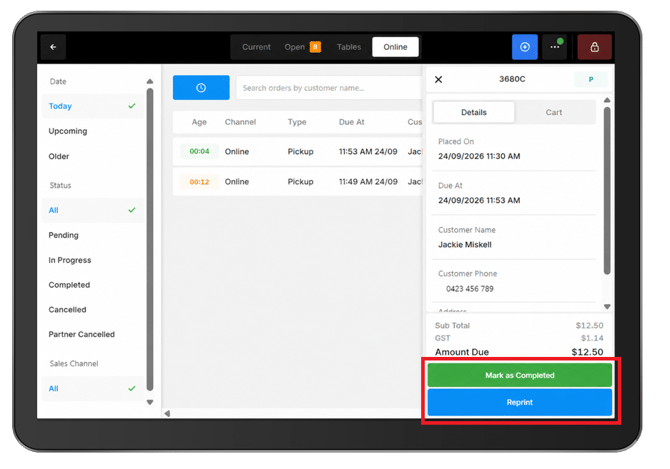
Complete an order:
-
When Auto Complete is disabled, accepted orders can be manually completed once they are ready.
- Open the Online tab.
- Select the DoorDash order to view its details.
- Select Mark as Completed.
-
If Auto Complete is enabled, the order is automatically completed after the configured period.
Note: Online orders only appear in shift reports once they have been completed. Orders remaining In Progress are not yet included in the shift report.
DoorDash order statuses:
- Pending: The order has been received and is waiting to be accepted.
- In Progress: The order has been accepted and is being prepared.
- Completed: The order has been completed.
- Cancelled: The order was rejected by the store.
- Partner Cancelled: The order was cancelled by DoorDash or the customer. No further action is required.
Step 6: Manage DoorDash order timing
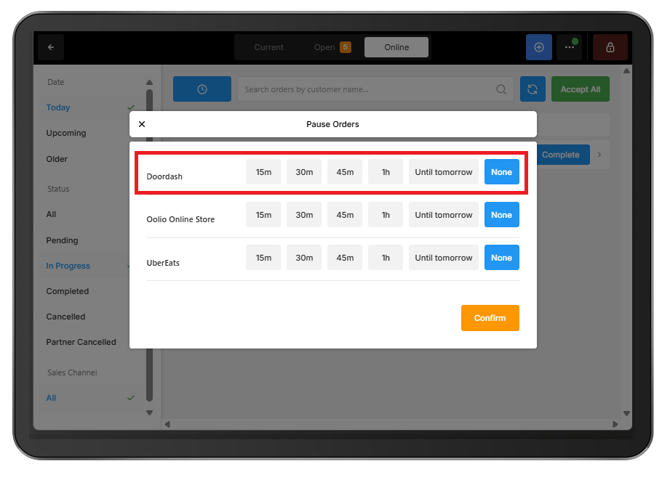
During busy periods, DoorDash orders can be temporarily paused directly from Oolio One POS.
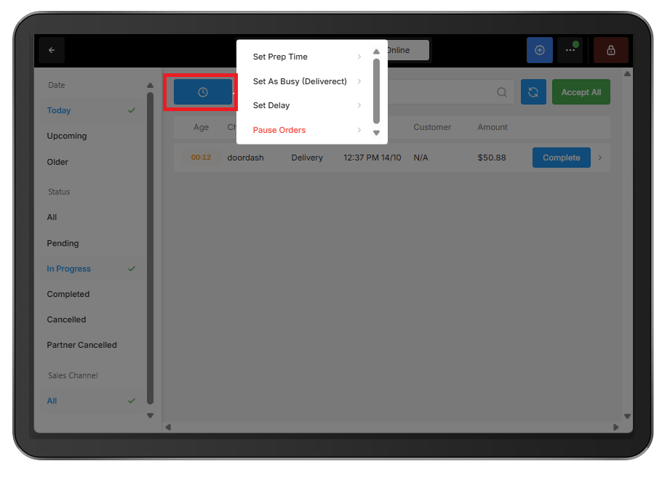
Pause DoorDash orders:
- Open the Online tab.
- Select the blue clock icon.
- Select Pause Orders.
- Next to DoorDash, select the required pause duration:
- 15m
- 30m
- 45m
- 1h
- Until tomorrow
- Select Confirm.
-
A banner will appear on the POS while DoorDash orders are paused.
Reactivate DoorDash orders:
-
To resume orders before the pause period ends:
- Open the Online tab.
- Select the blue clock icon, then Pause Orders.
- Select None next to DoorDash.
- Select Confirm.
-
Orders will also resume automatically when the selected pause duration ends, provided the store is within its configured opening hours.
Note: Pausing DoorDash does not affect other online ordering channels. Each channel can be paused independently.
Preparation times:
-
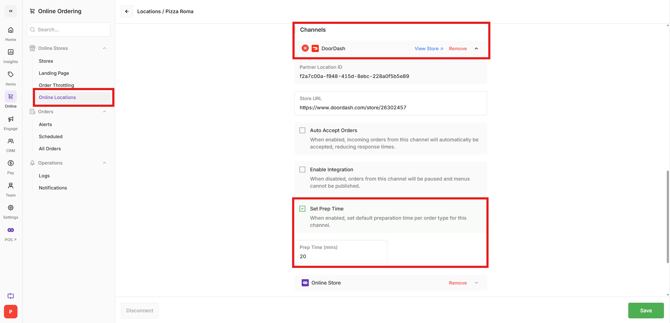
The default preparation time for DoorDash orders can be configured in Oolio One Back Office.
- Navigate to Online > Online Locations.
- Select the relevant location.
- Under Channels, expand DoorDash.
- Enable Set Prep Time.
- Enter the required preparation time.
- Save the changes.
Note: The temporary Set Delay function in the POS does not apply to DoorDash orders.
Step 7: Resend a DoorDash order to the POS
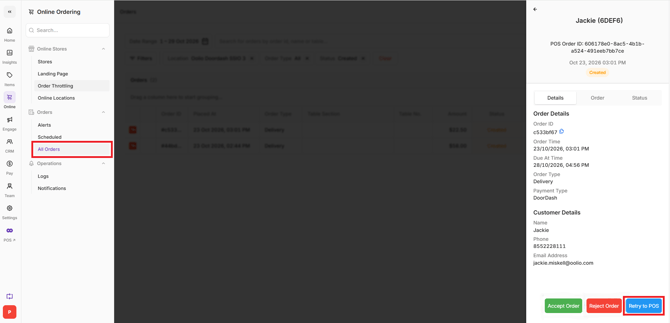
If a DoorDash order appears in Back Office but has not reached the POS, it can be resent.
- In Oolio One Back Office, navigate to Online > Orders > All Orders.
- Find and open the affected order.
- Select Retry to POS.
Troubleshooting
A DoorDash order is not showing on the POS:
- Check that the Sales Channel and Status filters are not hiding the order.
- Check Oolio One Back Office under Online > Orders > All Orders.
- If the order appears in Back Office but has not reached the POS, use Retry to POS, where available.
The Reject button is not available:
-
The order may already have been accepted or automatically accepted.
-
Accepted DoorDash orders cannot be cancelled through Oolio One. Contact DoorDash support through the DoorDash Merchant Portal to request cancellation.
New DoorDash orders are not being received:
-
Check the following:
- Paused orders: Check for a pause banner on the POS. If DoorDash is paused, open Pause Orders and select None.
- Store opening hours: Confirm that the current time falls within the DoorDash Online Menu schedule.
- Menu publishing: Confirm that the latest menu schedule has been published to DoorDash.