
Import existing Vouchers into Oolio One using the Voucher CSV template. This can be used when existing Voucher information needs to be brought into a Location, such as when moving to Oolio One from another POS system.
Step 1: Download the Voucher template
From Oolio One Back Office:
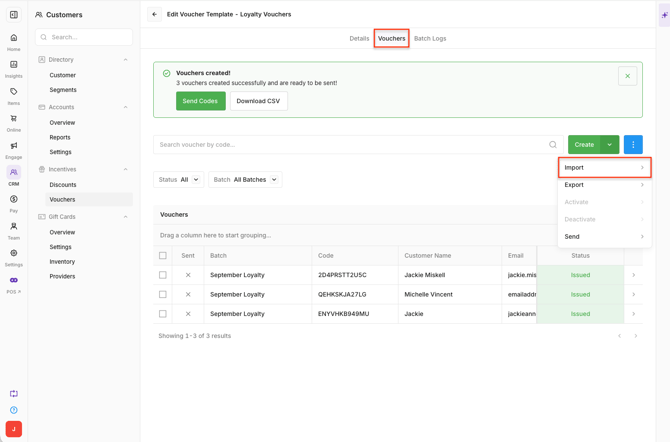
- Open the Vouchers tab.
- Create New or Open an existing voucher template
- Select Vouchers
- Select the Options Menu (...)
- Select Import.
- Select Download CSV Template
Step 2: Add the Voucher information
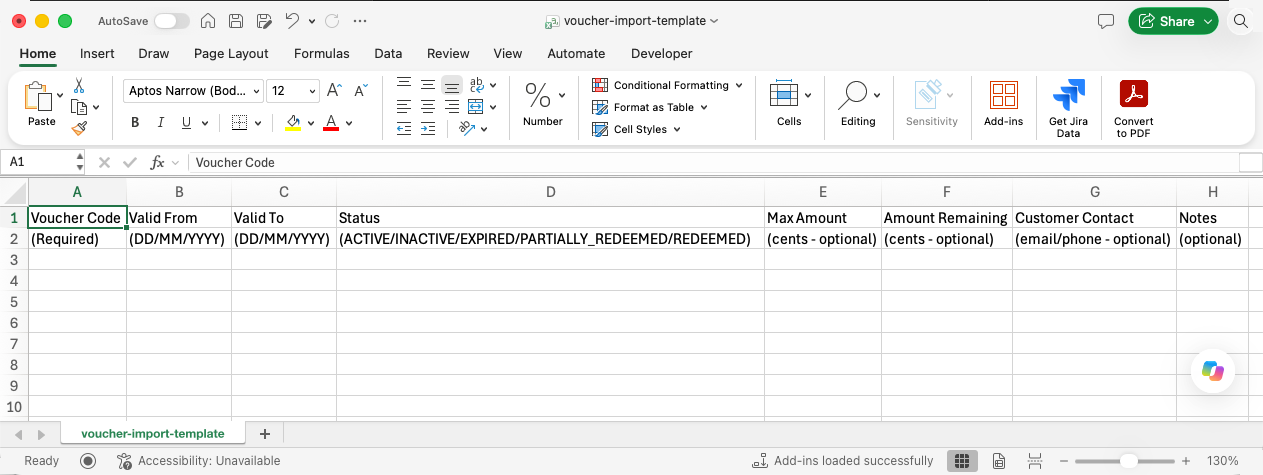
- Open the downloaded CSV template.
- Enter the required Voucher information into the corresponding fields.
- Make sure the information follows the template format.
- Save the completed file.
Important: Do not change the structure of the CSV template.
Step 3: Import the Vouchers
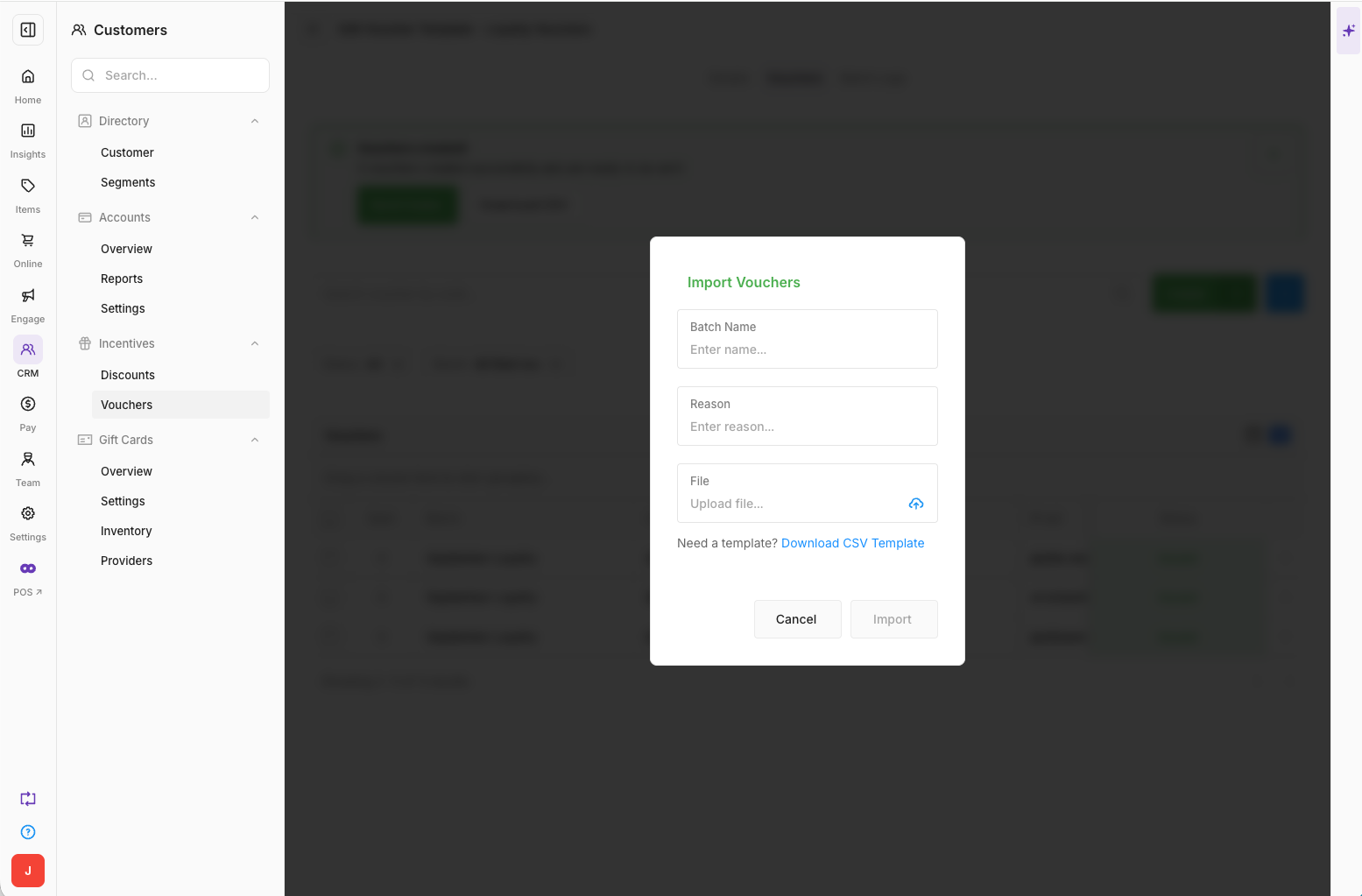
Return to the Voucher Import screen and complete the required fields:
- Enter the Batch Name.
- Enter the Reason.
- Attach the completed Import File.
- Select Import.
After the import is complete, the Vouchers are available for redemption in Oolio One.