
Oolio One POS is used to take orders, add products and customer requests, send orders for preparation, and process payments. The main POS screen provides access to ordering, tables, open orders, payments, and other functions used during service.
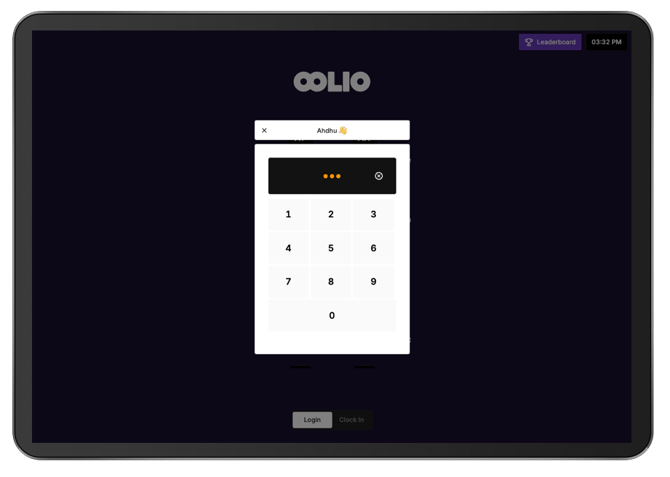
Open POS
From Oolio One Back Office:
- Select POS.
- From the User Selection screen, select the required user.
- Enter the user's PIN.
The main POS screen opens.
Get familiar with the POS screen
The main POS screen is divided into five key areas:
- Navigation Bar
- Cart
- Pages
- Products
- Function Map
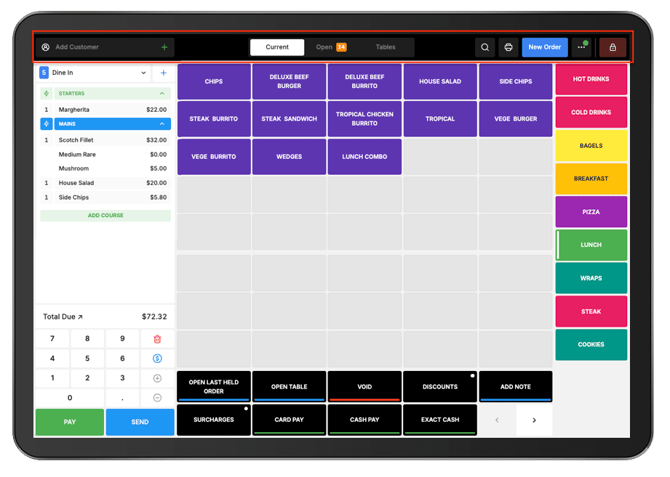
Navigation Bar
Use the Navigation Bar to move between the main areas of POS and access commonly used functions.
From the Navigation Bar:
- Add a customer to the current order.
- Search for a product.
- Start a new order.
- View Open Orders.
- View Online Orders.
- Open the Navigation Menu.
- Open the Floor Plan.
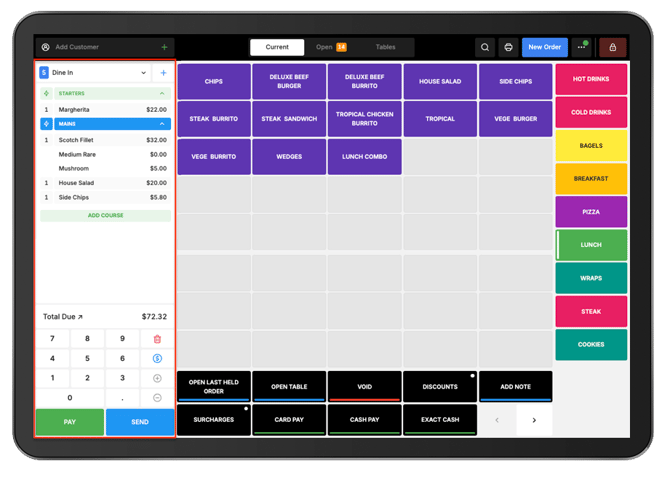
Cart
The Cart displays the products currently added to an order and provides access to order actions.
From the Cart:
- Change the Order Type.
- Open a Table for a Dine In order.
- Clear the Cart.
- Adjust item or order pricing.
- Change item quantities.
- Split the quantity of an item.
- Send or complete the order.
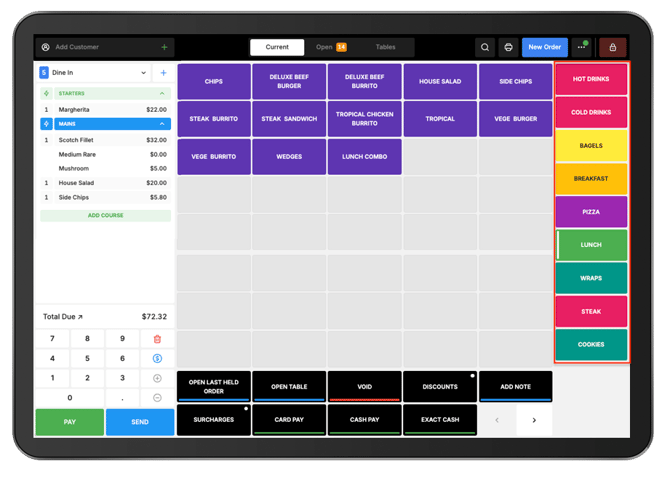
Pages
The Pages area displays the menu Pages configured for the POS.
Select a Page to display the Products assigned to it.
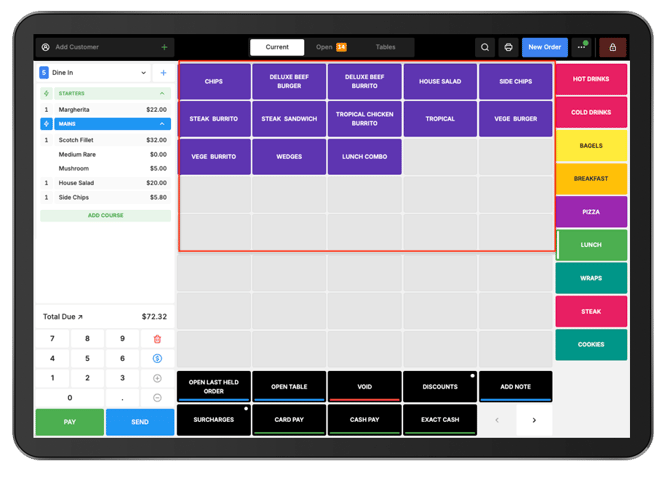
Products
The Products area displays the Products available on the selected Page.
Select a Product to add it to the Cart.
Function Map
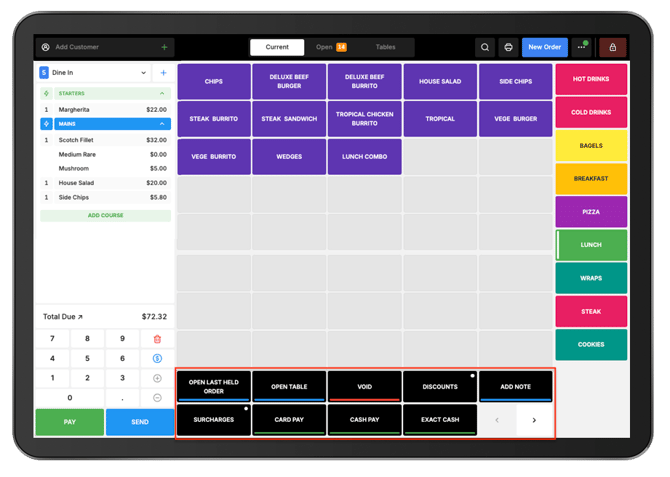
The Function Map provides quick access to additional order, payment, and POS functions.
Depending on the configured Function Map, available actions can include:
- Open the last held order.
- Open a Table.
- Void items or orders.
- Apply discounts.
- Add notes.
- Apply surcharges.
- Access payment shortcuts.
- Print receipts.
- Open Manager Functions.
Manager Functions can include actions such as:
- Money In/Out
- Switch Pricing Group
- Switch Menu
Note: The functions available may vary depending on the POS configuration and user permissions.