
Oolio One Loyalty allows customers to enrol without downloading an app. After enrolment, the digital loyalty card can be added to Apple Wallet for quick access when earning or redeeming loyalty rewards at the register.
This guide explains how to enrol through the web or at the POS, access the digital loyalty card, and add it to Apple Wallet.
Before starting
Have the following ready:
- Access to the loyalty enrolment page: Use a direct enrolment link or QR code provided by the location, or enrol at the POS.
- Valid email address: The loyalty confirmation and link to the digital loyalty card are sent to this address.
- iPhone: An iPhone is required to add the digital loyalty card to Apple Wallet.
Step 1: Enrol online
Loyalty enrolment can be started online or at the POS.
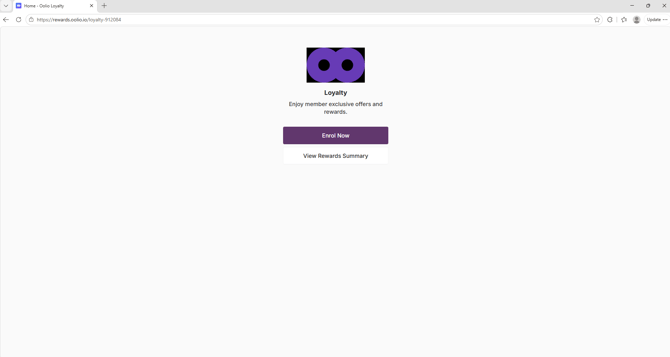
Open the direct enrolment link or scan the QR code provided by the location.
-
Select Enrol Now
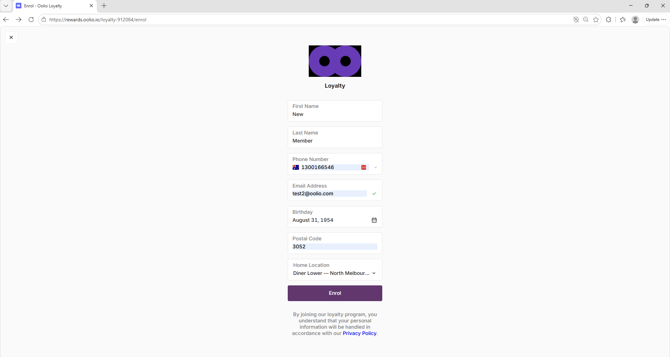
- Enter the required details and select Enrol
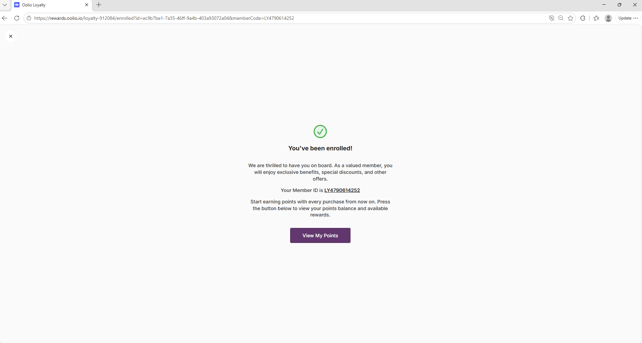
- A confirmation is displayed
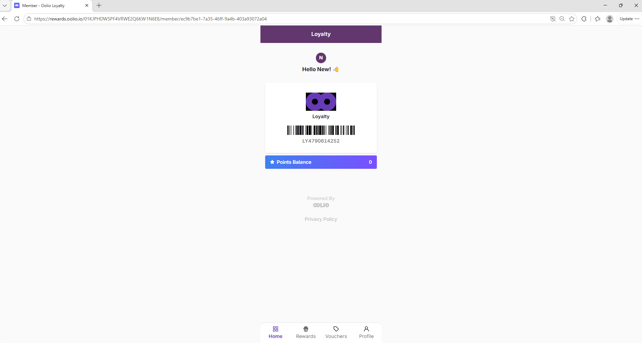
- The Customer is now able to select View My Points and view their profile.
Step 2: Enrol at the POS
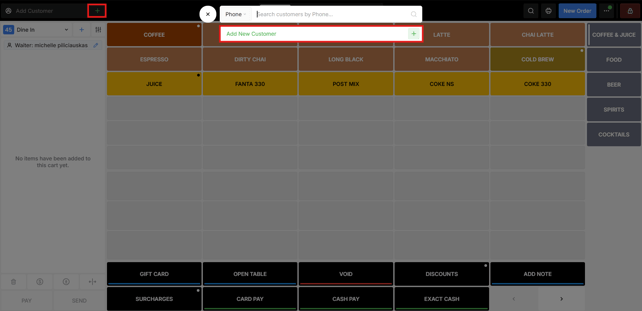
At the register, a staff member can start the enrolment process by selecting Add Customer on the POS.
The customer details can then be entered as part of the enrolment process.
- Select the green + and Add New Customer on the POS
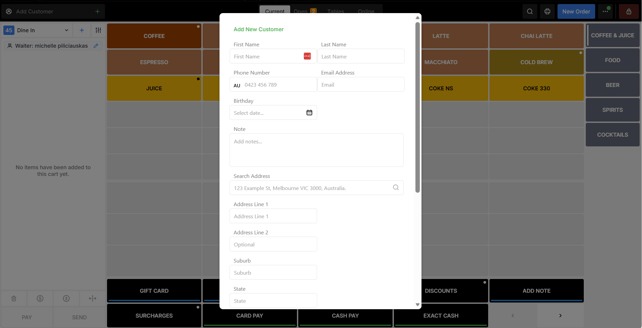
Complete the required fields on the registration form.
- Enter the customer's First Name, Last Name and date of birth.
- Enter a valid Email Address.
- Check that the email address is correct.
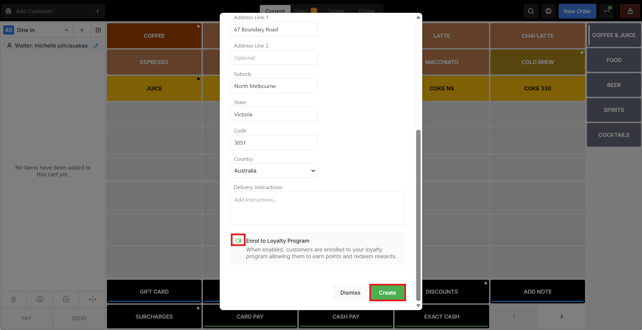
- Toggle on Enrol in Loyalty Program
- Select Create.
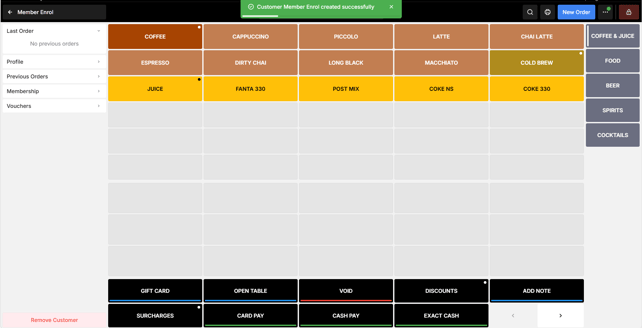
A confirmation appears when enrolment is successful. Oolio One Loyalty then sends a confirmation email to the email address provided.
Note: If Create is unavailable, check that all required fields have been completed and the email address is in a valid format.
Step 3: Open the Oolio One Loyalty confirmation email
-
Open the confirmation email sent by Oolio One Loyalty.
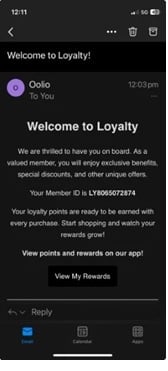
- The email includes information about the new loyalty account and a View My Rewards button.
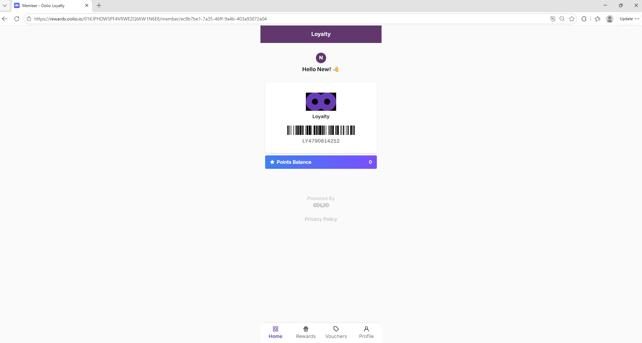
Note: If the email does not arrive within a few minutes, check the spam or junk folder and confirm that the email address entered during enrolment is correct.
The Rewards page displays the customer's loyalty information, including the current points balance and digital loyalty card.
Step 4: View the digital loyalty card
The loyalty card can be presented from this page when required or added to Apple Wallet for easier access on an iPhone.
On an iPhone:
- From the Rewards page, select Add to Apple Wallet.
- Review the loyalty card when the Apple Wallet preview appears.
- Select Add.
- Open Apple Wallet to confirm the loyalty card has been added.
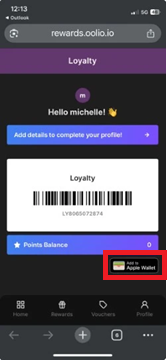 The digital loyalty card is now available in Apple Wallet and can be presented at the register when earning or redeeming loyalty rewards.
Note: Apple Wallet is available on supported Apple devices. The Add to Apple Wallet option may not be available when the Rewards page is opened on another device.