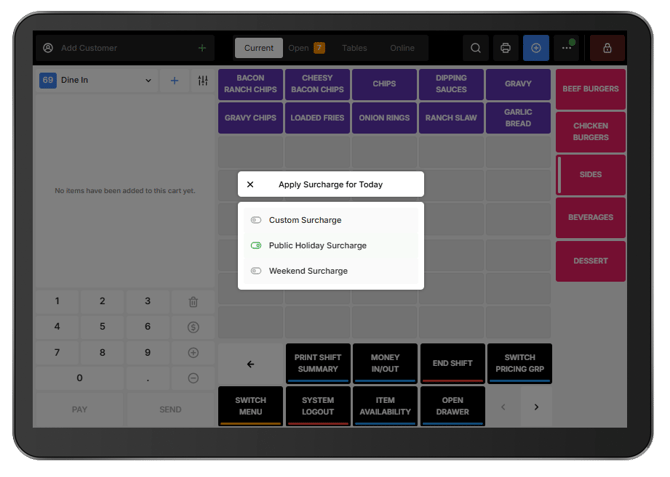
Scheduled surcharges can be turned on or off for the day directly from Oolio One POS. This is useful when a scheduled surcharge needs to be quickly enabled or disabled, such as for a public holiday, weekend, or an operational change, without returning to Back Office.
Step 1: Open Manager Functions
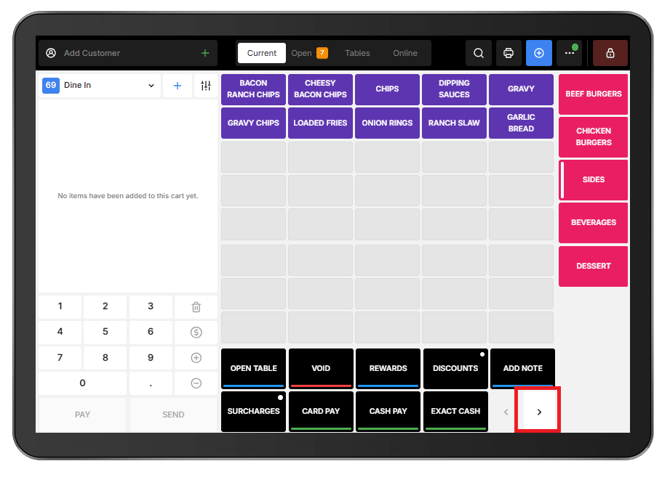
- From the main POS screen, locate the Function Map.
- Select the right arrow to open the next page.
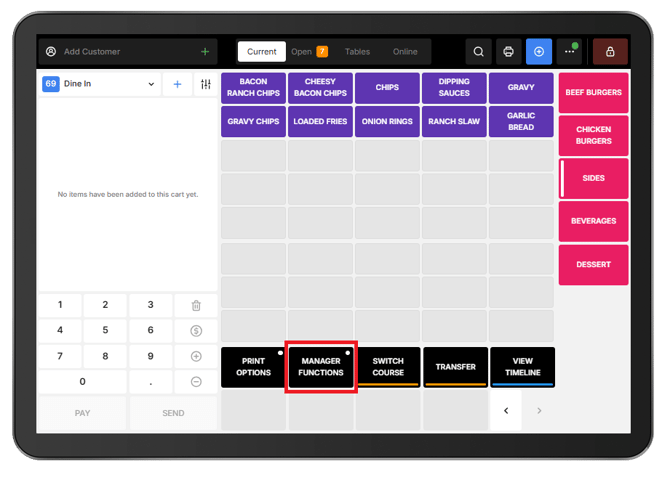
- Select Manager Functions.
Step 2: Open Scheduled Surcharge
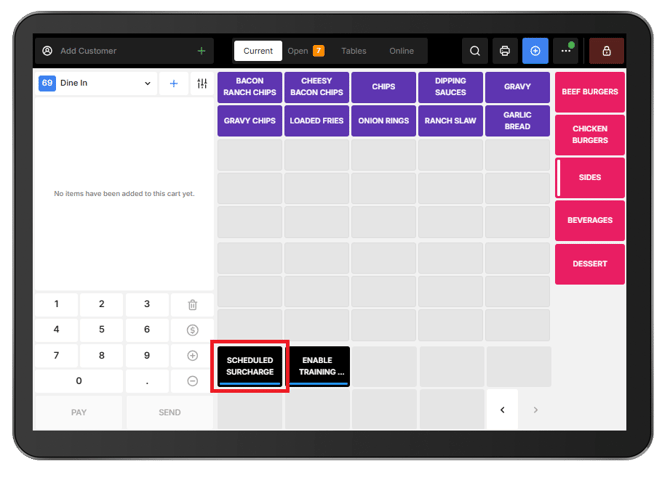
From Manager Functions, select Scheduled Surcharge.
Step 3: Turn a surcharge on or off
A list of configured scheduled surcharges is displayed.
Use the toggle beside the required surcharge to turn it on or off for the day.