
View customer behaviour, spending habits, and visit frequency in Oolio One Insights.
Before You Start
-
Loyalty must be enabled for your location.
-
You must have access to Oolio One Insights.
-
New locations may need time to build enough transaction history for reporting.
Key Terms
-
Champions – Customers who spend more and visit more often.
-
Regulars – Customers who visit often but spend less per visit.
-
Occasionals – Customers who spend more per visit but visit less often.
-
Drifters – Customers who visit less often and spend less.
-
Other (Anonymous) – Transactions that are not linked to a customer profile.
-
New Customer – A customer whose first recorded visit occurred during the selected reporting period.
Step 1: Open the Customer Report and Apply Filters
Access the Customer Report from Oolio One Insights.
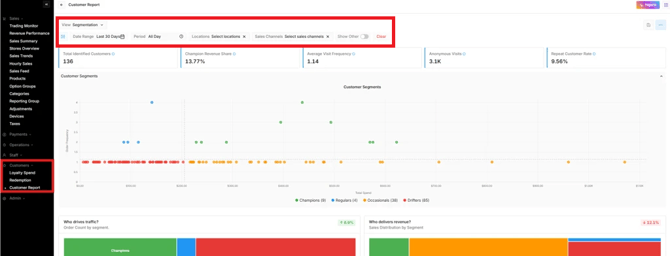
Choose the data you want to review.
Use the filters at the top of the page to narrow your data:
- Location — Select a specific location if you manage multiple.
- Period — Choose Last 7, 30, or 90 days.
- Custom Date Range — Set a specific start and end date.
- Sales Channel — Filter by dine-in, takeaway, or other channels.
Step 2: Review Customer Segmentation
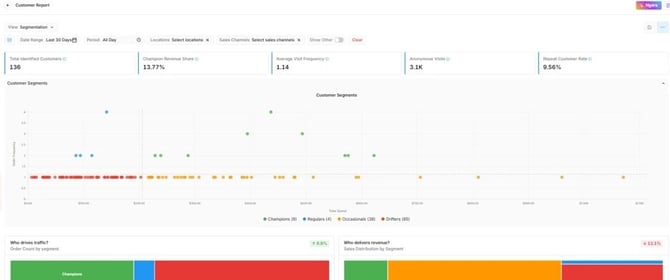
View a summary of your customer base.
- Total Identified Customers — Distinct customers classified into any segment.
- Champion Revenue Share — Champions' revenue as a % of total revenue.
- Average Visit Frequency — Total visits ÷ total identified customers.
- Anonymous Visits — Transactions with no linked customer ID.
- Repeat Customer Rate — Customers with more than one visit as a % of total identified.
A high Anonymous Visits count means many transactions are not linked to a loyalty customer. This is an opportunity to focus on loyalty enrolment at the point of sale.
Step 3: Review the Customer Value Matrix
See how customers are grouped based on spending and visit frequency.
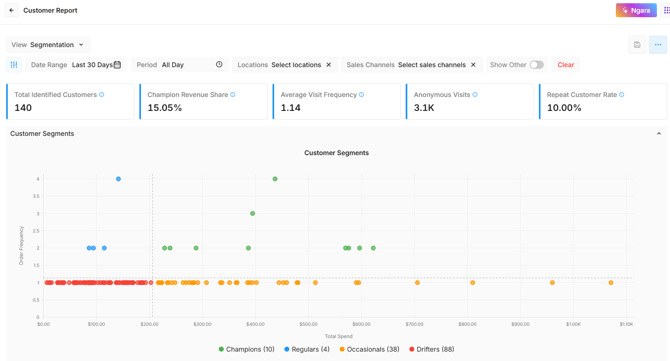
The scatter plot maps every customer by their Total Spend (X-axis) and Normalised Visit Frequency (Y-axis). The four quadrants correspond to the four named segments:
- Champions — top-right (high spend, high frequency)
- Regulars — top-left (low spend, high frequency)
- Occasionals — bottom-right (high spend, low frequency)
- Drifters — bottom-left (low spend, low frequency)
Hover over any dot to see the customer's name, total spend, visit frequency, and segment.
Step 4: Review the Treemaps
See which customer groups drive traffic and revenue.
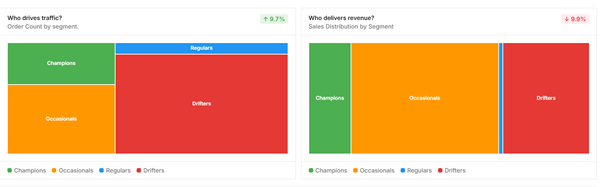
Two treemaps show how your customer base is distributed:
- "Who drives traffic?" — Tile size = share of total orders by segment.
- "Who delivers revenue?" — Tile size = share of total revenue by segment.
Segment colours: Champions (Green), Occasionals (Orange), Regulars (Blue), Drifters (Red), Other (Grey).
The Other (anonymous) segment is hidden by default. Toggle it on via the legend to see the full picture including unlinked transactions.
Step 5: Review Segment Data
View detailed information for each customer segment. 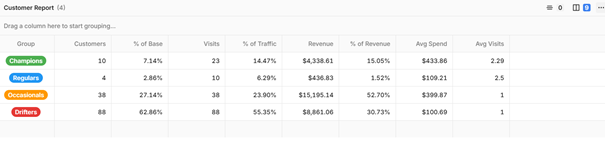 The data grid summarises all five segments in a table: Segment · Customers · % of Base · Visits · % of Traffic · Revenue · % of Revenue · Avg Spend · Avg Visits.
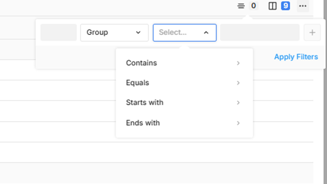
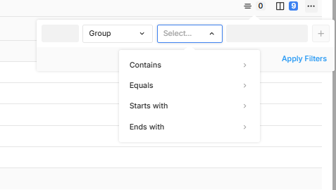
To filter the grid, select the filter ellipsis (⋯) button on the right. You can filter by Group, Customers, % of Base, Visits, and other columns. Once a column is selected, enter a validation value — for example, "Group starts with C" to isolate Champions.
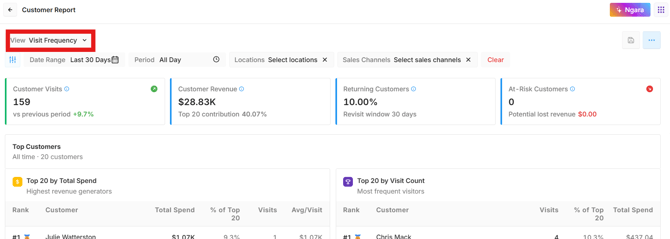
Step 6: Open the Visit Frequency View
Switch to the Visit Frequency tab.
Four KPI cards show: Customer Visits, Customer Revenue, Returning Customers, and At-Risk Customers (Drifters who haven't visited recently).
Step 7: Review the Top Customer Tables
Identify your highest-value customers.
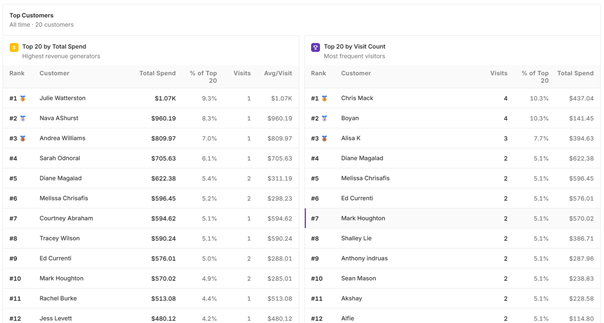
Cross-referencing both tables helps identify high-frequency customers who spend less per visit — potential candidates for upsell or loyalty tier incentives.
Step 8: Review Customer Behaviour Trends
Track changes in customer visit frequency.
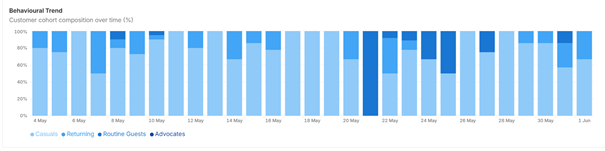
The behavioural trend chart groups customers into visit frequency cohorts:
- Casuals — 1 visit
- Returning — 2–3 visits
- Routine Guests — 4–6 visits
- Advocates — 7+ visits
Single Day View shows a standard bar chart. Multi-Day View (available for 3+ date periods) shows a 100% stacked bar chart with cohort share over time. Hover over any bar to see the cohort name, percentage, and count.
If Advocates are growing over time, your loyalty program is working. A declining Advocates share suggests retention issues worth investigating
Step 9: Review Customer Details
View customer-level visit information and use filters to find customers based on visit frequency, recency, risk status, and other customer behaviours.
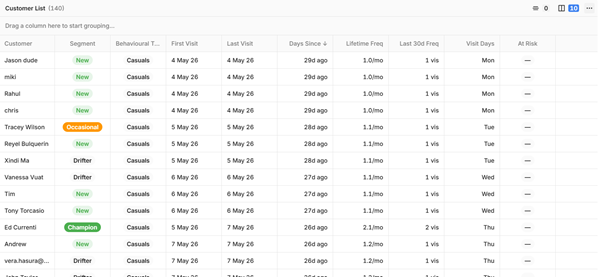
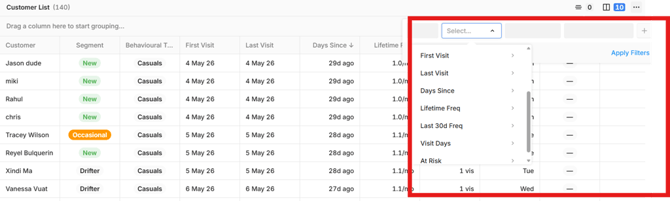
The customer data grid lists all identified customers with the following columns: Customer · Group · First Visit · Last Visit · Total Visits · Days Since Last Visit · Lifetime Frequency · Last 90d Frequency · Guest Visit Prediction.
Note: Guest Visit Prediction requires a minimum of 2 visits to calculate. If a customer has only one visit on record, no prediction will be shown.
Use the filter ellipsis (⋯) button to filter the grid by any column.
Frequently Asked Questions:
-
I can't see the Customer Report – Confirm Loyalty is enabled and your user account has access to Insights.
- I can't see anything labelled 'Other' -The Other segment may be hidden by default and can be enabled from the legend.
-
Which customers are in 'Other'? (Anonymous) transactions are not linked to a customer profile.