
Create an online store so customers can place pickup, dine-in, delivery or catering orders online. Set up store details, fulfilment hours, payment settings, and customer notifications from Oolio Orders.
NOTE: A location must be activated in Oolio Orders before the online store can be created - https://help.oolio.com/activating-the-online-store-location
Step One: Create a New Store
Create the Online Store and link it to your Oolio Orders location.
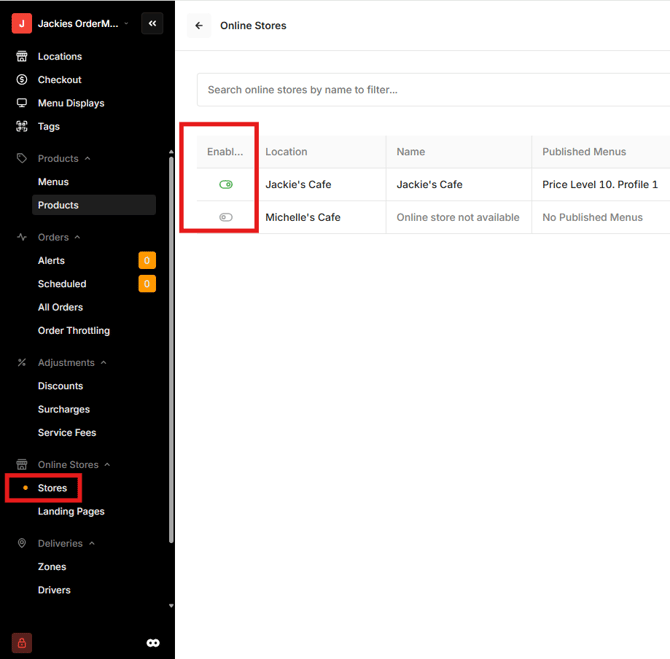
- Open Oolio Orders
- Navigate to Stores
- Review the list of locations in the organisation
- Enable the required location to continue to the store setup
Step Two: Add General Store Details
Add the main online store details
- Enter the store name
- Enter the business number
- Enter the contact email address
- Enter the contact phone number
- Enter the store slug
- Enter the stores physical address
- Choose the store currency
- Review the timezone which is automatically set from the Location details
- Add a short store description which will appear in the store details on the online store
- Add the merchant code and store reference ID - reach out to Oolio Support for this information
- Enable the payment surcharge if required
Customisation
- Choose the brand colour
- Upload the store logo
- Add social media links if needed
Training Mode
-
When Training Mode is enabled, orders sent to the POS are marked as 'Training', and payments are disabled, allowing order flows to be tested without processing real transactions. Compatible with Oolio One POS only.
Create Store
Select on the Arrow next to the store to edit more details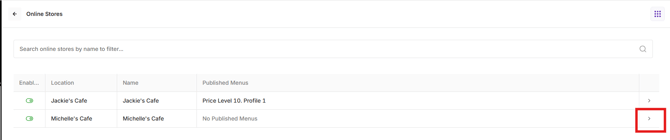
Step Three: Set Opening Hours
Choose when customers can place orders.
Fulfilment Hours- Select the order type
- Add opening and closing times for each day
- Add multiple service periods if required by selecting the green +
- Use the toggle to mark whole days as closed
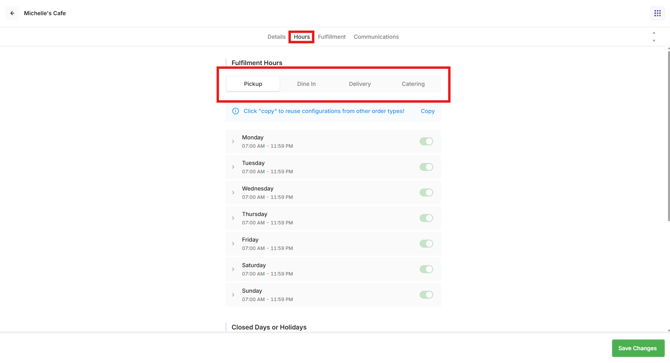
- Use the green + icon to add dates that the online store will be closed. eg Christmas Day.
Save Changes
Step Four: Configure Common Order Settings
Choose which ordering features customers can use.
Fulfilment Settings- Enable 'Order Notes' if customers can add notes to orders
- Enable 'Product Notes' if customers can add notes to products
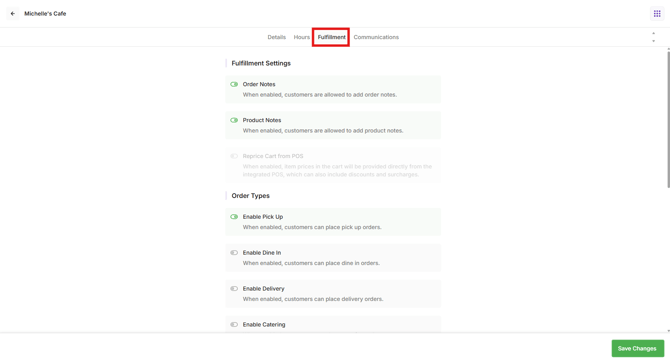
Order Types
Toggle on the required order types and then select each order type tab below to configure the settings.
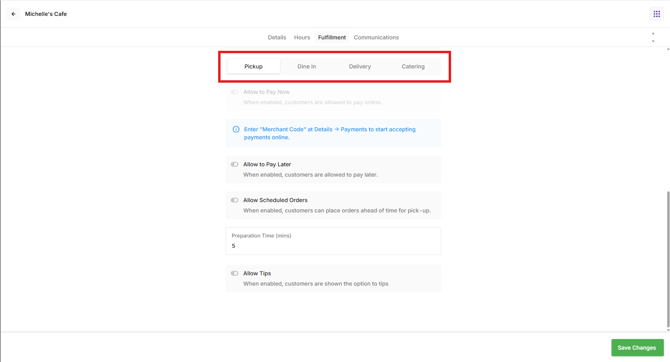
Pickup
-
Enable 'Allow to Pay Now' if customers can pay online
-
Enable 'Allow to Pay Later' if customers can order online but pay in store
-
Enable 'Allow Scheduled Orders' if customers can place future orders
-
Set the 'Schedule Horizon' to determine how many days in advance the customer can place the order
-
Set the 'Interval Duration' to customise the time interval between order slots
- Choose when orders are sent to the POS; Now or at the configured release time
- 'Release Time to POS' sets how many minutes before the order is due it gets sent to the POS. For example, if an order is scheduled for 7:00 PM and the release time is 60 minutes, the order will be sent to the POS at 6:00 PM.
-
- Set the preparation time so the customer knows when the order will be ready
- Allow tips and configure tip amounts if required
Dine In
-
Enable 'Allow to Pay Now' if customers can pay online
-
Enable 'Allow to Pay Later' if customers can order online but pay in store
- Enable Table-Free Dine In Ordering allows dine in orders to proceed without a table number
- Set the preparation time so the customer knows when the order will be ready
- Allow tips and configure tip amounts if required
- 'Enable Group Orders' allows customers on the same table to order and pay separately but consolidate the orders through to the POS and kitchen. (can only be enabled if 'Enable Table-Free Dine In Ordering is disabled).
- Configure a timer duration. All orders placed within this time duration will be sent together at the end of the timer, eg 8 minutes
- Add Prompt, Confirmation and Timer messages which customer will see after they select 'order together'
Delivery
These settings are the same as Pickup.
Catering
- Set the lead time, this is how many days in advance the customer must place the order
- Set the minimum order amount for a catering order
- Choose the fulfilment types
- Enable 'Allow to Pay Now' if customers can pay online
- Enable 'Allow to Pay Later' if customers can order online but pay in store
- Set the 'Schedule Horizon' to determine how many days in advance the customer can place the order
- Set the 'Interval Duration' to customise the time interval between order slots
- Choose when orders are sent to the POS; Immediately or at the configured release time
- 'Release Delay' sets how many minutes before the order is due it gets sent to the POS. For example, if an order is scheduled for 7:00 PM and the release time is 60 minutes, the order will be sent to the POS at 6:00 PM.
- Save the changes
Step Five: Configure Customer Notifications
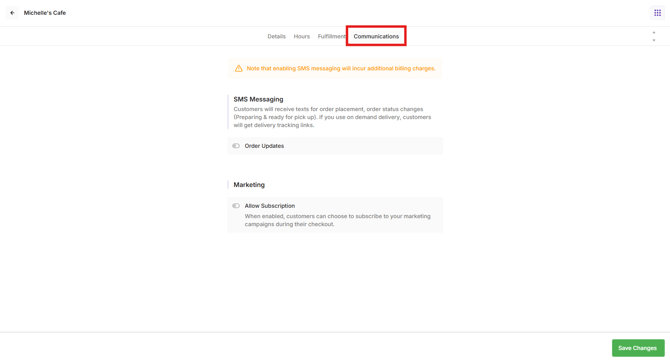
Choose to enable SMS updates for customers. Customers will receive their receipt and order due time after the store accepts the order. Note that enabling SMS messaging may incur additional billing charges
Communications- Enable SMS notifications for order updates
- Choose which fulfilment type receives updates
- Save Changes
Step Six: Review the online store settings before publishing.
Open the online store URL to confirm:
- Menus display correctly
- Store hours appear correctly
- Pickup, dine-in, delivery and catering ordering works as expected
- Fees and surcharges apply correctly
- Customer notifications are working
Step Seven: Link the Online Store to the Oolio Orders Location
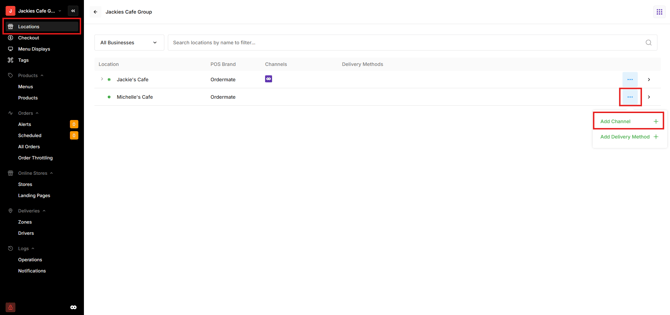
- Navigate to Locations
- Select the three little dots next to the appropriate location and select 'Add Channel'
Publish the menu from the POS - https://help.oolio.com/online-menu-management