Combos are used to bundle multiple products together at a set price. A combo can be configured to include specific products and pricing, allowing businesses to offer value to customers compared to purchasing products individually. This is commonly used for meal deals or promotional offers.
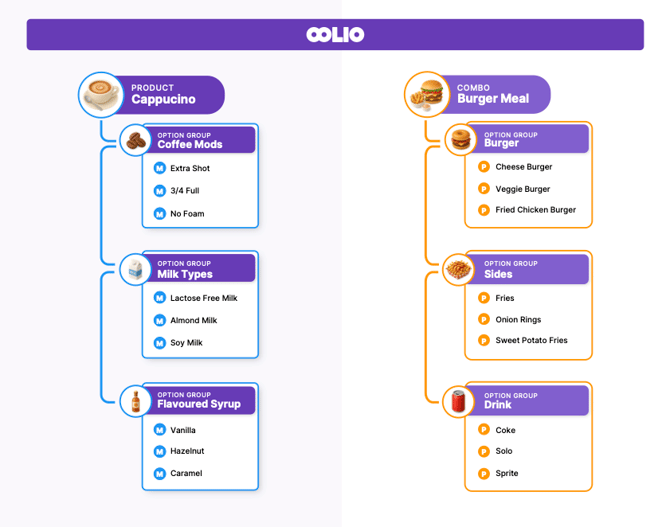
In Oolio, combos are created using the Option Group feature. For combos, products are added directly into the option groups, whereas for standard products like a coffee, modifiers are added instead. To help distinguish between the two, products are indicated with a P icon and modifiers with an M icon (see diagram below).
Step One: Create Product Option Groups
NOTE: Products that are included in a combo must be created before they can be added to an option group. - Create a Product Guide
The first step of creating a combo, is to create an option group and assign the relevant products to it. Start by putting all available products for each component into the same option group. For example, in a coffee and breakfast combo, add all of the coffee products to one option group, then create a separate option group for all of the available breakfast products.
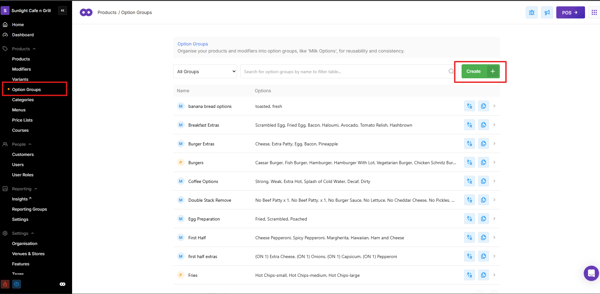
- In the back office, select 'Option Groups' and then the green 'Create' button to the right of the screen.
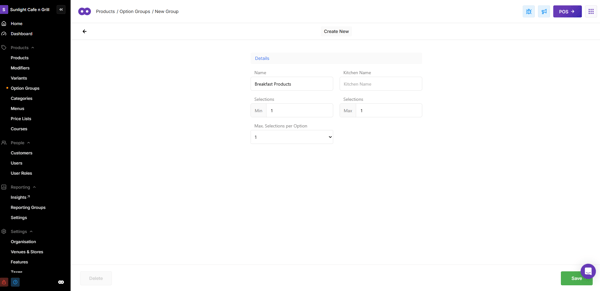
- Name the option group and then set minimum and maximum 'Selection' amounts. The selection amount will determine how many products can be ordered per group.
- For Oolio Orders or any online channels, the minimum also determines if this is a required field.
- The 'Max Selections per Option' field determines how many times the same option can be selected.
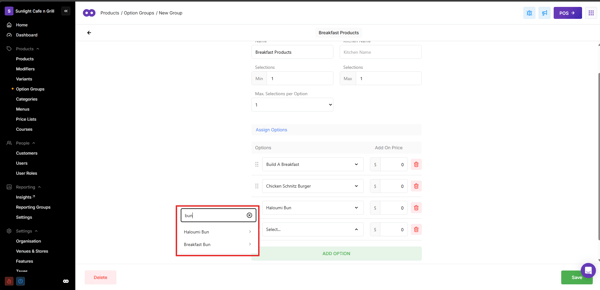
- Add the required products to this option group by selecting the 'Add Option' icon. This will add a line, with a searchable dropdown, beneath the last option.
- Select the drop down and search for the name of the products to be added. Once visible, select the product and it will then be visible in the list of options in this group.
- Repeat this for all the products required.
- Select the 'Save' icon from the bottom right of the screen.
- The new Option Group should appear with a P next to it instead of an M indicating it is a product group.
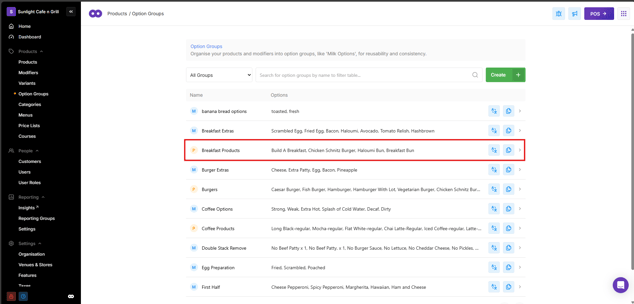
- Repeat this step for all the components of this combo ie. one group for the coffee's and another group for the breakfast items.
Step Two: Create the Combo
Now that the product option groups have been created, the next step is to build the combo components by adding these groups to it.
- Navigate to 'Products' and select the green 'Create' button.
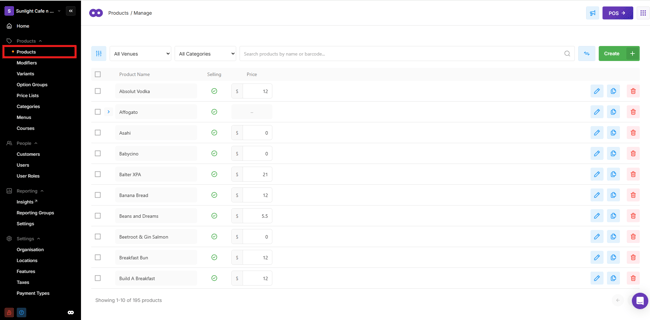
- This will open a 'Quick Create' product dialog box.
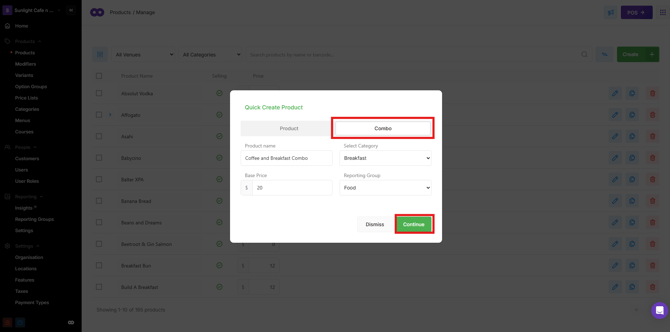
- From the header tabs, select the 'Combo' option, complete the following:
-
- Product Name: The name of the combo.
- Base Price: The sell price of the combo.
- Select Category: A product category is a way to group similar menu items or products together so they’re easier to manage and/or add to pages.
- Reporting Group: Adding a reporting group introduces an extra layer, allowing combos to be included and viewed within reports.
-
- Once complete, select the green 'Continue' button.
- Choose the ‘Regular Combo’ option to create a combo with customisable product selections. *Additional combo creation types will be introduced in future software releases.
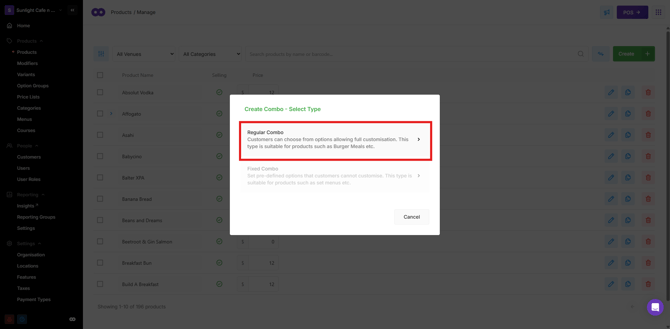
- The ‘Product Settings’ page will open, allowing the ‘Product Option Groups’ created earlier to be added to the combo.
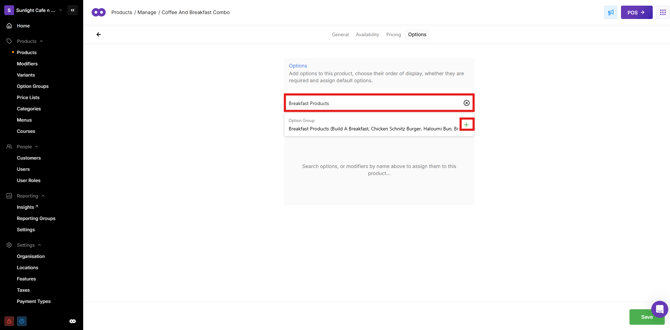
- In the search bar, enter the name of the ‘Product Option Group’ created in Step 1.
- Select the green plus icon next to the group to add it to the combo.
- Once added, a checkbox will appear next to the group to determine whether a selection is required during the ordering process. For POS only, this is what determines if this is a required field.
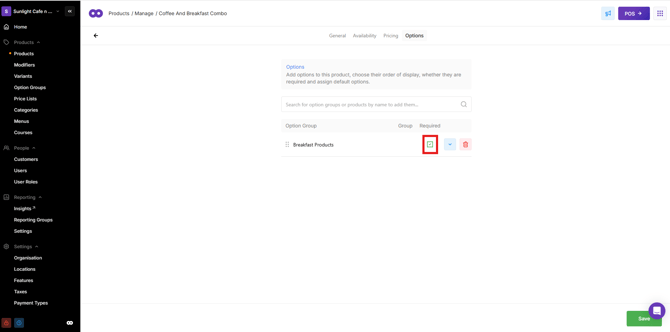
- Repeat this process for all combo components created in Step 1
- Select the Green Save Button to Save changes
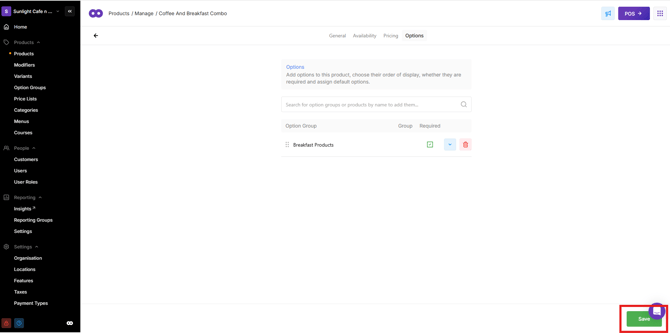
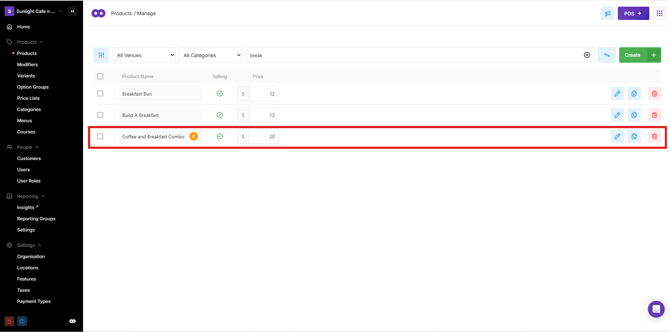
- Select the Back arrow to view the Products page. The newly created combo will appear with an orange 'C' icon, indicating that it is a Combo
- The combo can now be assigned to a page, the same way that a product is required to be assigned, so that it will be visible in the POS.