Variant Groups allow the same product to be sold in different sizes or styles, such as a coffee available in Small, Medium and Large, or a beer available as a Pot, Schooner or Jug. In Oolio One, Variant Groups are created in Back Office and then attached to products so each variation can have its own price and settings.
Setting up Variant Groups before creating products makes it easier to apply the required variations during product setup.
Important: Variant Groups cannot be deleted after they are created. Confirm the required variations before creating the Variant Group.
Step 1: Create a Variant Group
A Variant Group contains the variations that can be applied to a product. For example, a Coffee Sizes Variant Group could contain Small, Medium and Large.
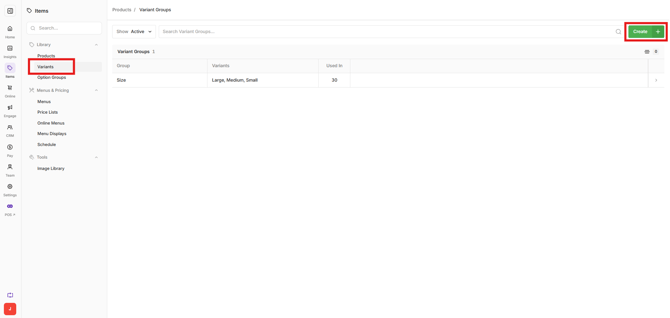
- Open Back Office > Items > Variants.
- Select Create.
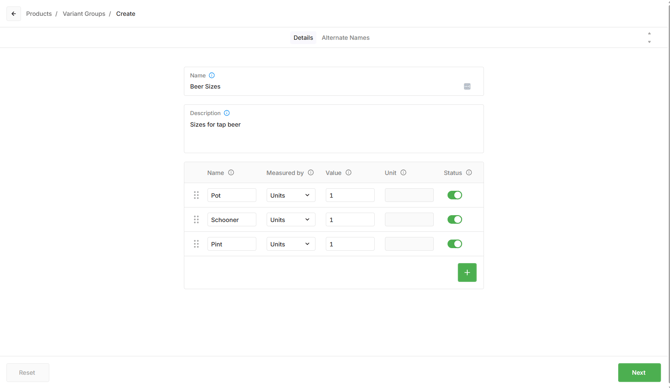
- Enter a name and description for the new Variant Group.
- Select the + button to add each variant required for the group and fill in the fields:
- Name: the label for the variant, this will appear in the POS, kiosk and online and on receipt and prep dockets
- Measured by: specify how the variant is sold, such as by quantity, weight or volume
- Value: the default value for the variant
- Unit: the unit of measurement if 'measured by' is set to volume or weight
- Status: make this variant active or inactive and all products using this variant will follow the setting
- Add additional variants as required.
- Click and hold on the 6 dot icon to drag and reorder the variants
- Select Next and Save
For example:
- A Coffee Sizes Variant Group could contain Small, Medium and Large.
- A Beer Sizes Variant Group could contain Pot, Schooner and Jug.