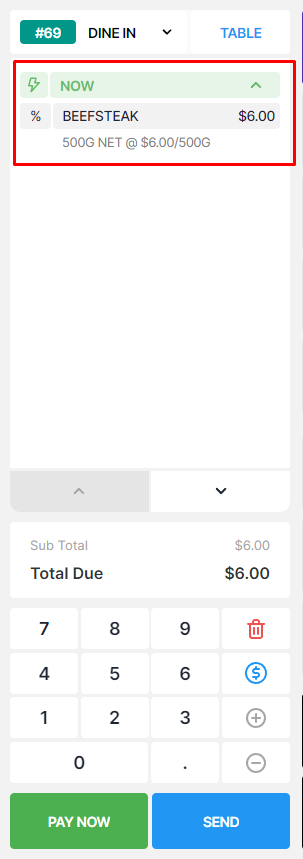
Learn how to set up products that are sold in varying quantities, such as items measured by weight or volume. This setup allows the quantity to be adjusted during a sale, making it suitable for products like meat, produce, liquids, and other items where the amount sold can vary.
PRODUCT BY: WEIGHT / VOLUME
For some products, e.g. beefsteak, we cannot simply count them as 1, 2, or 3 units.
Therefore, in Oolio POS, we make life easier for our users by implementing a method that they can use to measure such products in volume or weight.
To do so, firstly, on the side menu, click on “Products”. Next, select a page and click on the “Edit” button of your desired product.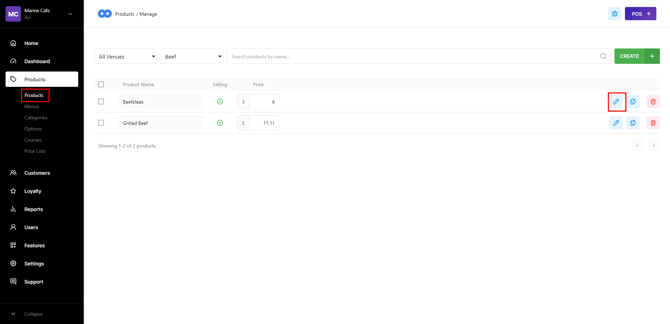
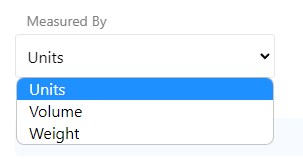
To continue, under the “General” tab, scroll down and click on the “Measured By” dropdown

Then, select Volume or Weight.
Next, enter the new default size and unit (which will be mL or L for Volume, and Kg or g for Weight).
After that, scroll down a bit more and enable the attribute called “Variable Quantity”.
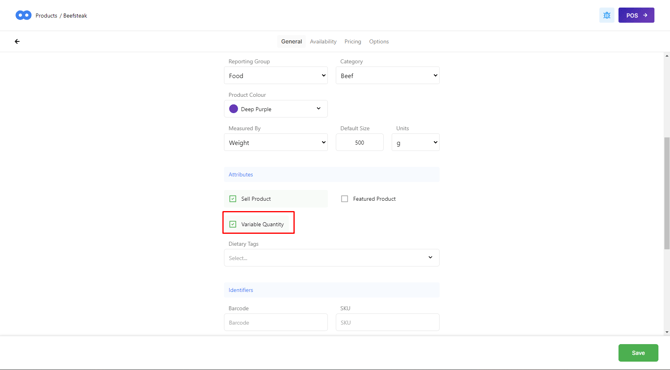
Finally, click on “Save” to confirm all changes after you are satisfied.
After you have set up the weighted product(s), in the POS App, click on it.
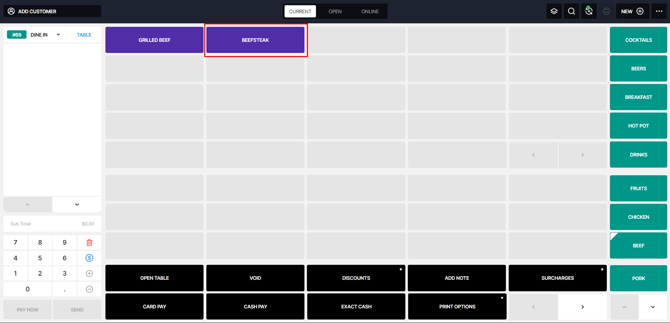
Next, on the “Change Quantity” modal, you can keep or edit the quantity, then click on “Apply Change” to add the product to the cart. Otherwise, click on the “X” button on the left corner to close the modal.
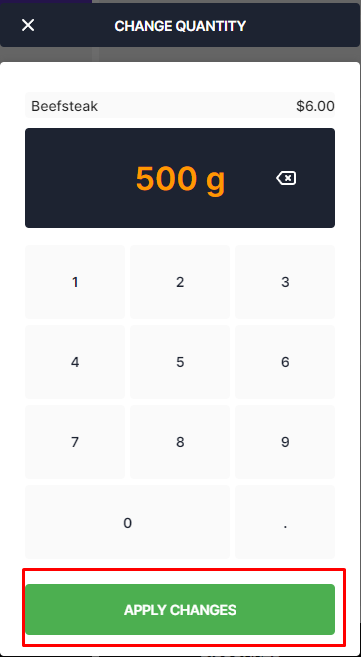
Then, the product will appear in the cart.